Customer Portal Overview
Diggecard’s Customer Portal gives you full control over purchasing from our wide product portfolio.
Below is a simple walkthrough of the portal’s features and how to use them
Please note: Not all functionality is initially enabled for all customers.
If there are sections you would like us to enable, please use the contact us form, and we would be happy to discuss.
Bulk Orders Page
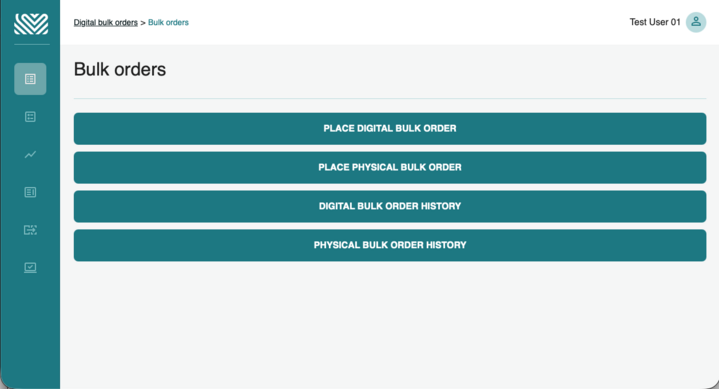
The bulk orders page is where you can place and manage your digital and physical bulk orders.
Digital bulk orders are placed using the interface or by uploading a file. Once processed, the files can then be downloaded from your digital bulk order history page.
Physical bulk orders can also be placed via the interface or by uploading a file. Once processed, the orders are dispatched from our fulfilment centre, and we notify you once they have been dispatched. You can find the tracking number and dispatch information in the physical bulk history page.
Email alerts are available, so we can notify you as soon as the digital order is ready. Please see the reporting and notifications section for how to set this up.
IF Orders Page
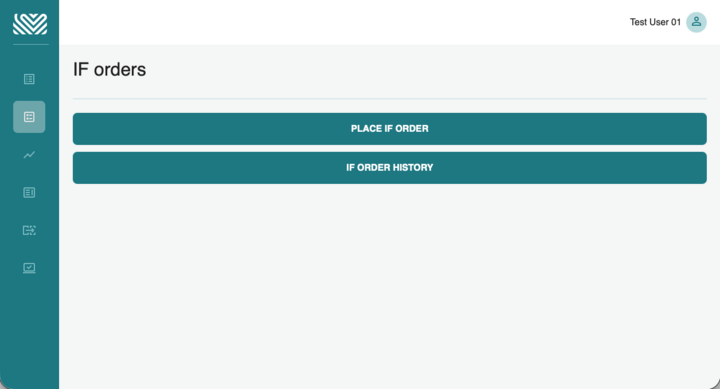
The IF orders page is where you can place and manage your digital IF (Individual Fulfilment) orders.
Digital IF orders are placed using the interface or by uploading a file. Once processed, the requests can be seen in the IF Order History page. This page also lets you manage delivery issues by resending the gift card to the original email address or changing the email address and sending it to a new address.
Reports Page
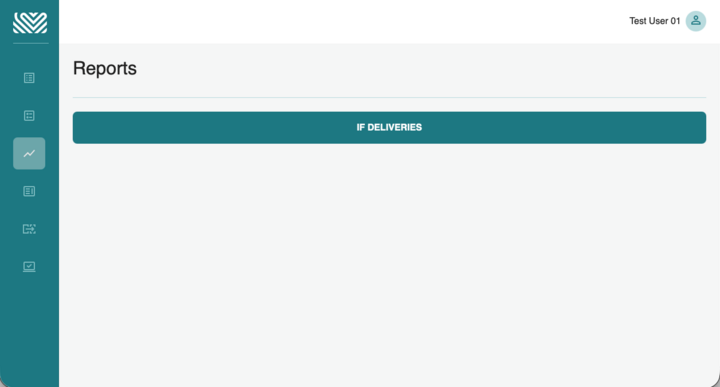
The Reports page is where you can manage your digital IF (Individual Fulfilment) orders that were placed via our Corporate API.
Once processed, the requests can be seen in the IF Deliveries page. This page also lets you manage delivery issues by resending the gift card to the original email address or changing the email address and sending it to a new address.
Card Load Orders Page
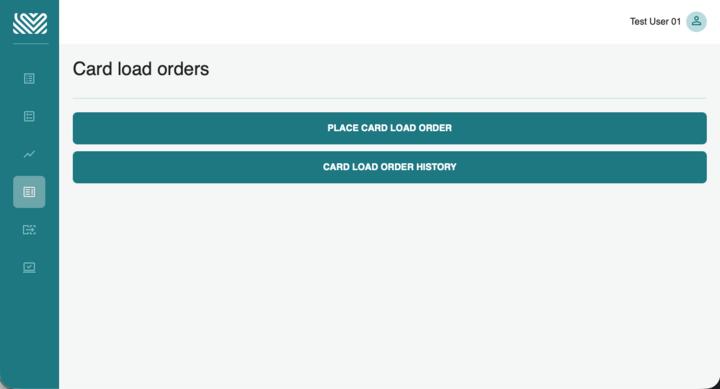
The Card Load Orders page is where you can place and manage the loading of your physical cards and top-ups for physical and digital cards. (If the Merchant allows the functionality).
Card Load orders are placed using the interface, either as single cards or a range of cards. You can also place an order by uploading a file. Once processed, the requests appear on the Card Load Order History page.
API Transactions Page
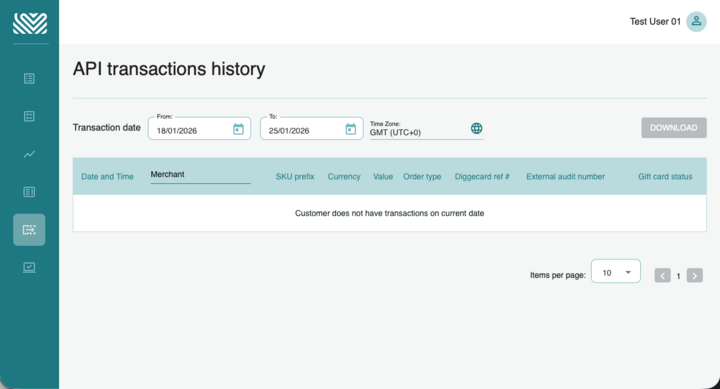
The API Transaction page lets you view orders placed via our Corporate API. You can also filter the data by date range and Merchant and download reports.
Virtual Accounts Page
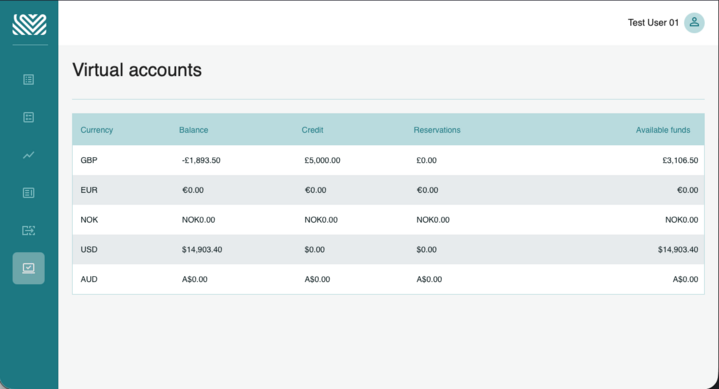
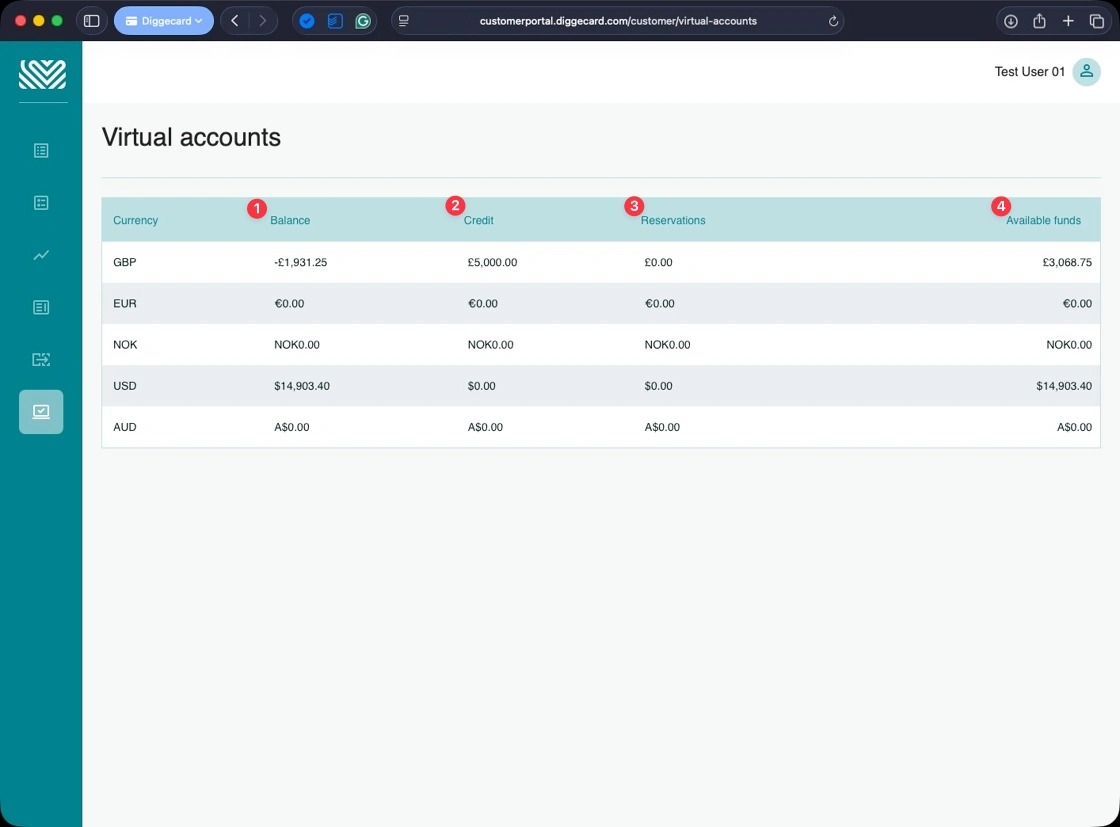
The Virtual Accounts page lets you view the current status of the funds you have available. It shows your available funds (the amount you have left to spend), your credit limit, your overall balance, and any reservations on your account (for pending orders).
Product Portfolio Page
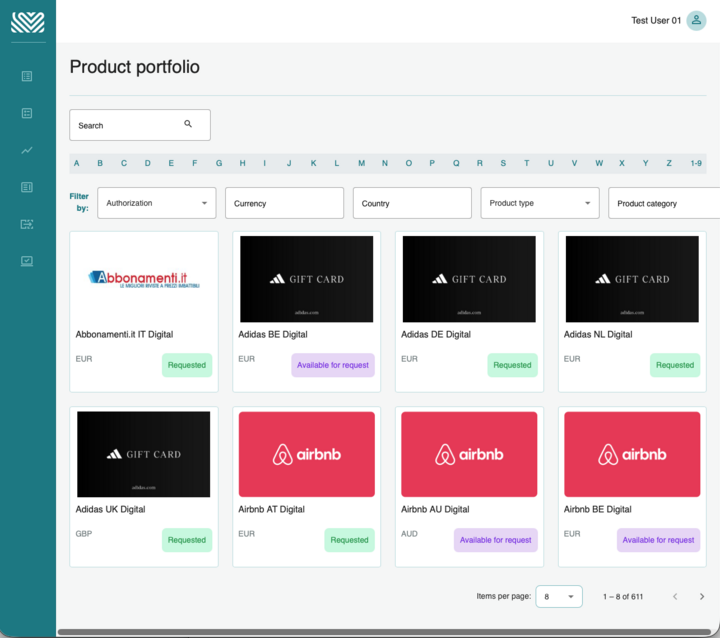
The Product Portfolio allows you to view Diggecards full range of gift cards. It provides access to the information you will need to use the product. You can sort by the products you can currently purchase and view products you can request access to.
Contact Form Page
Here you can contact our Customer Support team, which can help with any questions, investigate any problems, and manage notification emails and portal access.
Place a digital bulk order
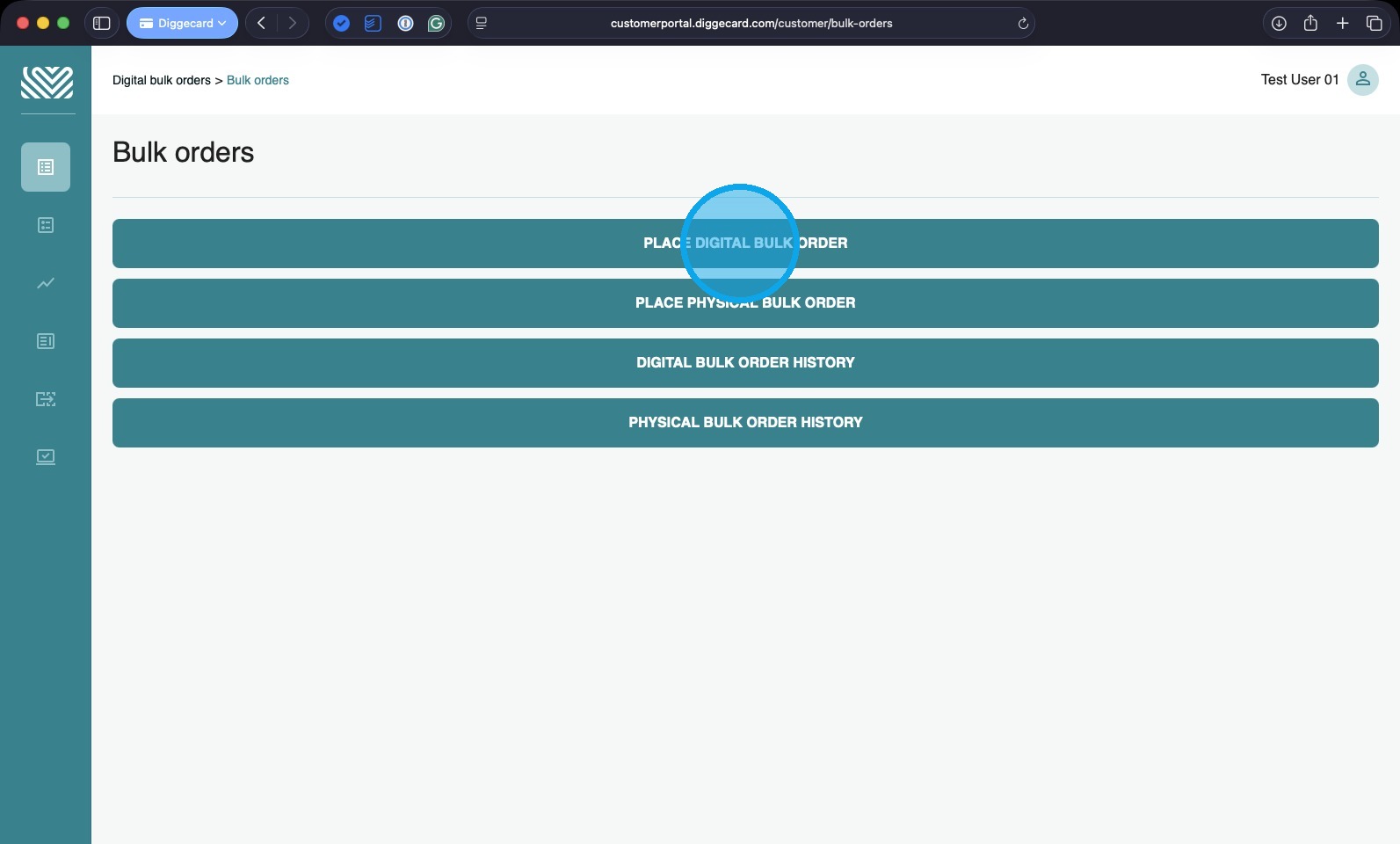
1. To start, click “PLACE DIGITAL BULK ORDER”
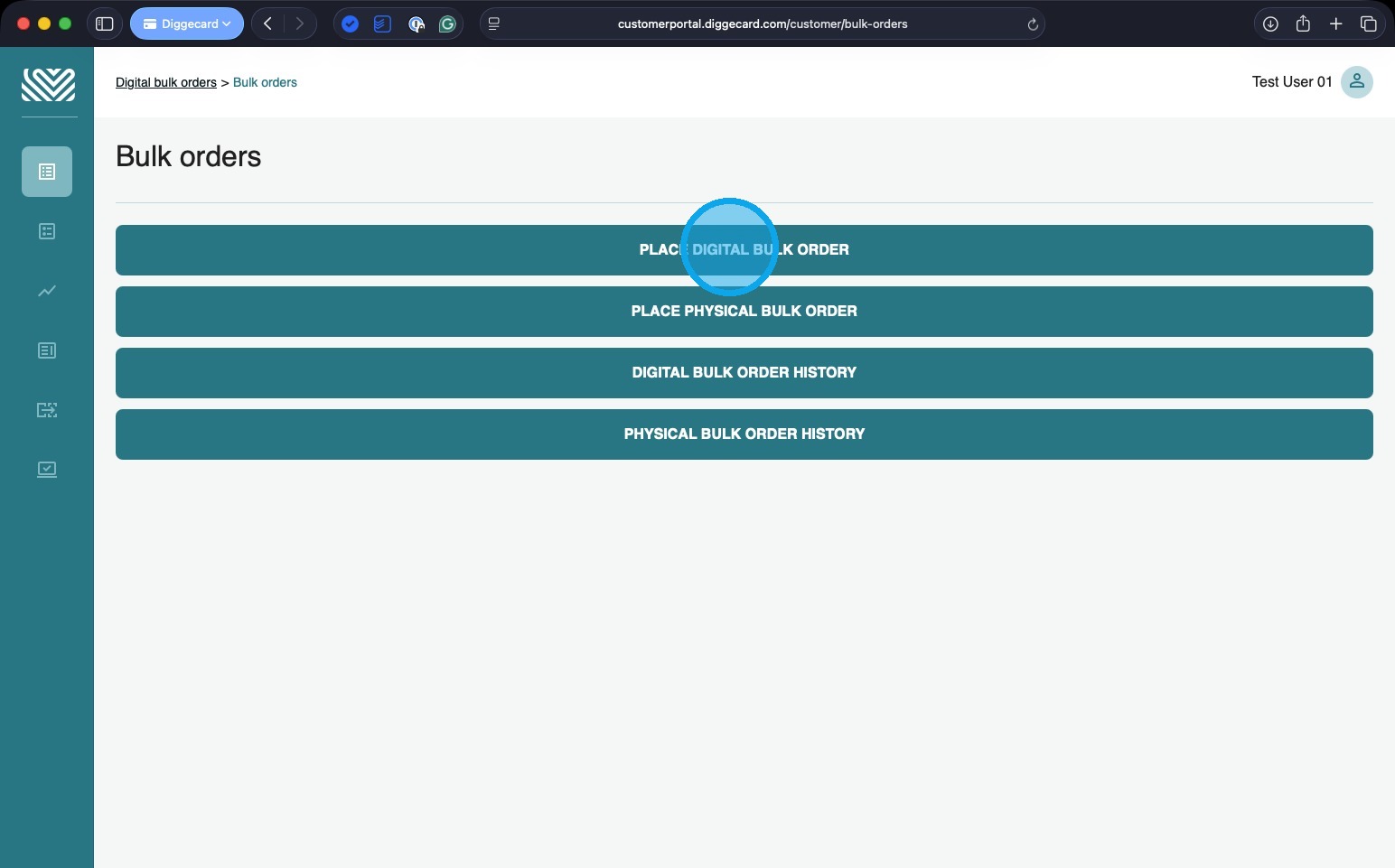
2. Select the currency of the products you wish to purchase.
(You can only have one currency per order, so if you wish to order products of different currencies, you will need to place multiple orders).
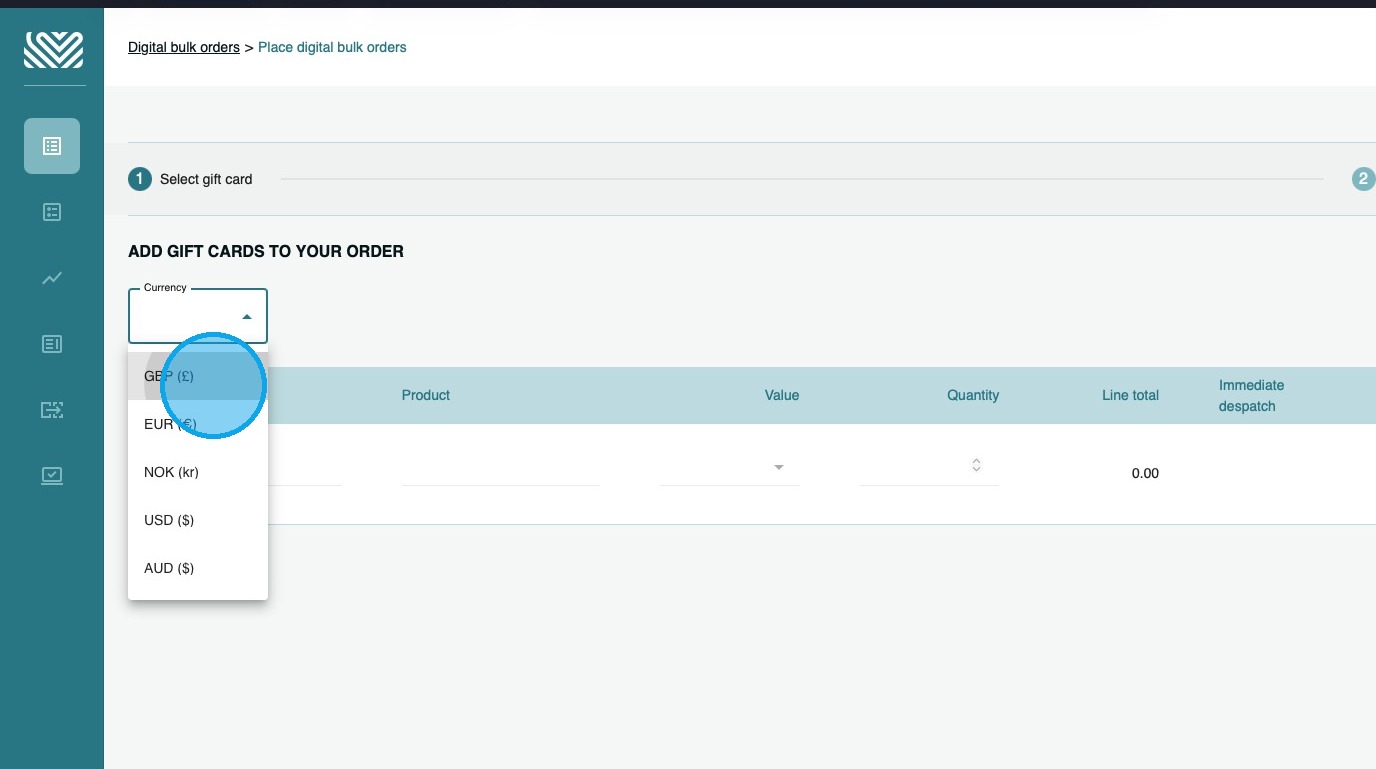
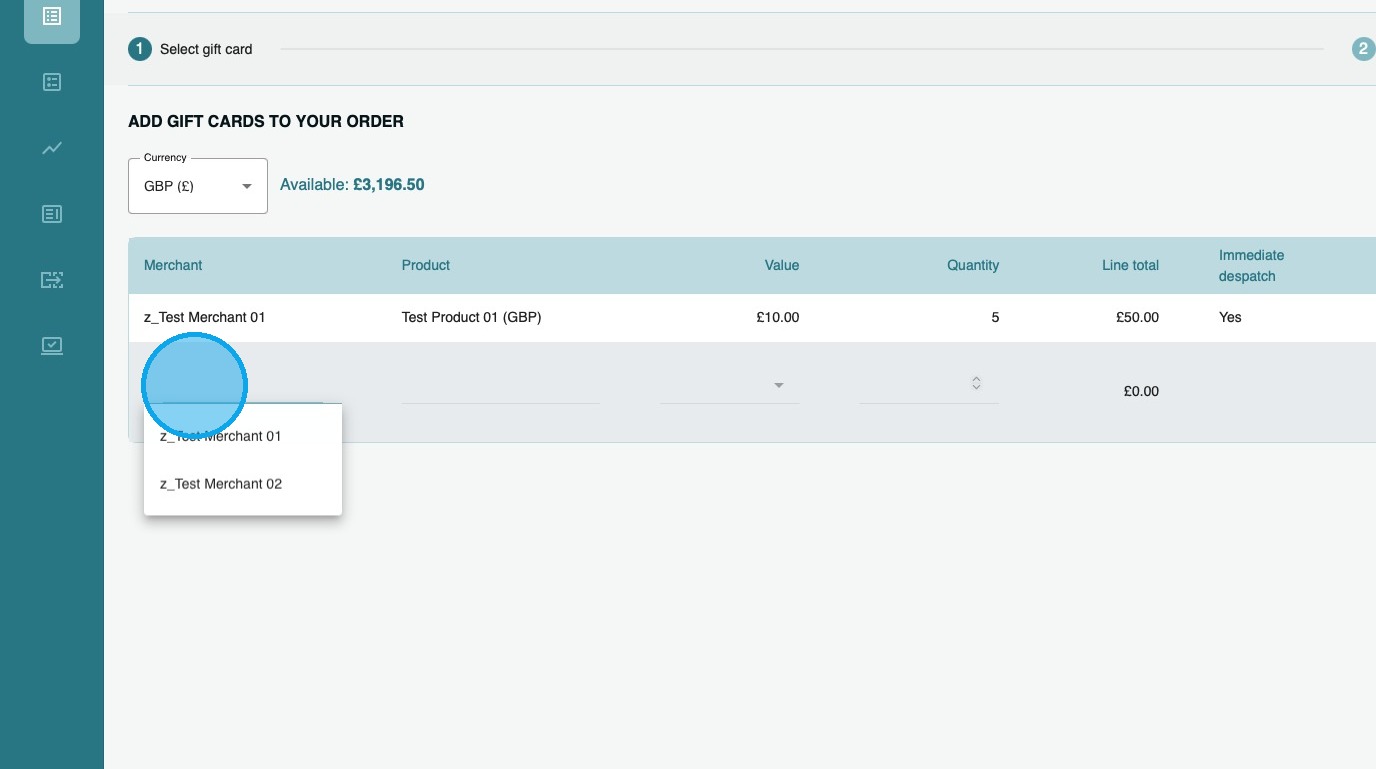
3. Select the Merchant you require
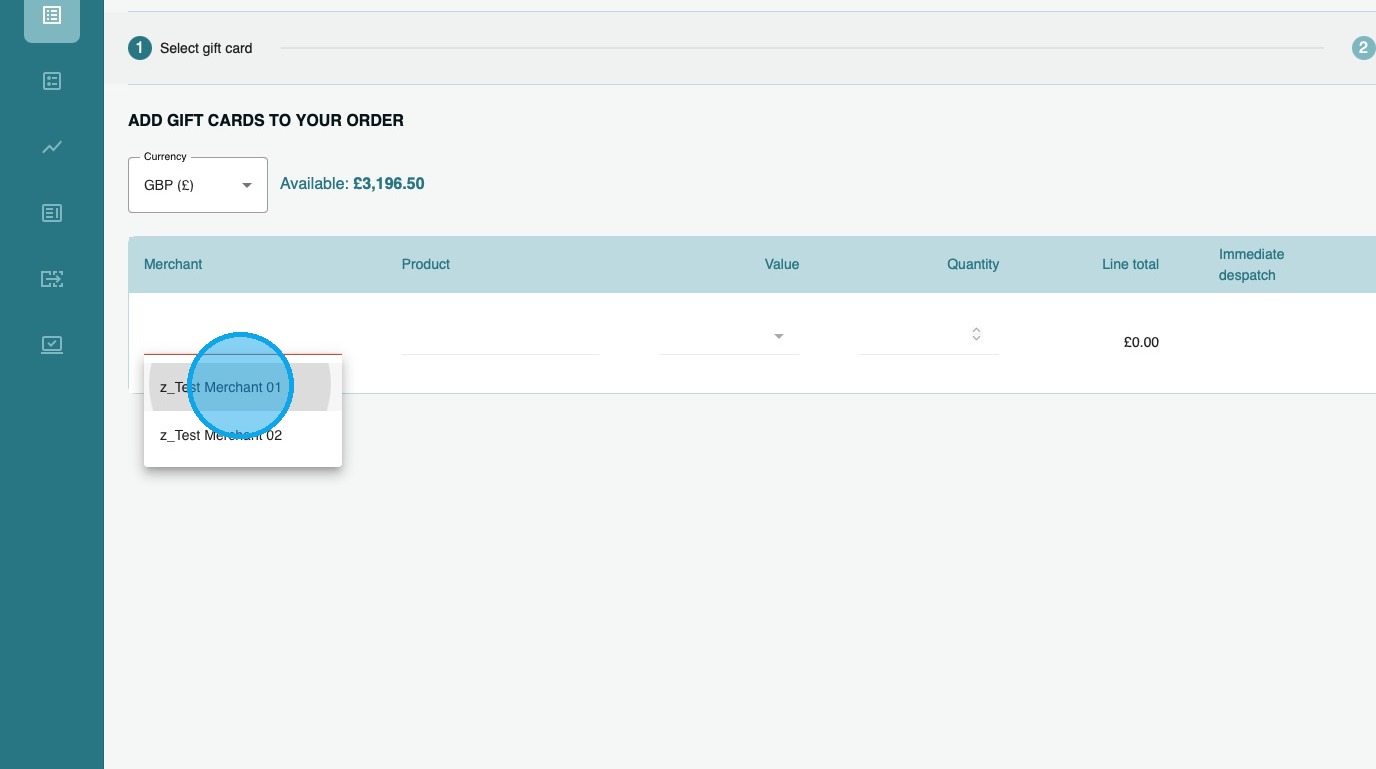
4. Select the product you wish to purchase
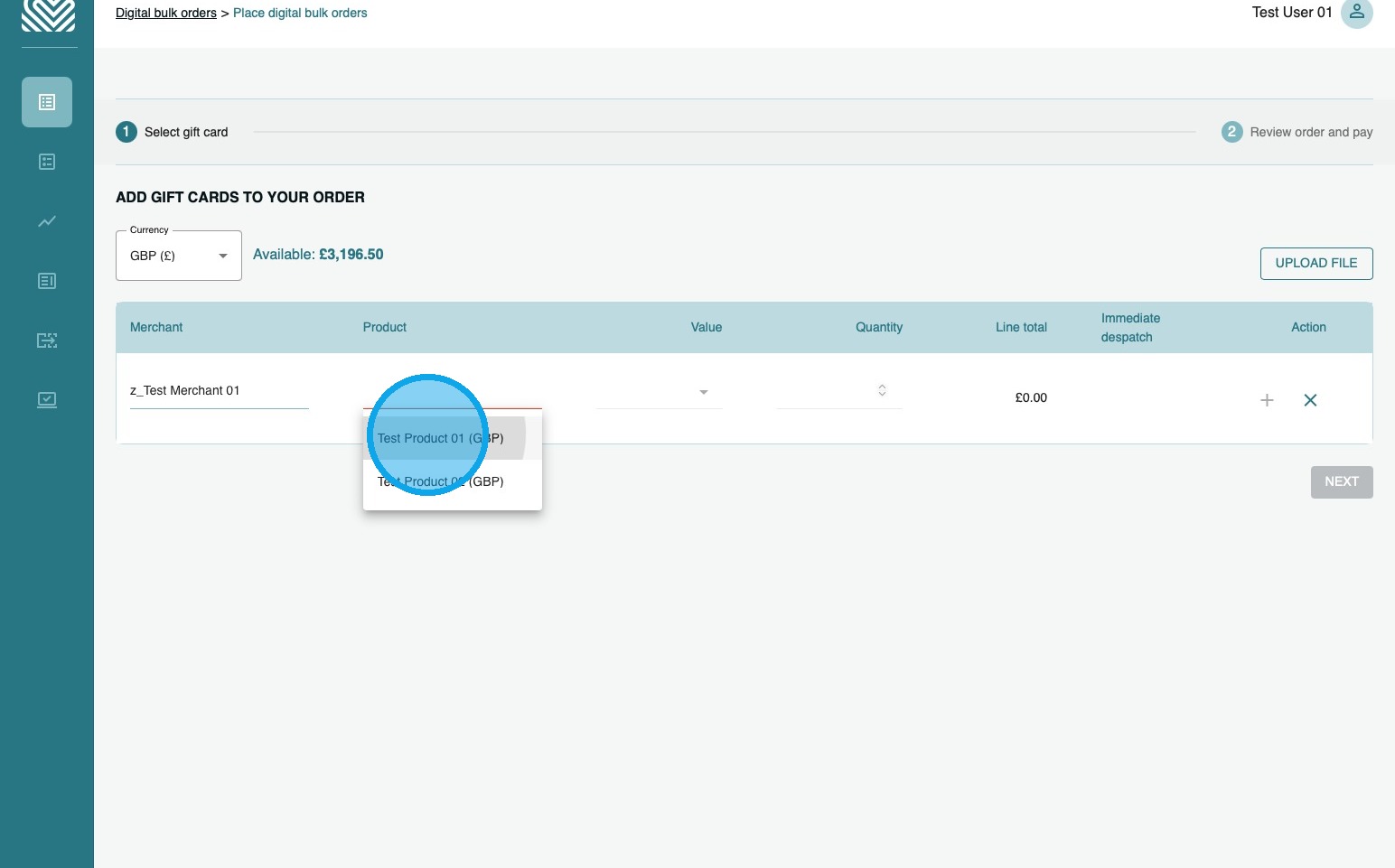
5. Enter the denomination of the card(s).
If you wish to have multiple denominations, you can add these as a separate line.
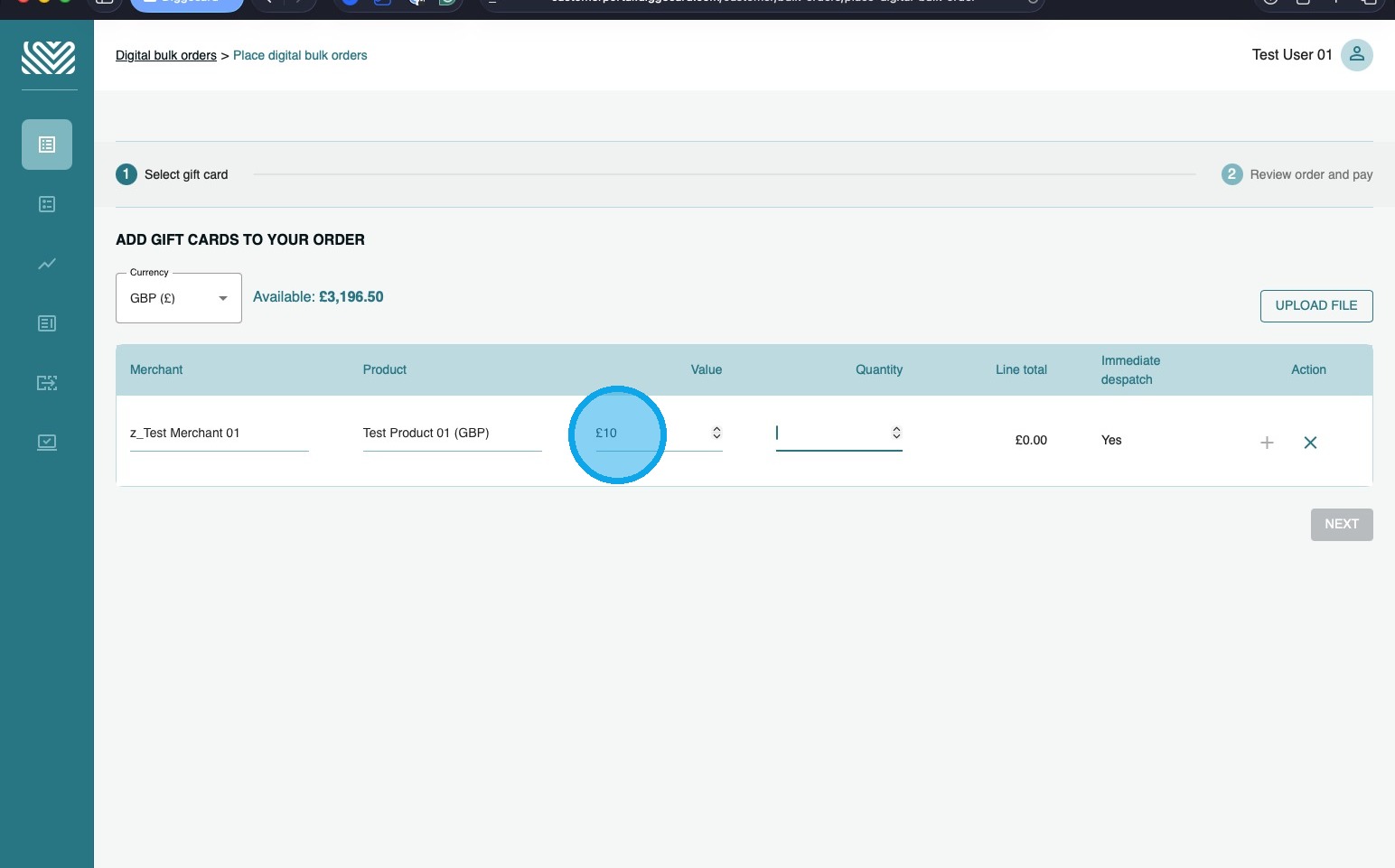
6. Enter the number of cards you would like of that product type/denomination.
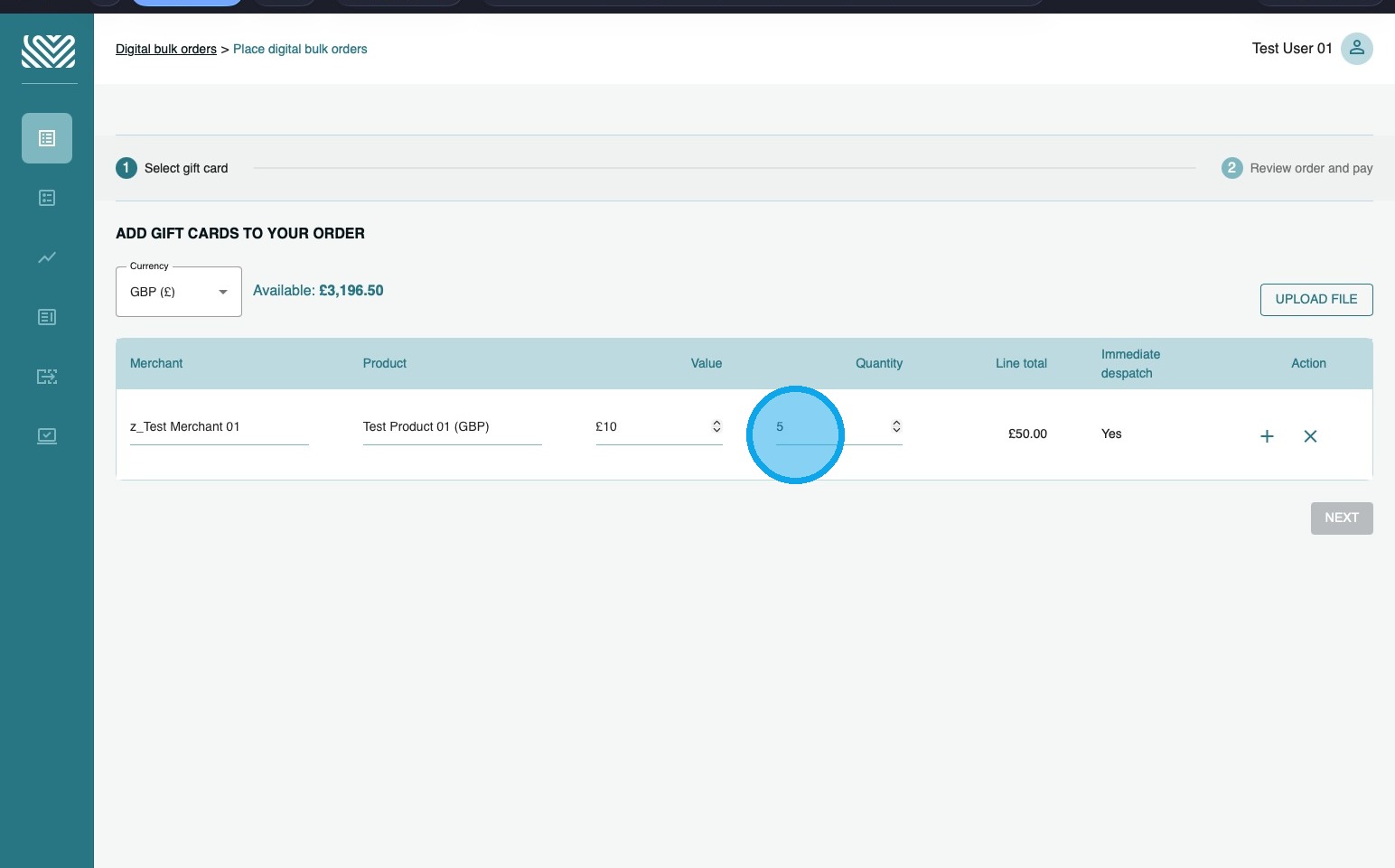
7. Click the “+” to confirm to add the line to your basket
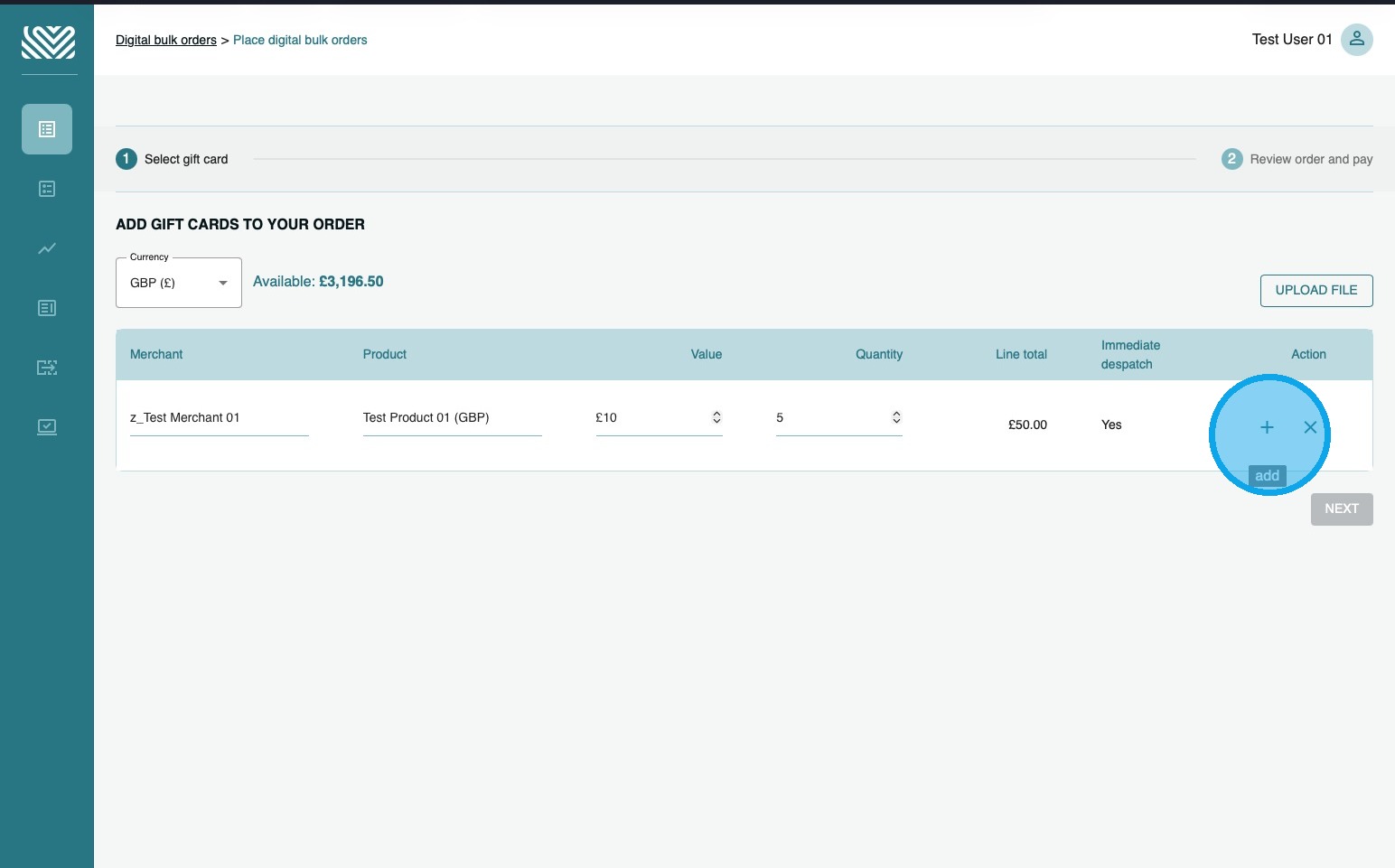
8. If you wish to add more products and/or additional denominations, please repeat the process.
9. If you have a large order, you may want to upload a file to place the order…
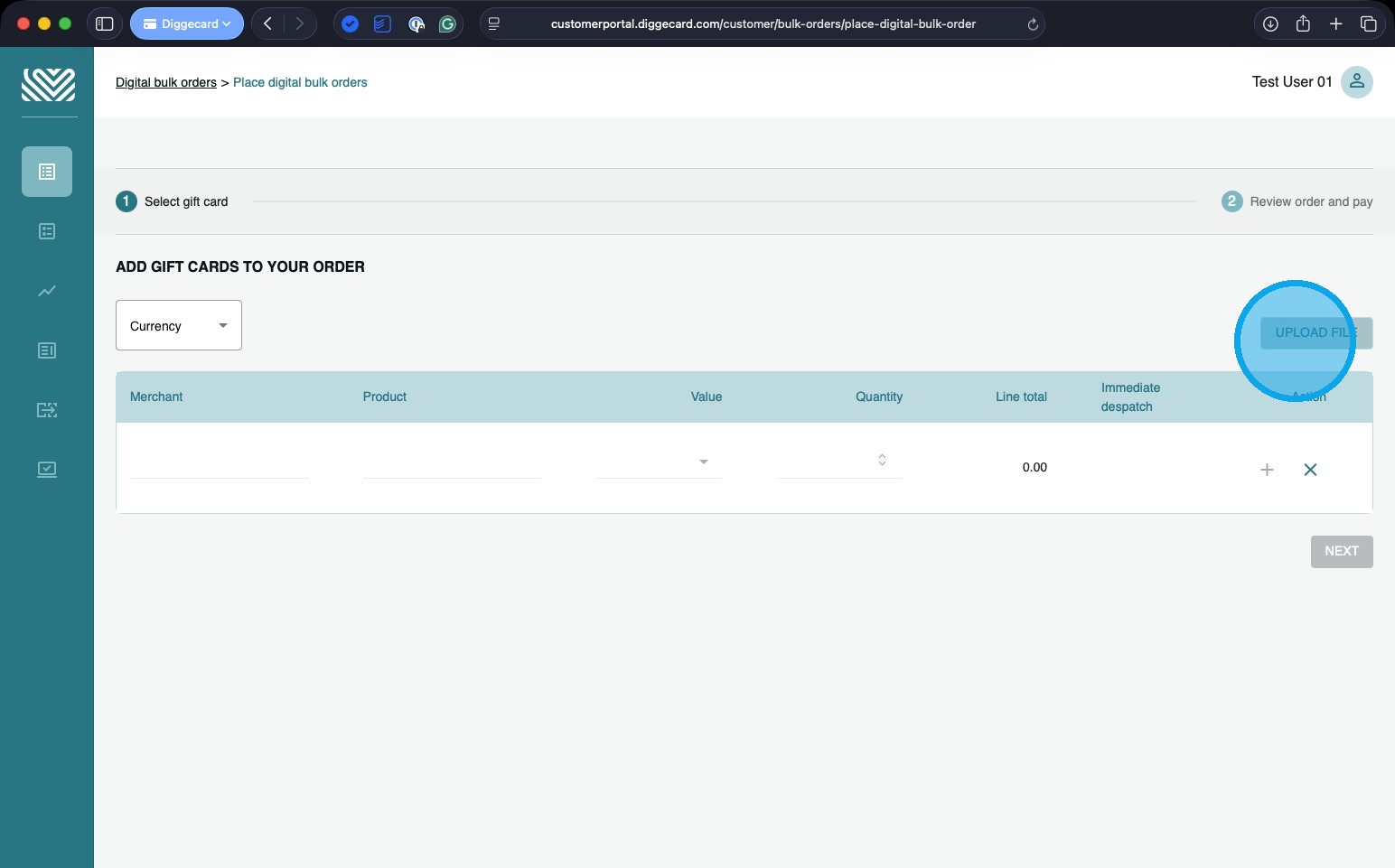
10. Click here to download a template that you can complete and then upload.
Once the file has uploaded, click “continue shopping” to confirm the order.
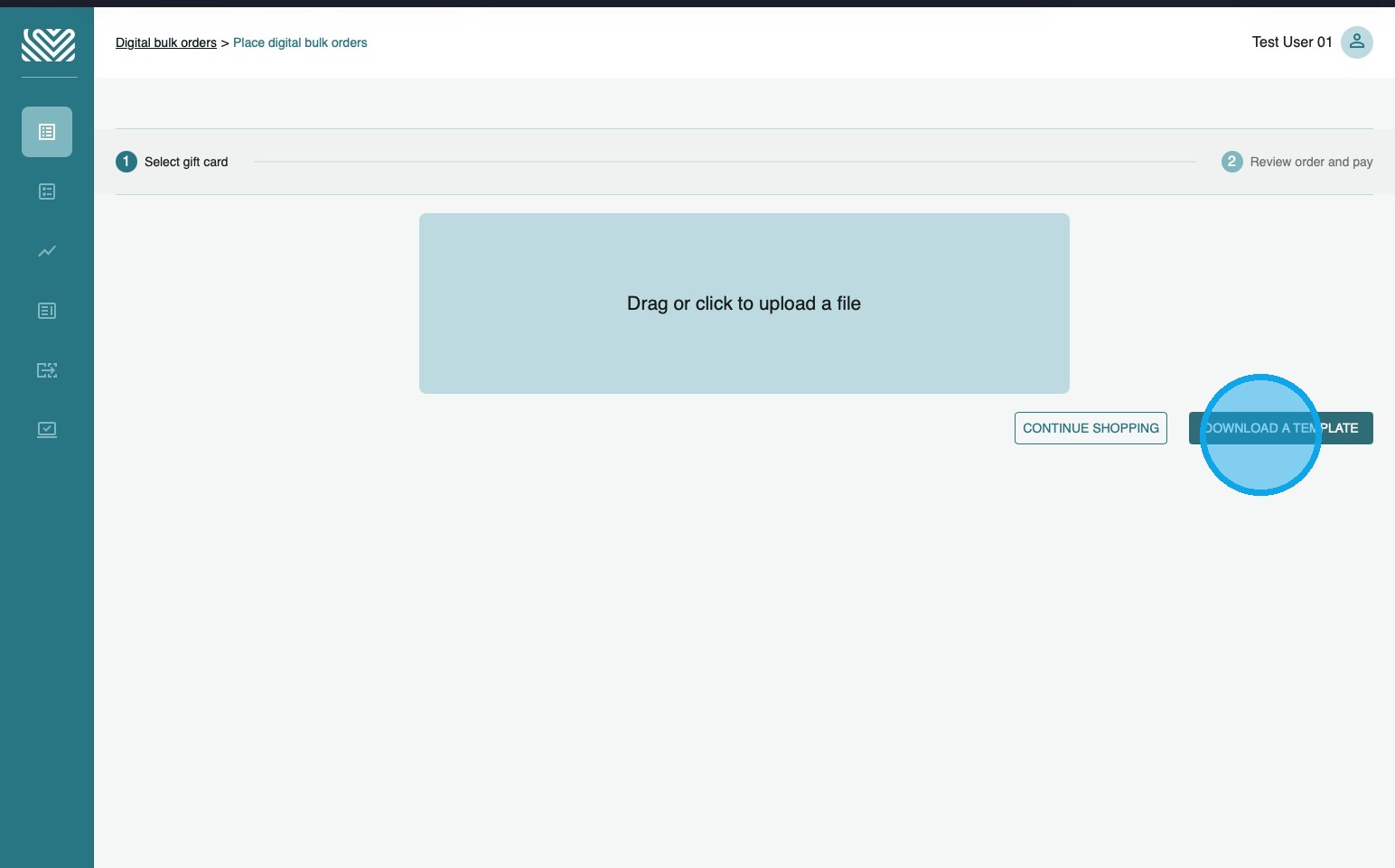
Tip: Tip! To complete the order file, you will need the SKU Prefix of the product(s) you want to purchase – you can find these in the Product Portfolio
11. Once you are happy with your selection, click “NEXT”
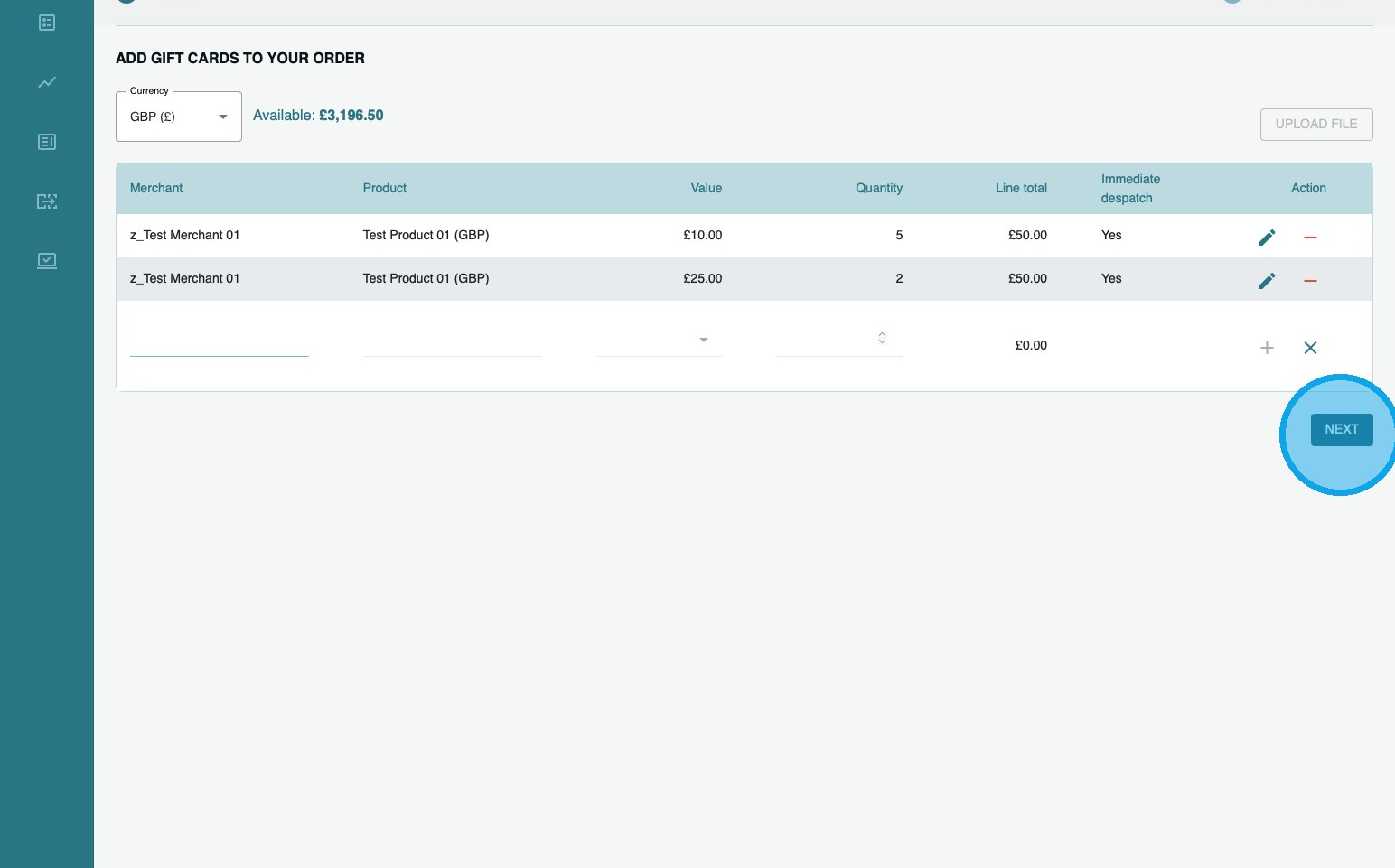
12. You will now be able to review your order, and add Purchase Order Number or reference to the order if you wish.
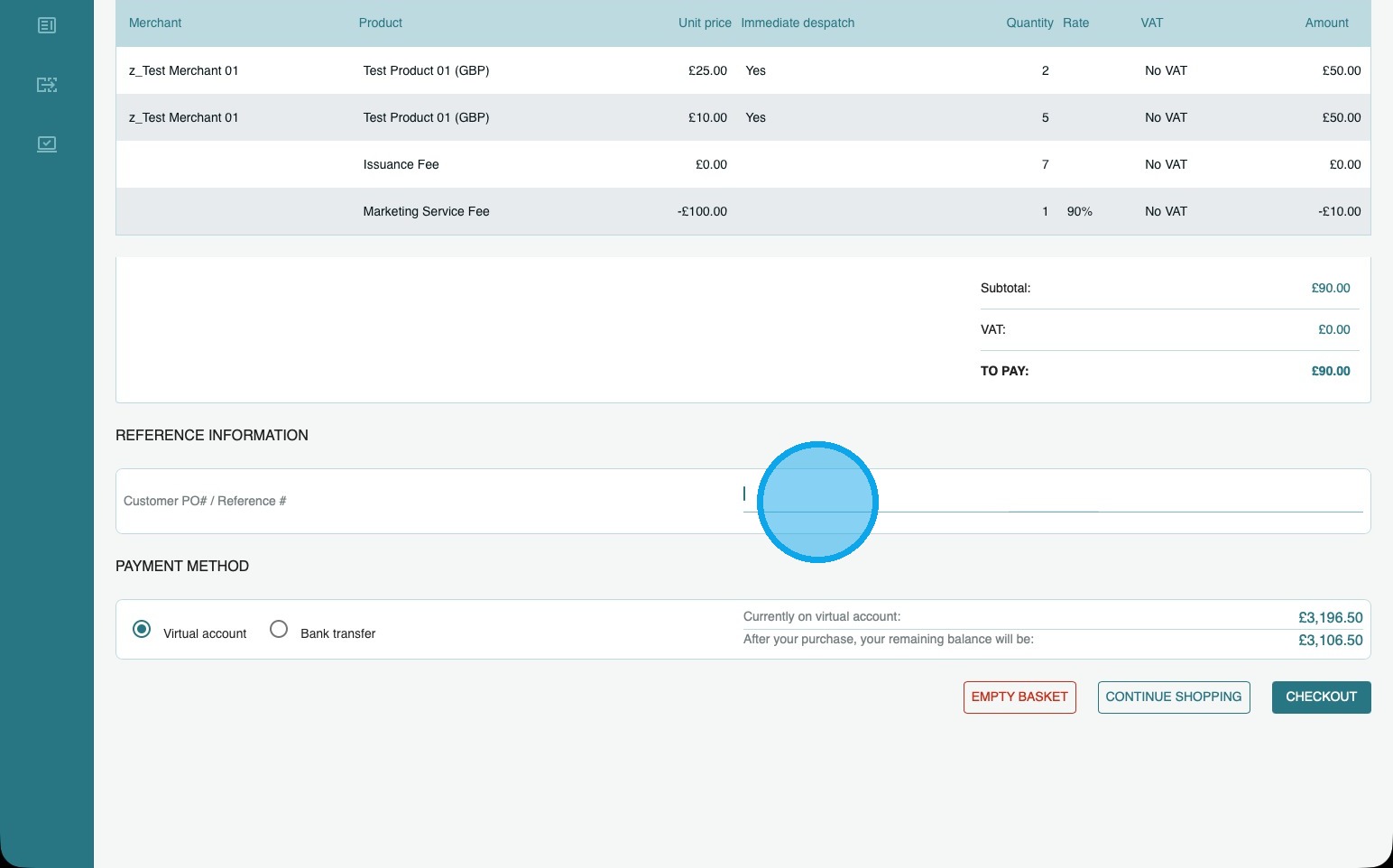
13. You can now choose how to pay.
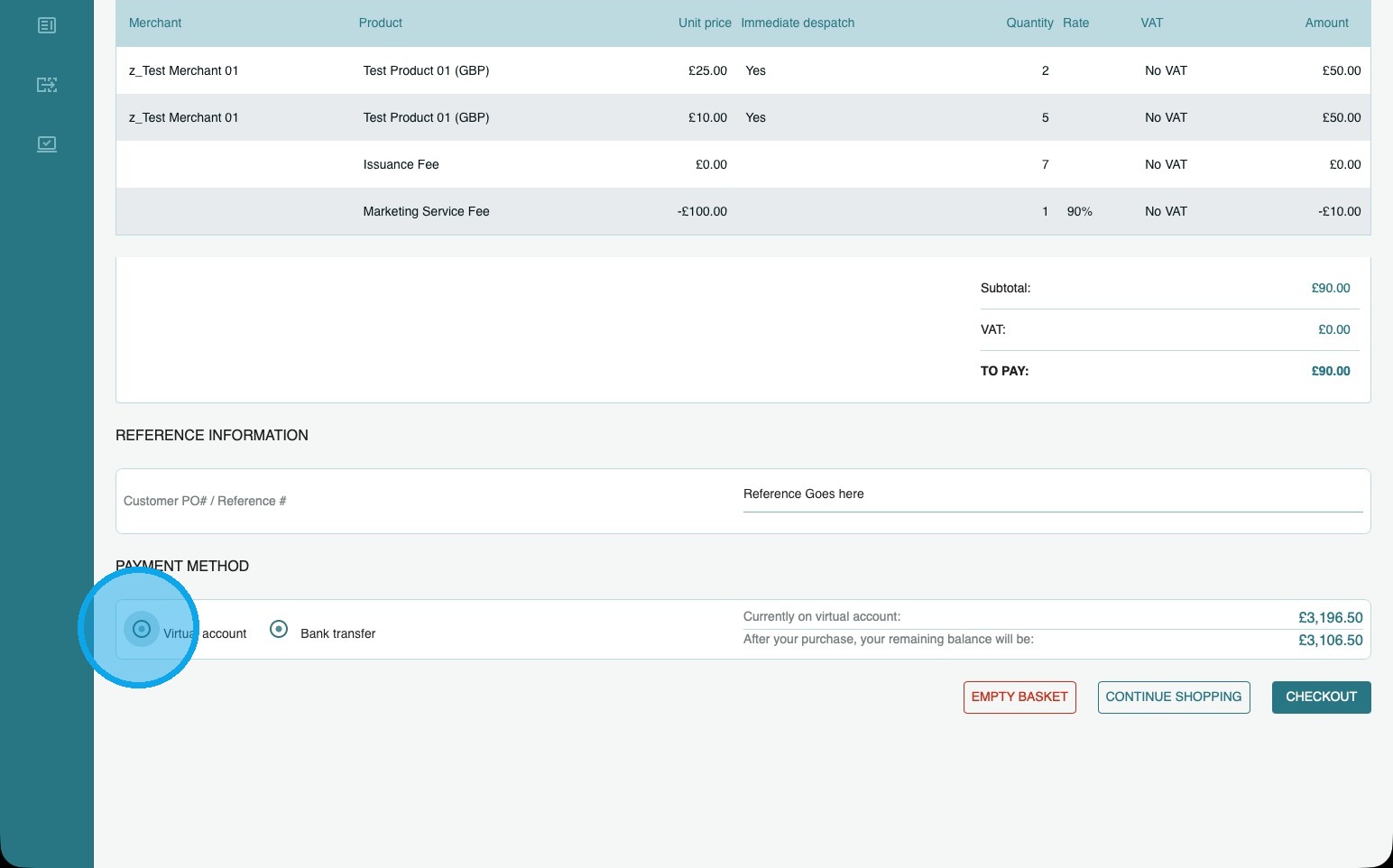
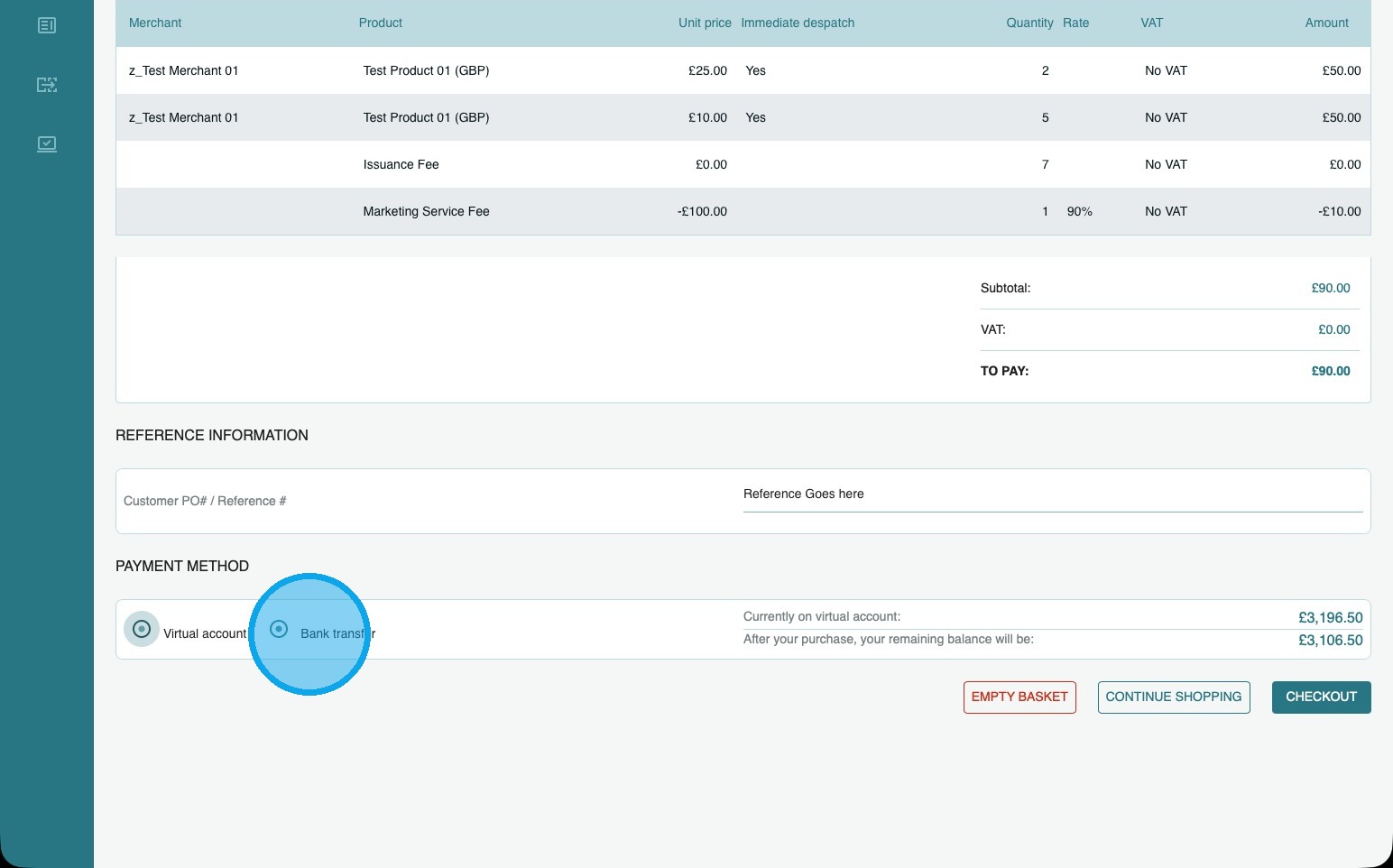
You can pay either by Virtual account (go to step 14) or Bank Transfer (go to step 17).
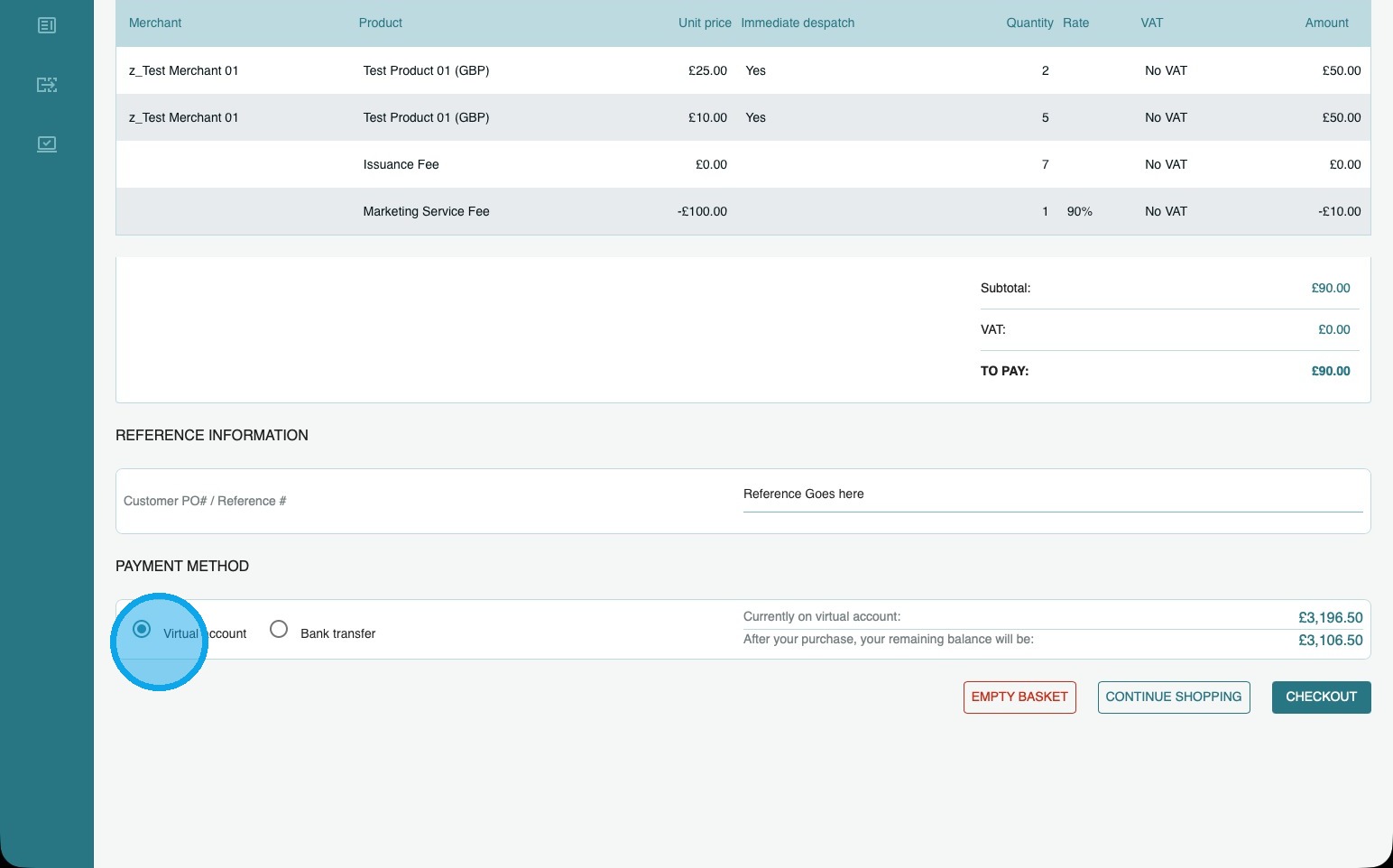
14. To pay using funds on your account, click “Virtual account”
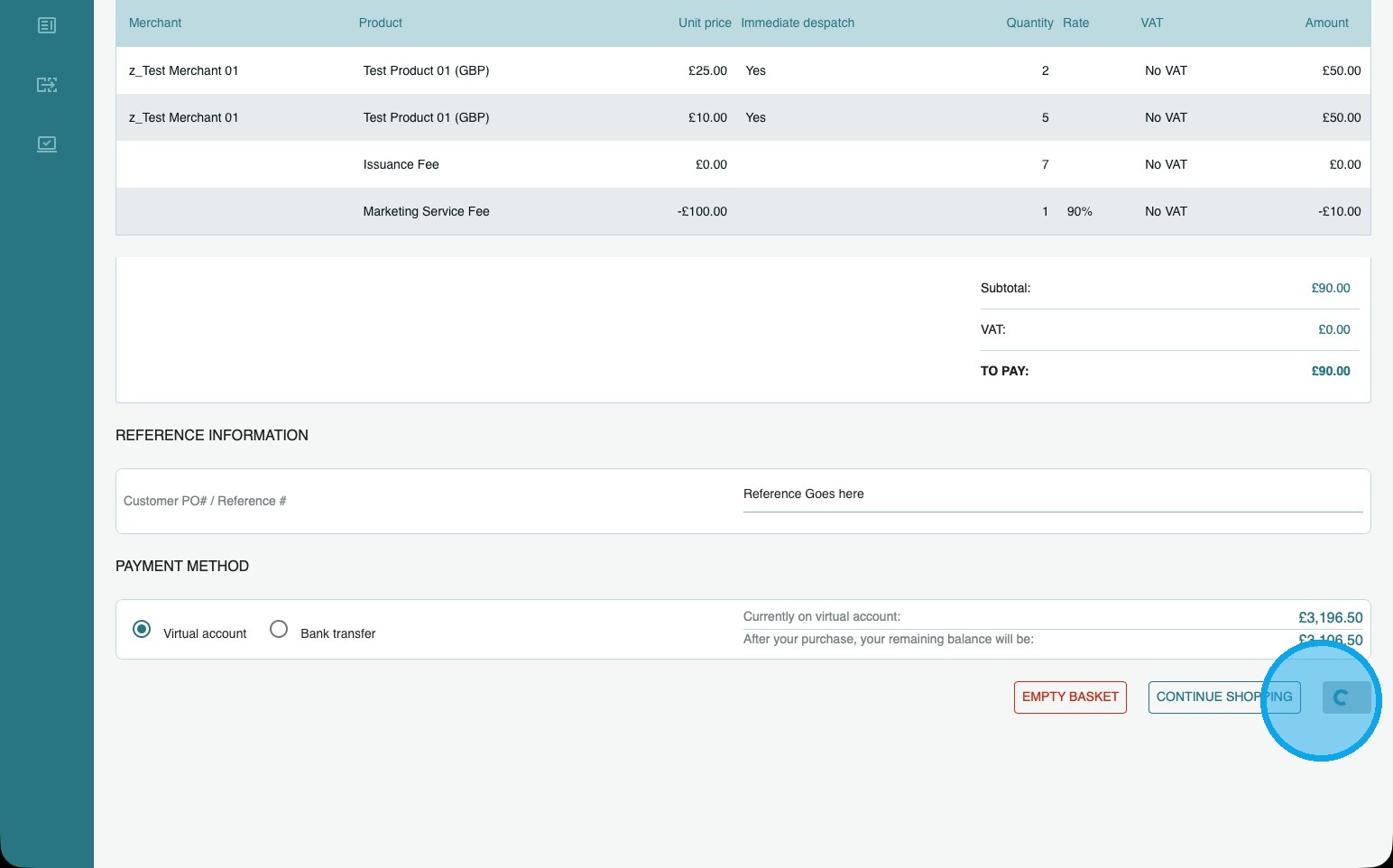
15. Then click “Checkout”
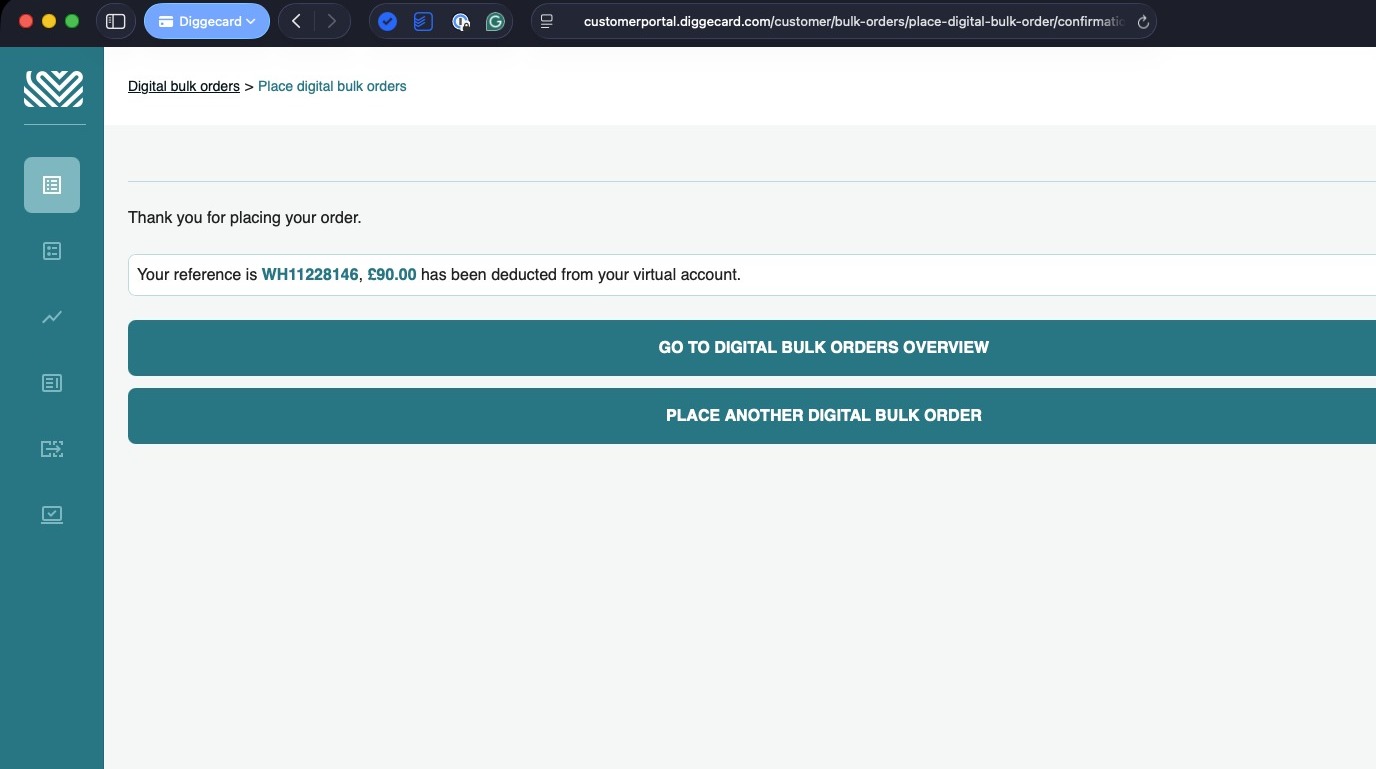
16. Your digital order has been placed
You will be notified when the order is ready to download.
17. If you don’t have a virtual account, click “Bank Transfer”
18. Then click “Checkout”
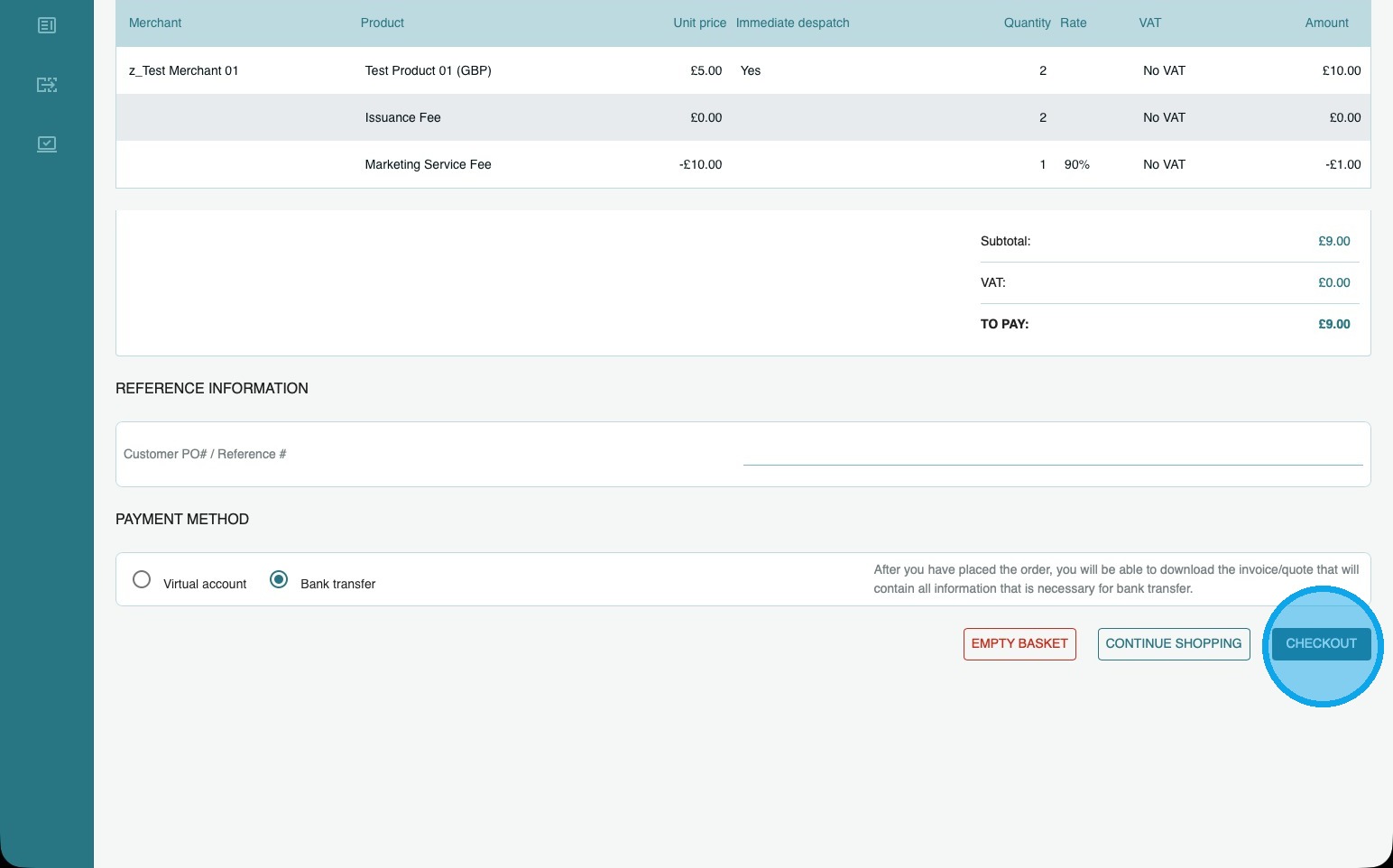
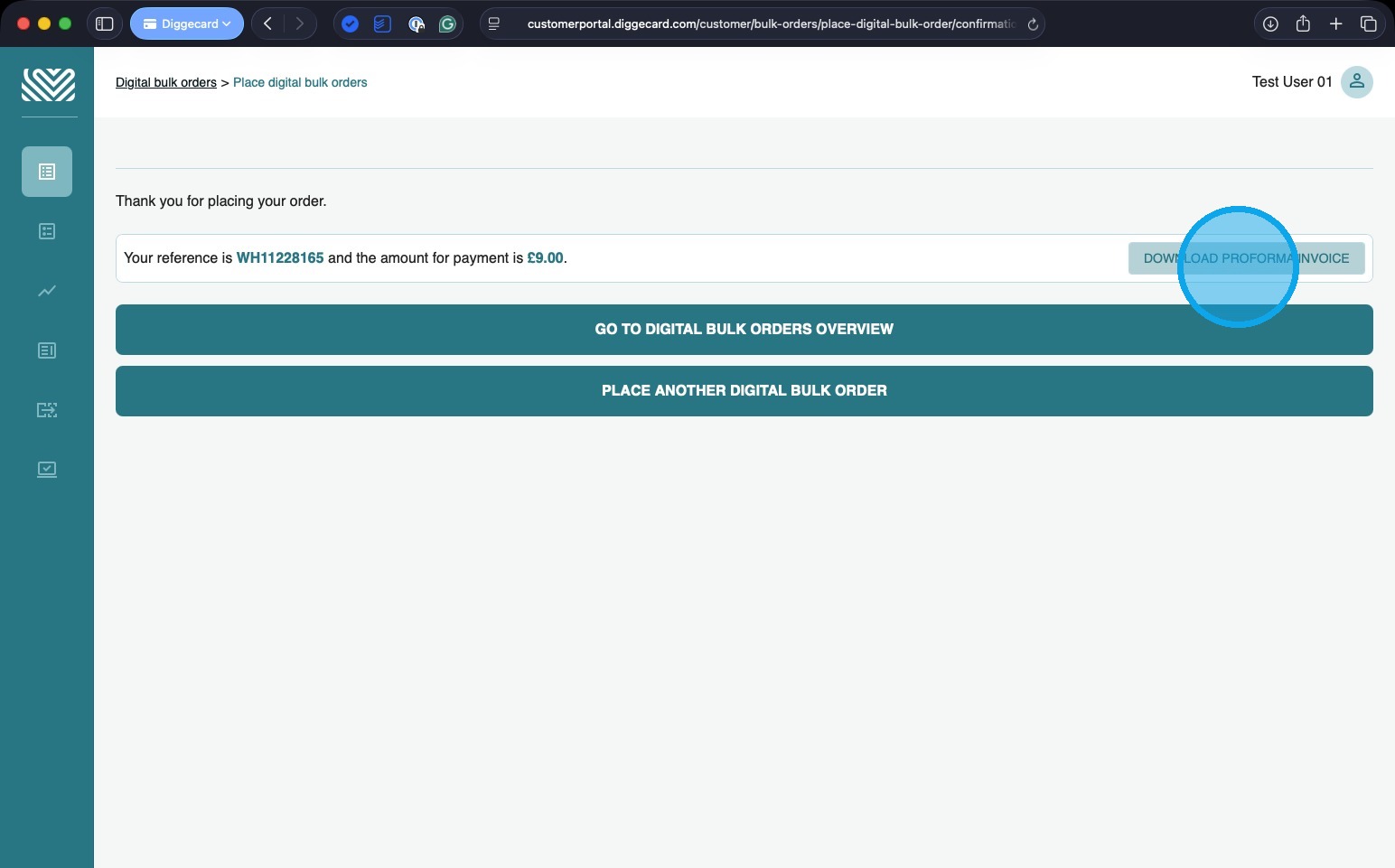
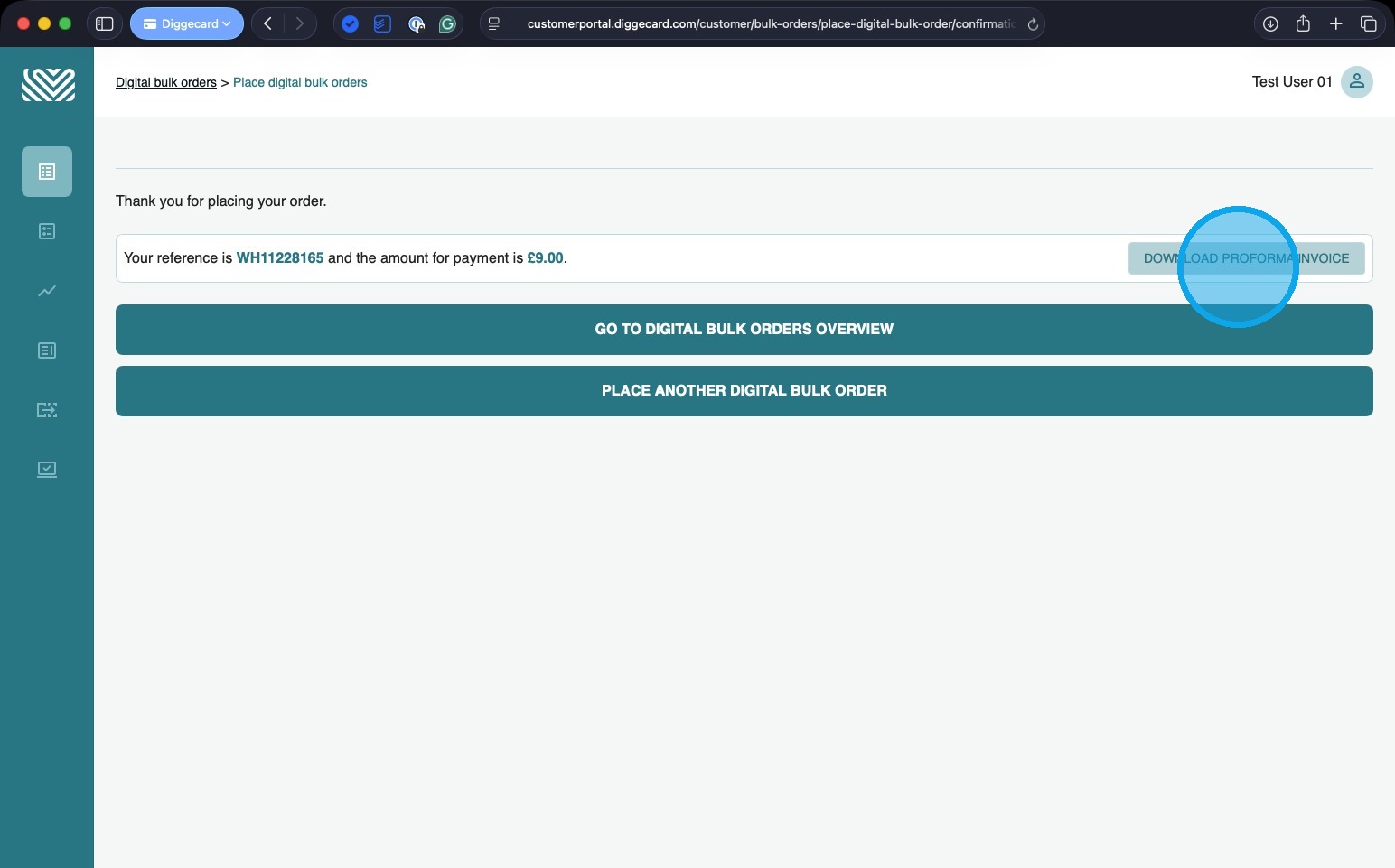
19. Your digital order has been placed, and you can now download a copy of the Pro-forma Invoice and make the payment. Please make a note of the reference number, as this should be quoted when sending your payment.
You will be notified when the order is ready to download.
Place a physical bulk order
1. Click “PLACE PHYSICAL BULK ORDER”
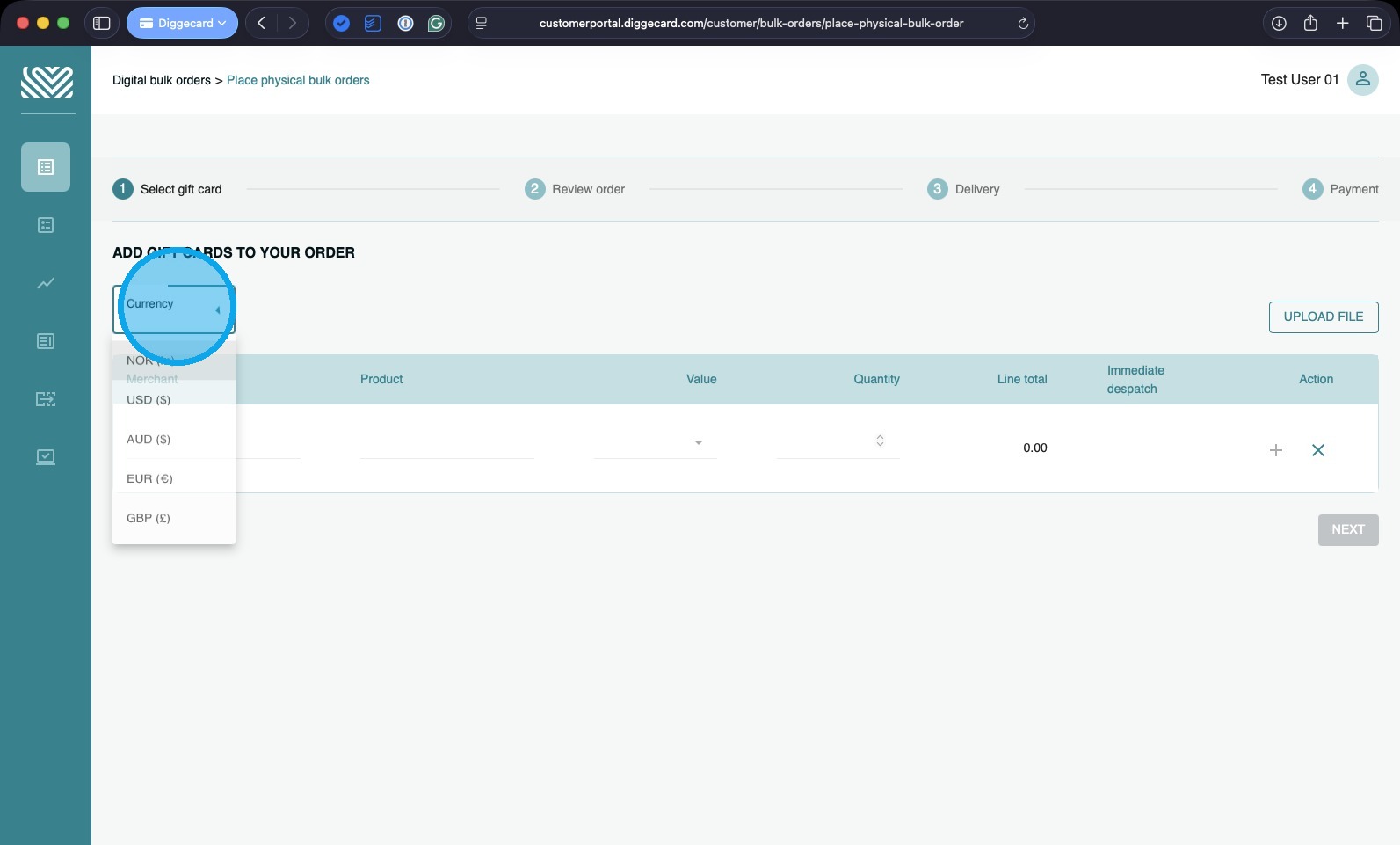
2. Select the currency of the products you wish to purchase.
(You can only have one currency per order, so if you wish to order products of different currencies, you will need to place multiple orders.)
3. Select the Merchant you require
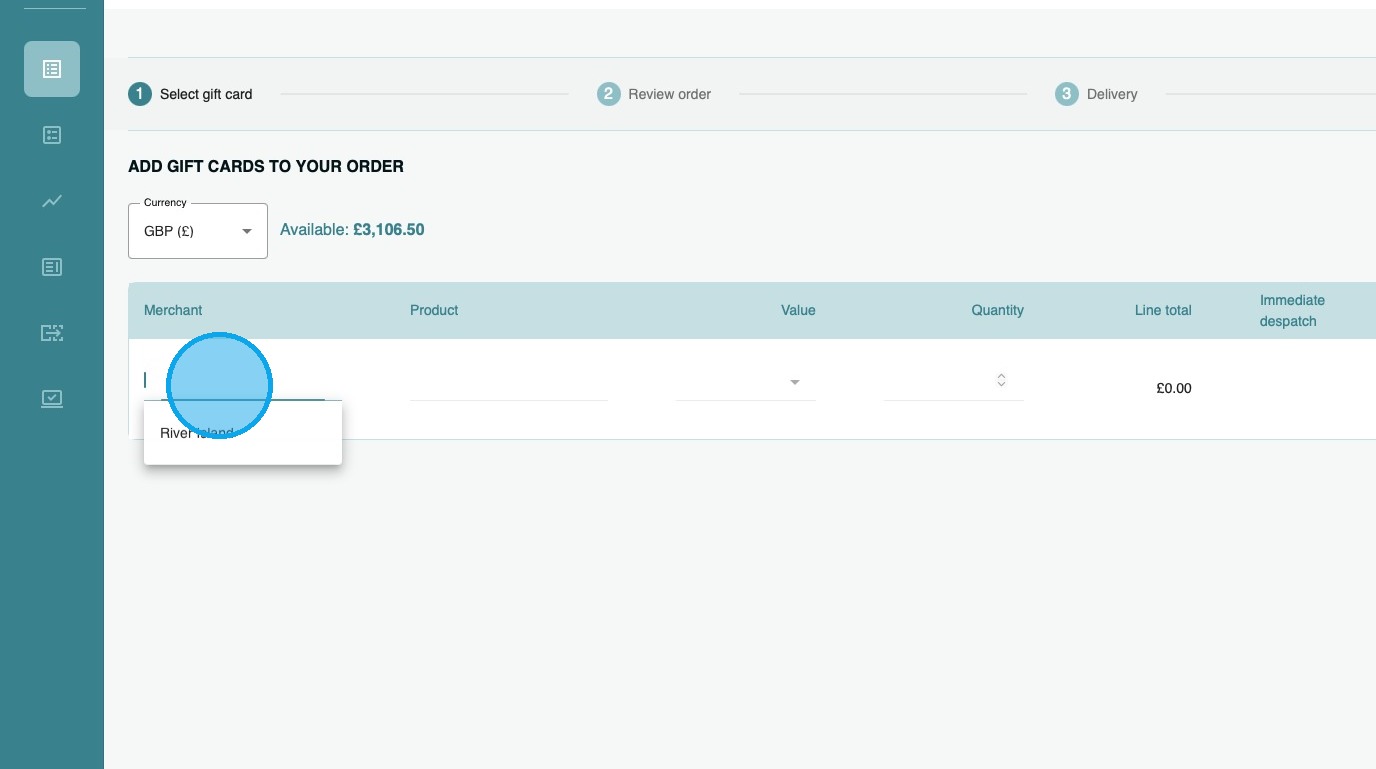
4. Select the product you wish to purchase
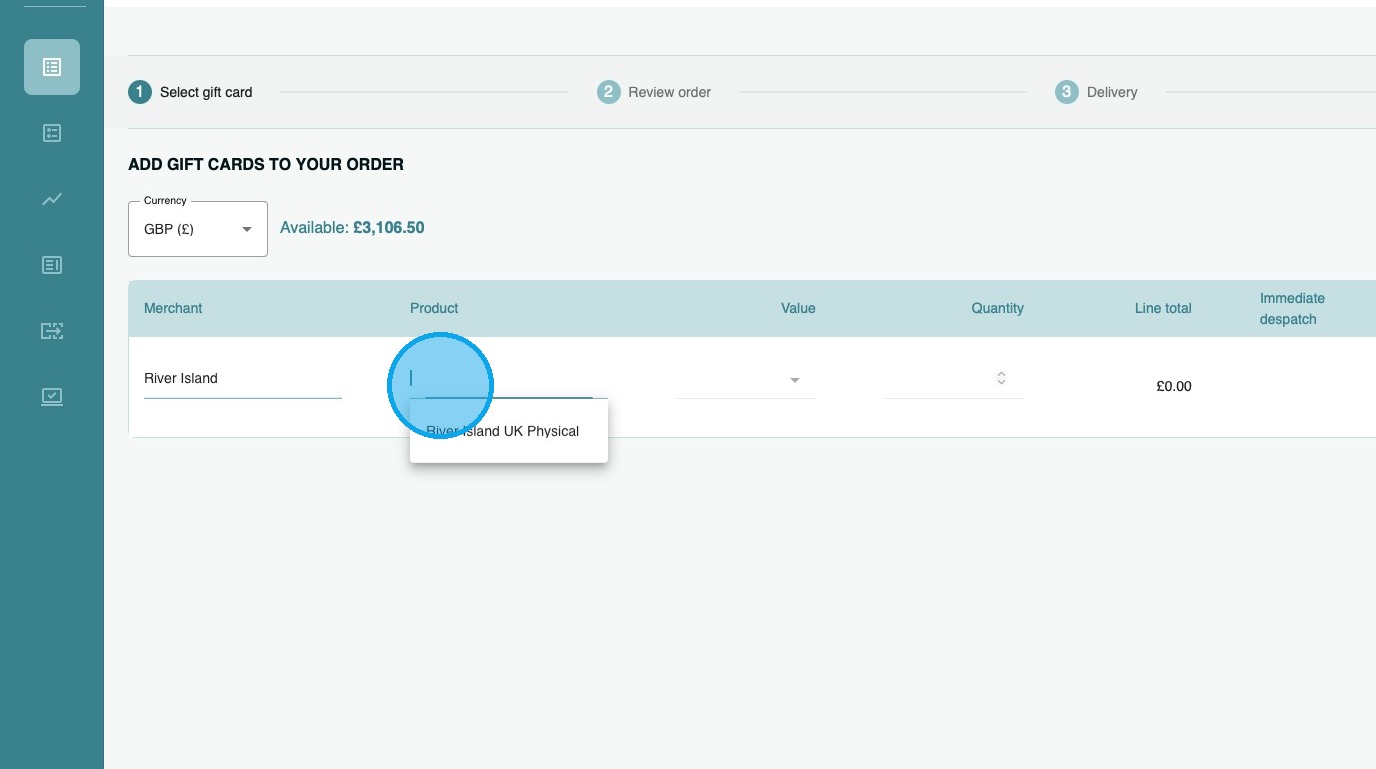
5. Enter the denomination of the card(s).
If you wish to include multiple denominations, add them on a separate line.
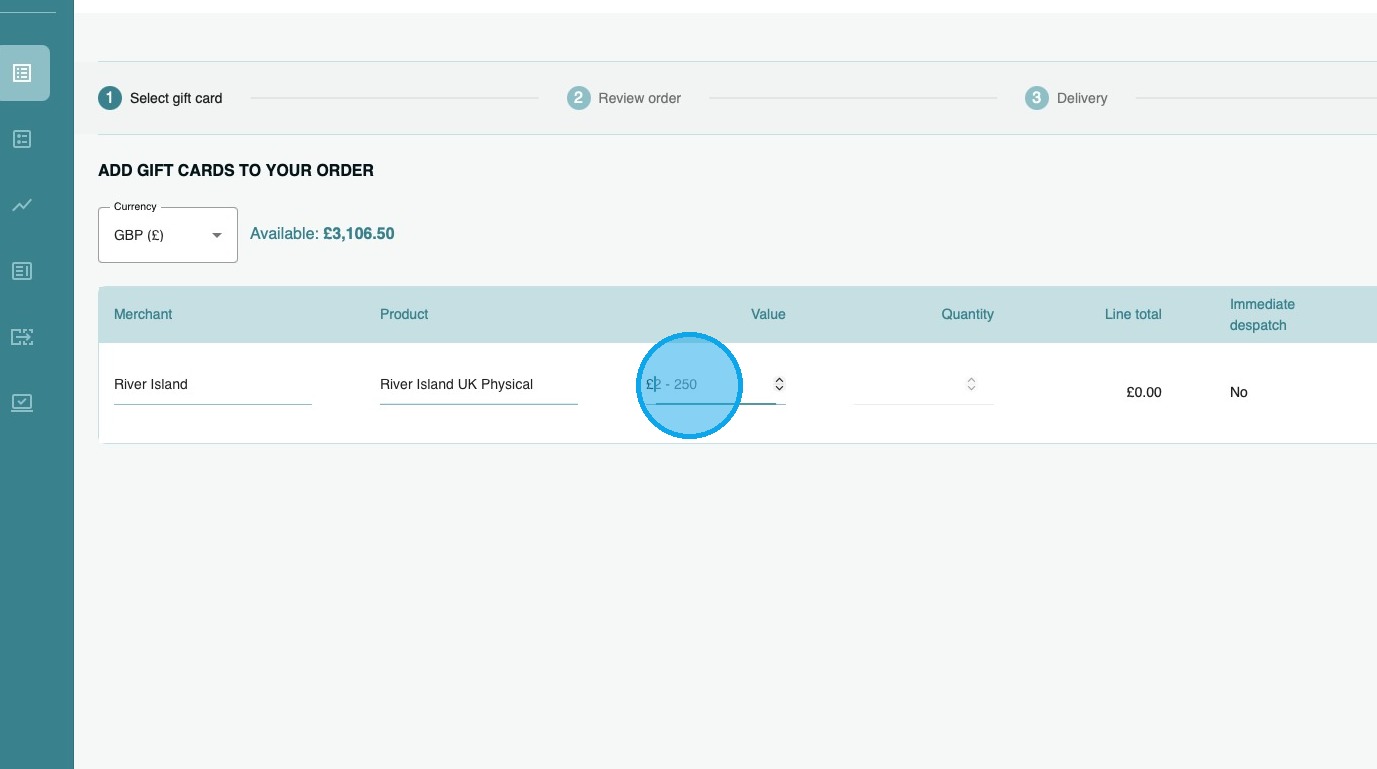
6. Enter the number of cards you would like of that product type/denomination.
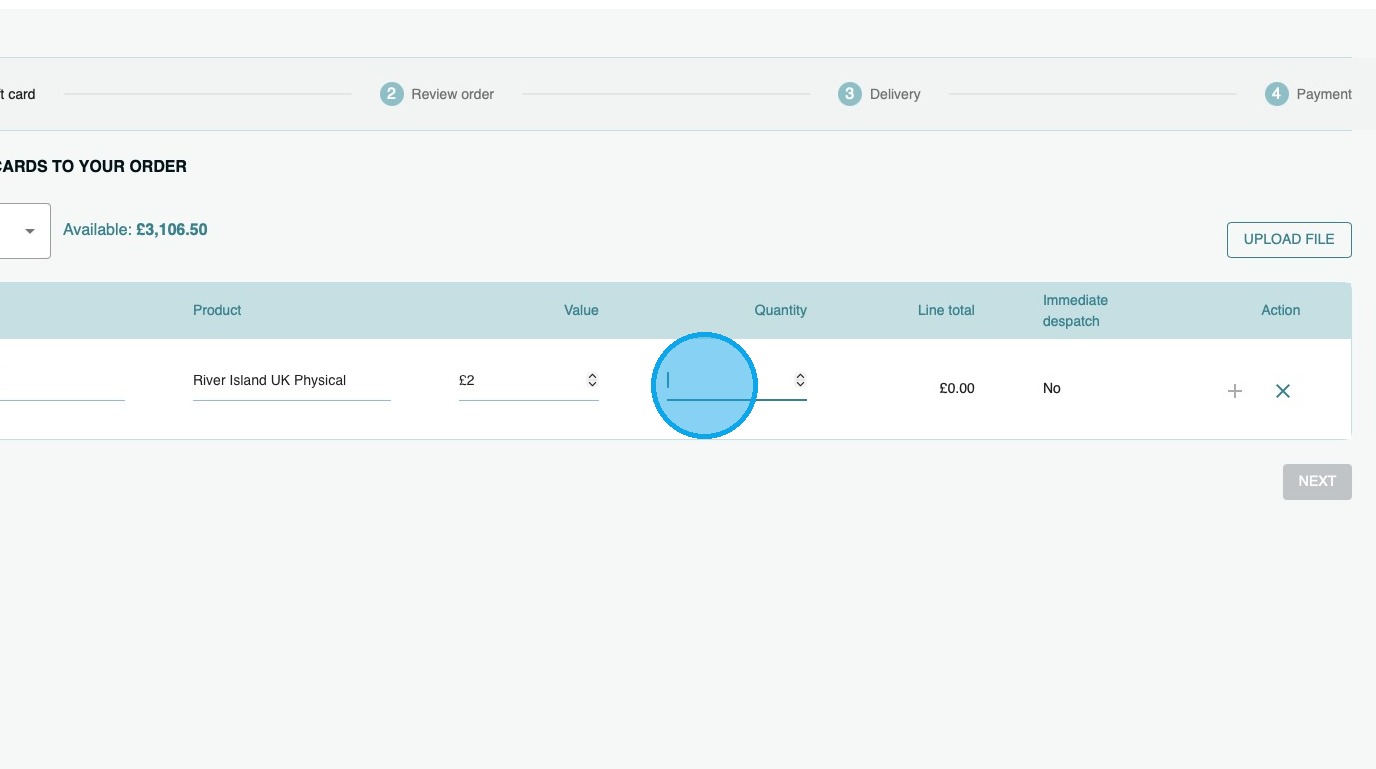
7. Click the “+” to confirm to add the line to your basket
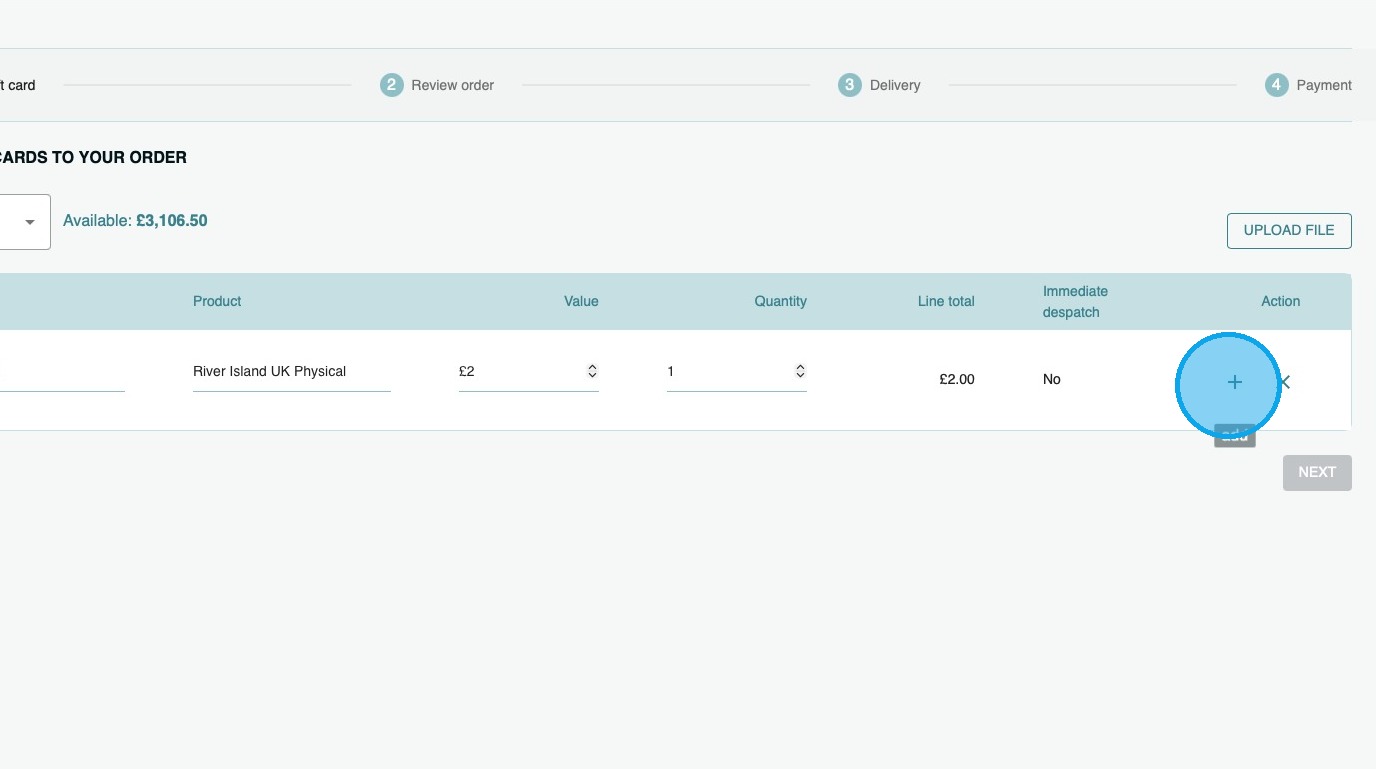
8. If you wish to add more products and/or additional denominations, please repeat the process.
9. If you have a large order, you may want to upload a file to place the order…
10. Click here to download a template that you can complete and then upload.
Once the file has uploaded, click “continue shopping” to confirm the order.
Tip: Tip! To complete the order file, you will need the SKU Prefix of the product(s) you want to purchase – you can find these in the Product Portfolio
11. Once you are happy with your selection, click “NEXT”
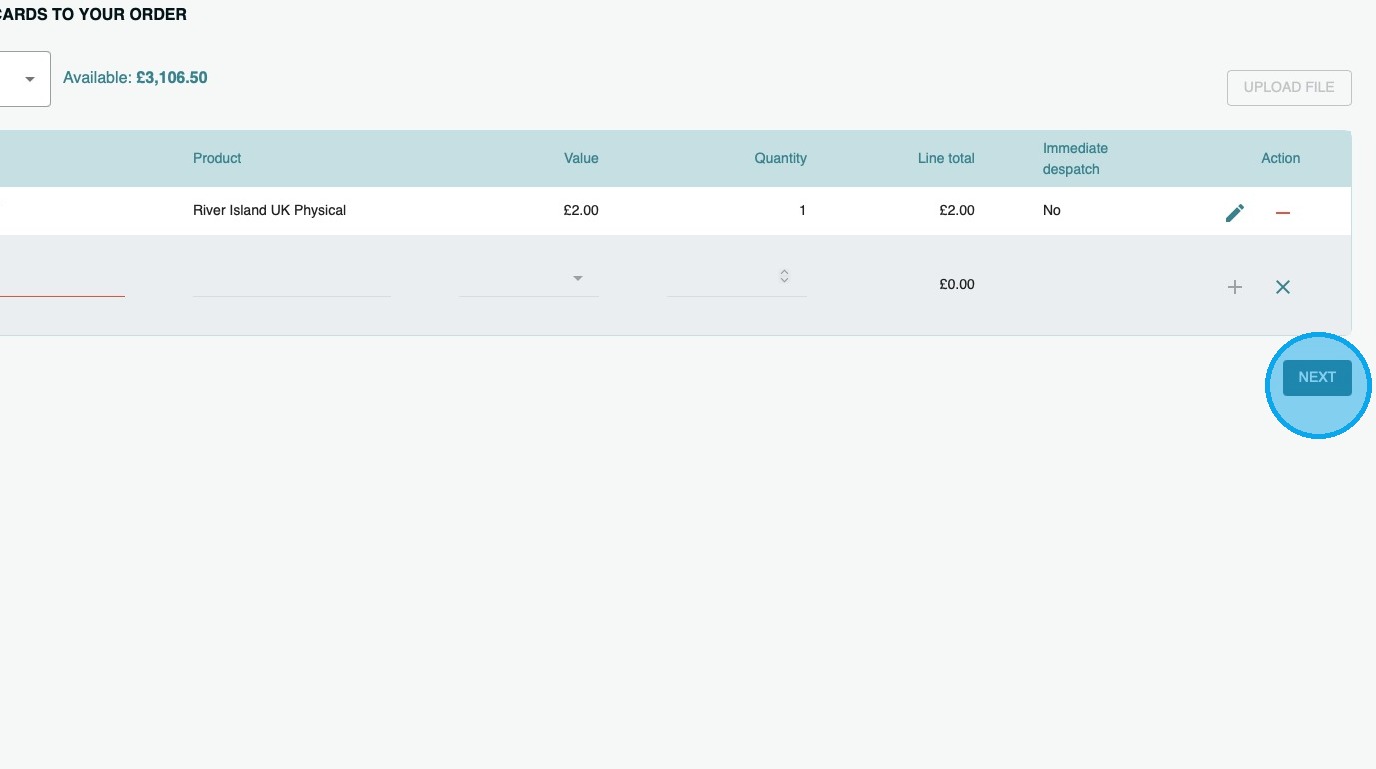
12. You can now enter the address of where you would like the physical cards delivered
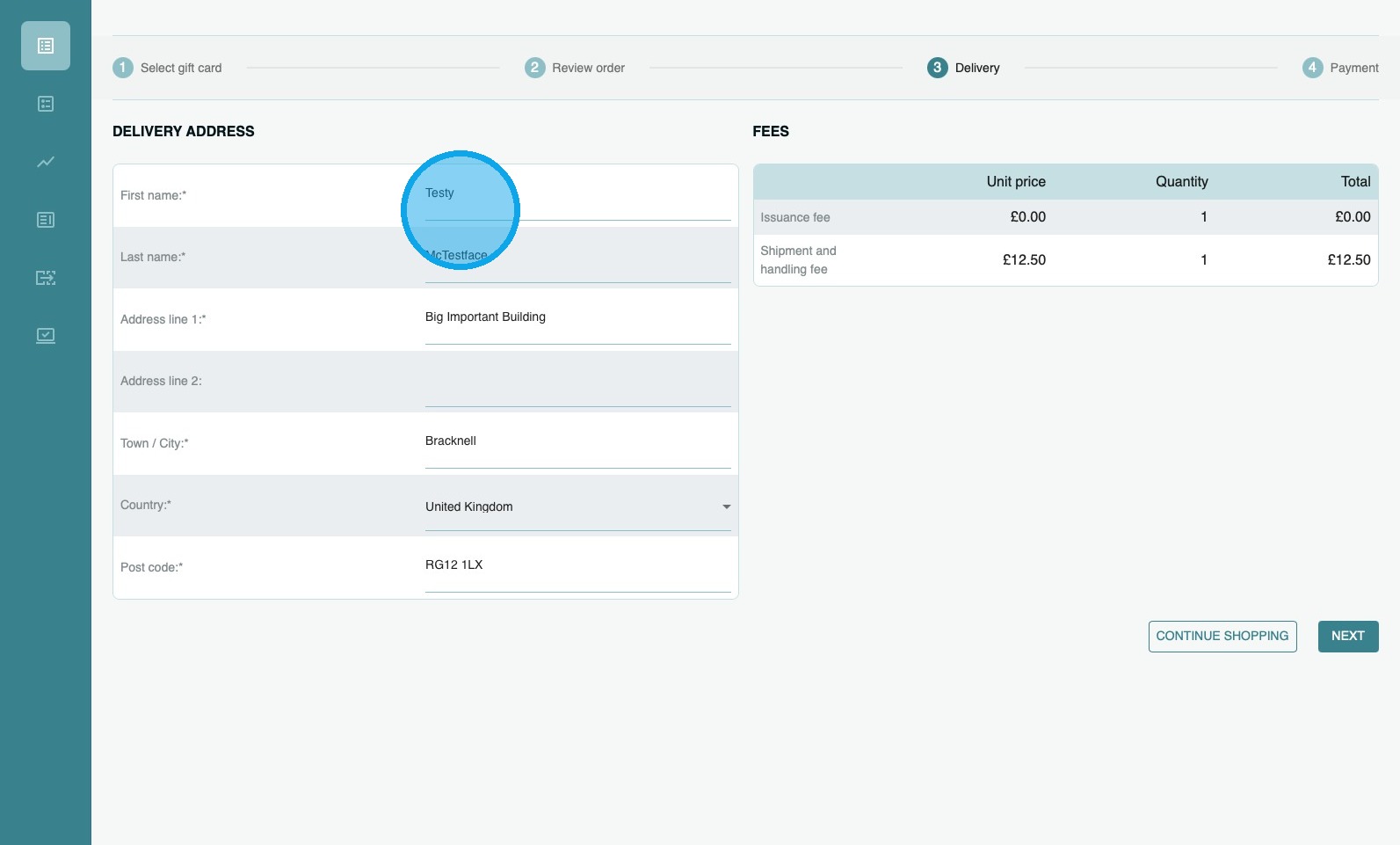
13. If you wish to add more products, click “CONTINUE SHOPPING”, or if you are happy with your selection, click “NEXT”
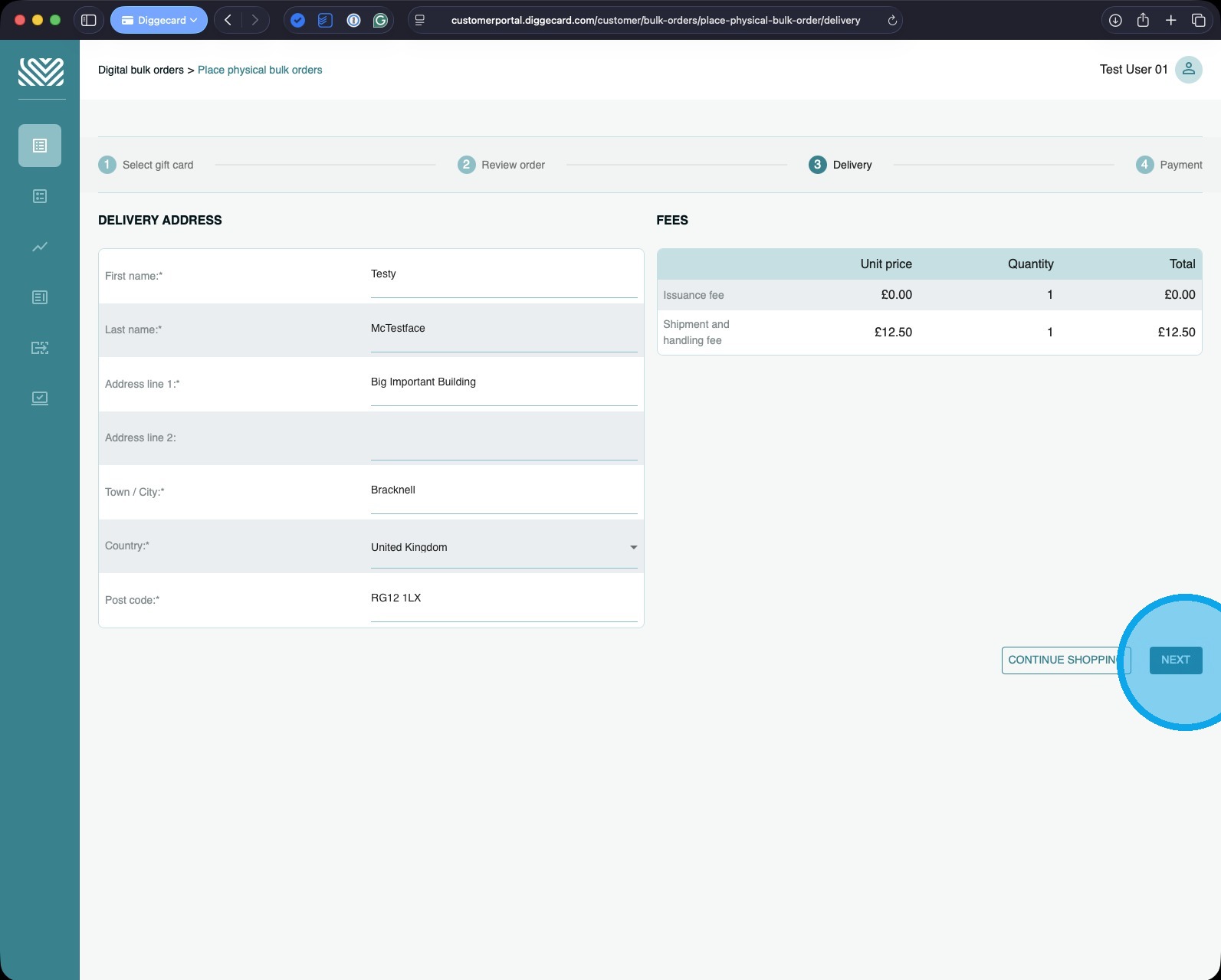
14. You will now be able to review your order, and add Purchase Order Number or reference to the order if you wish.
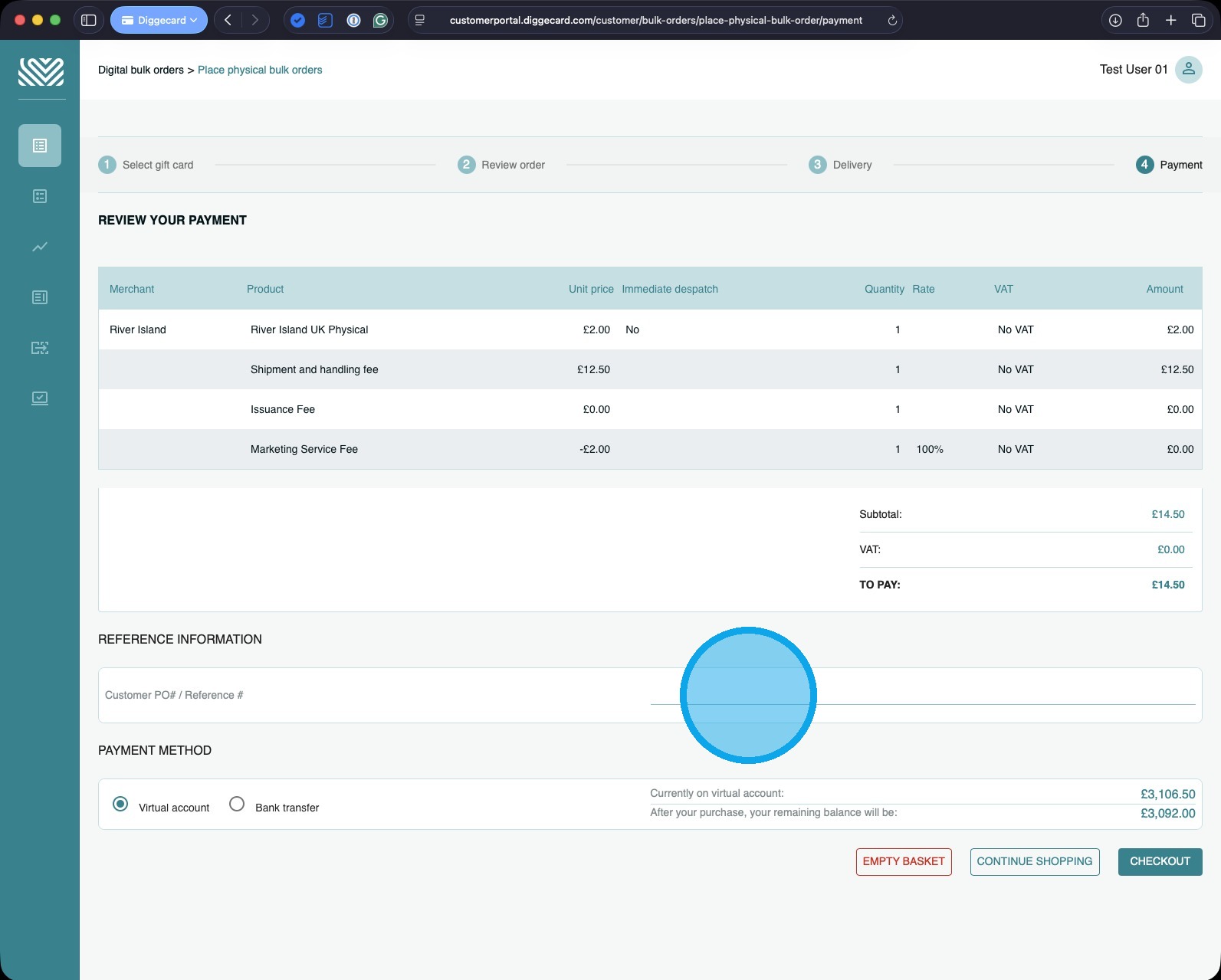
15. You can now choose how to pay.
You can pay either by Virtual account (go to step 16) or Bank Transfer (go to step 18).
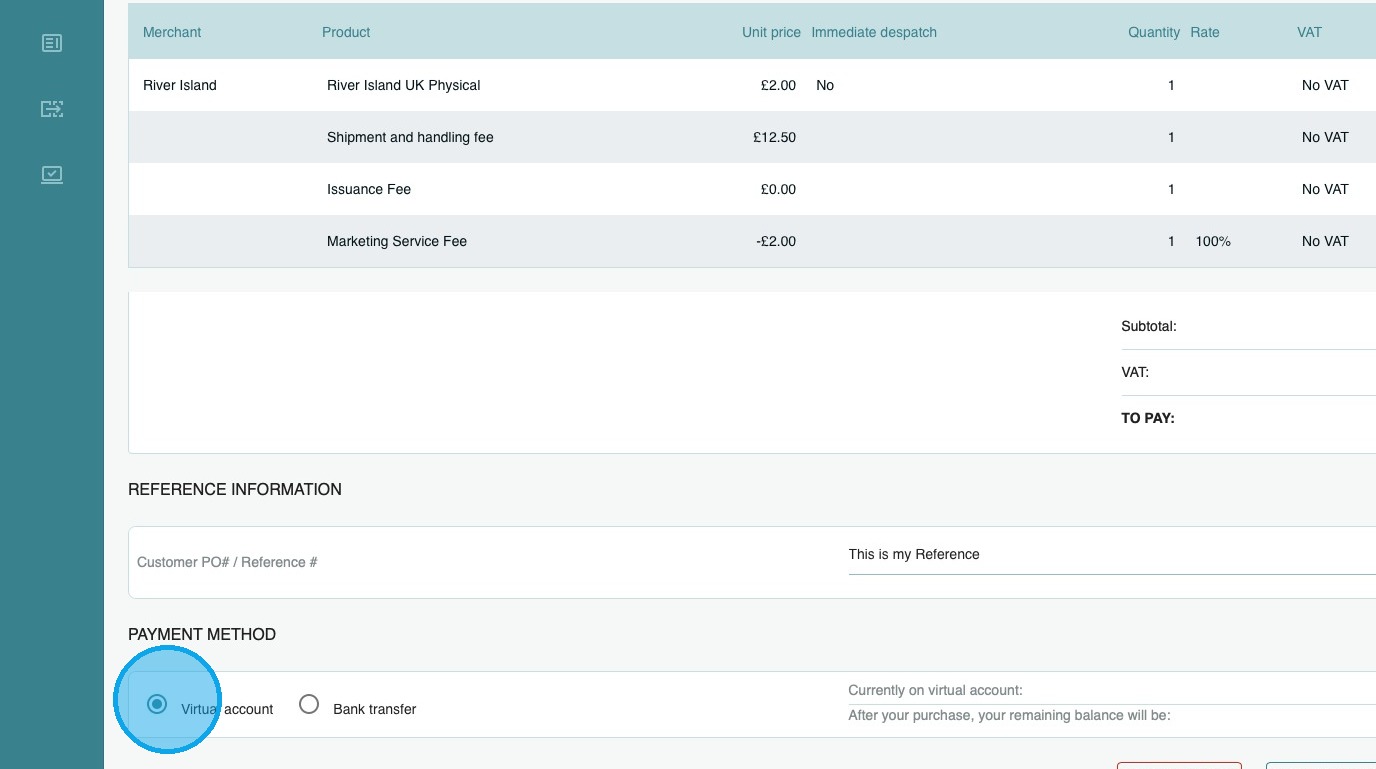
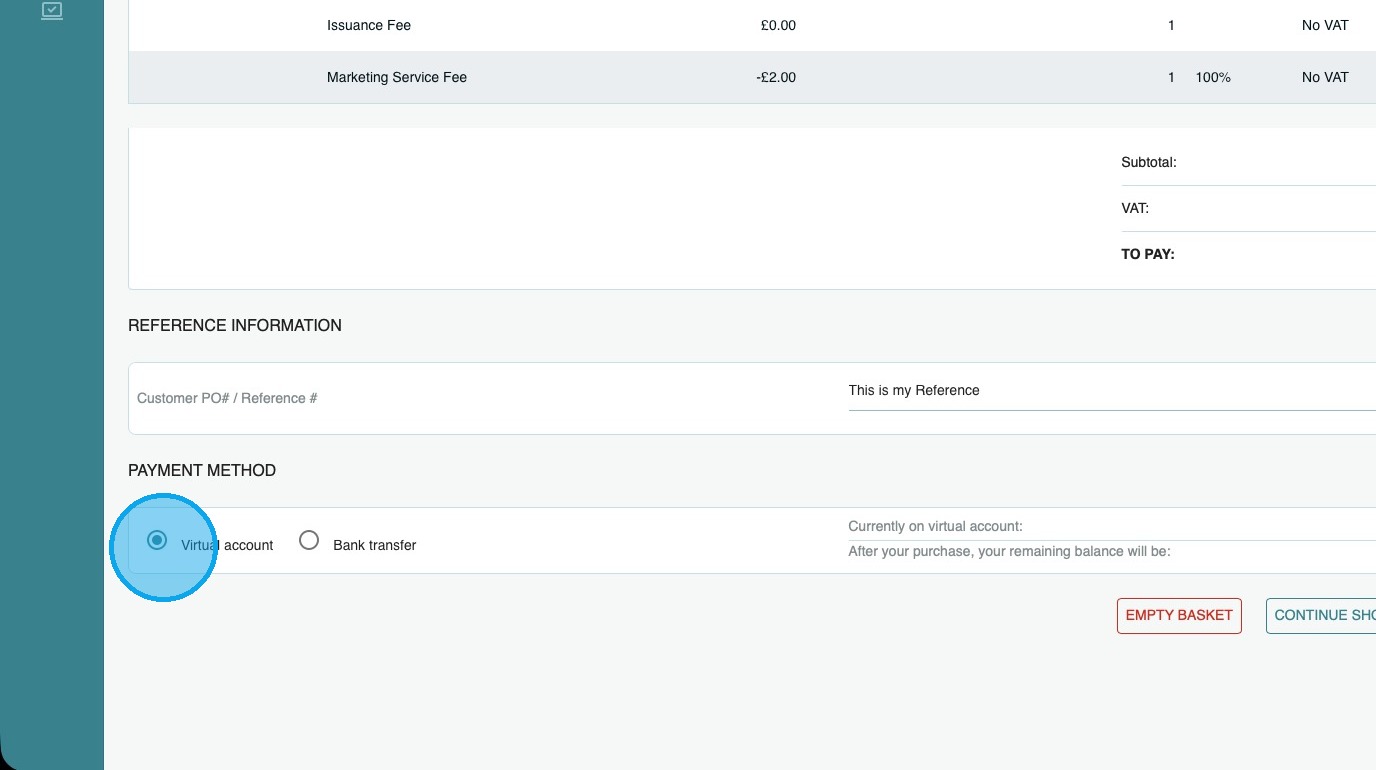
16. To pay using funds on your account, click “Virtual account”
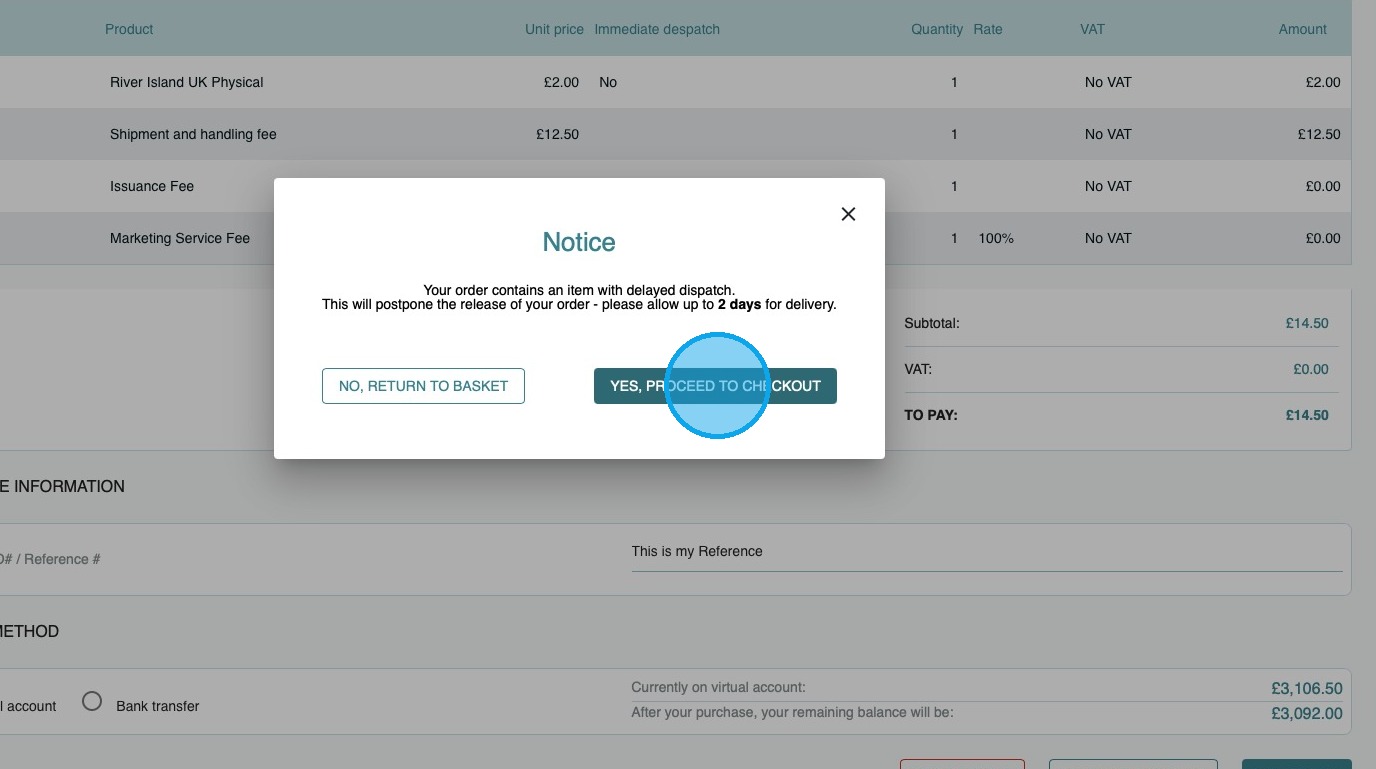
17. Because Physical Products are not issued immediately, they are classified as “Delayed Dispatch” items. You will be asked to confirm you are happy with this.
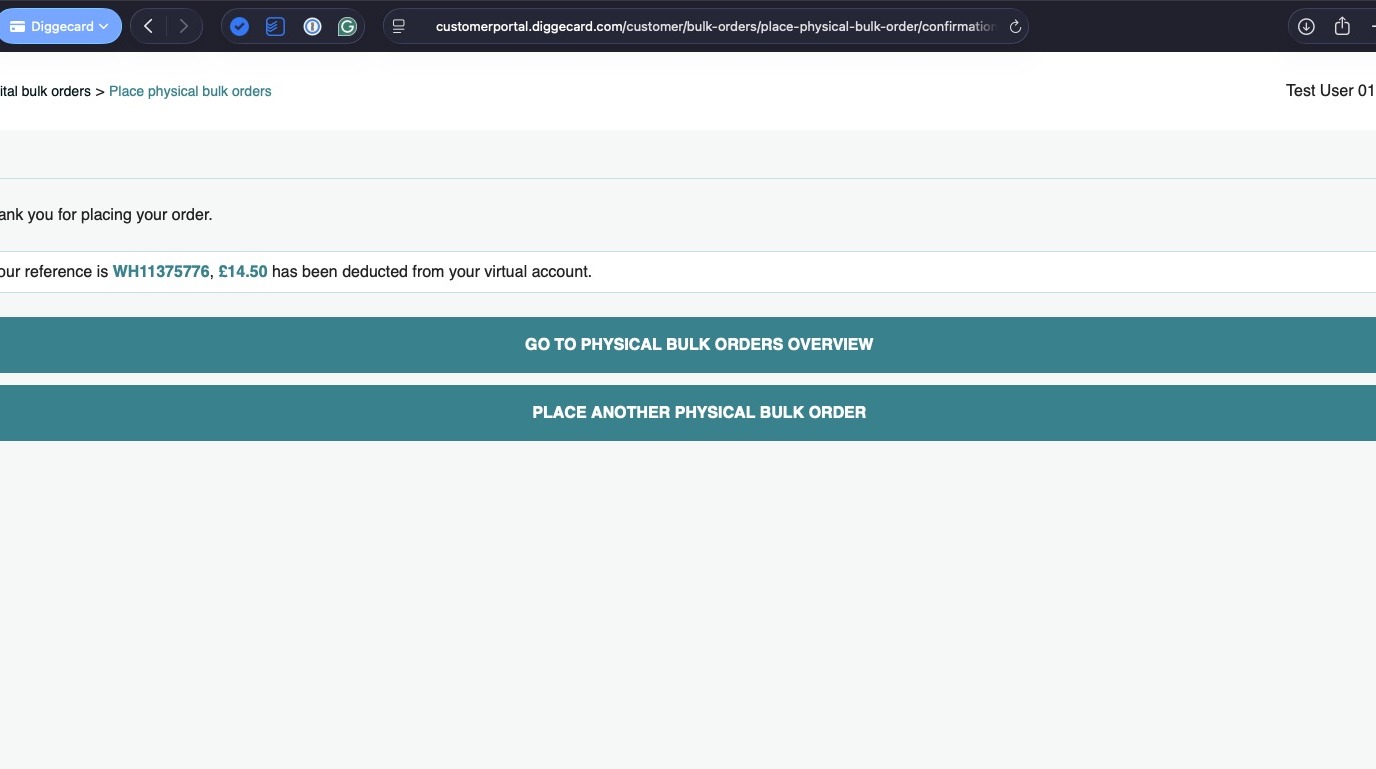
18. Your physical order has been placed
You will be notified when the order has been dispatched.
Place a digital IF (Individual Fulfilment) order
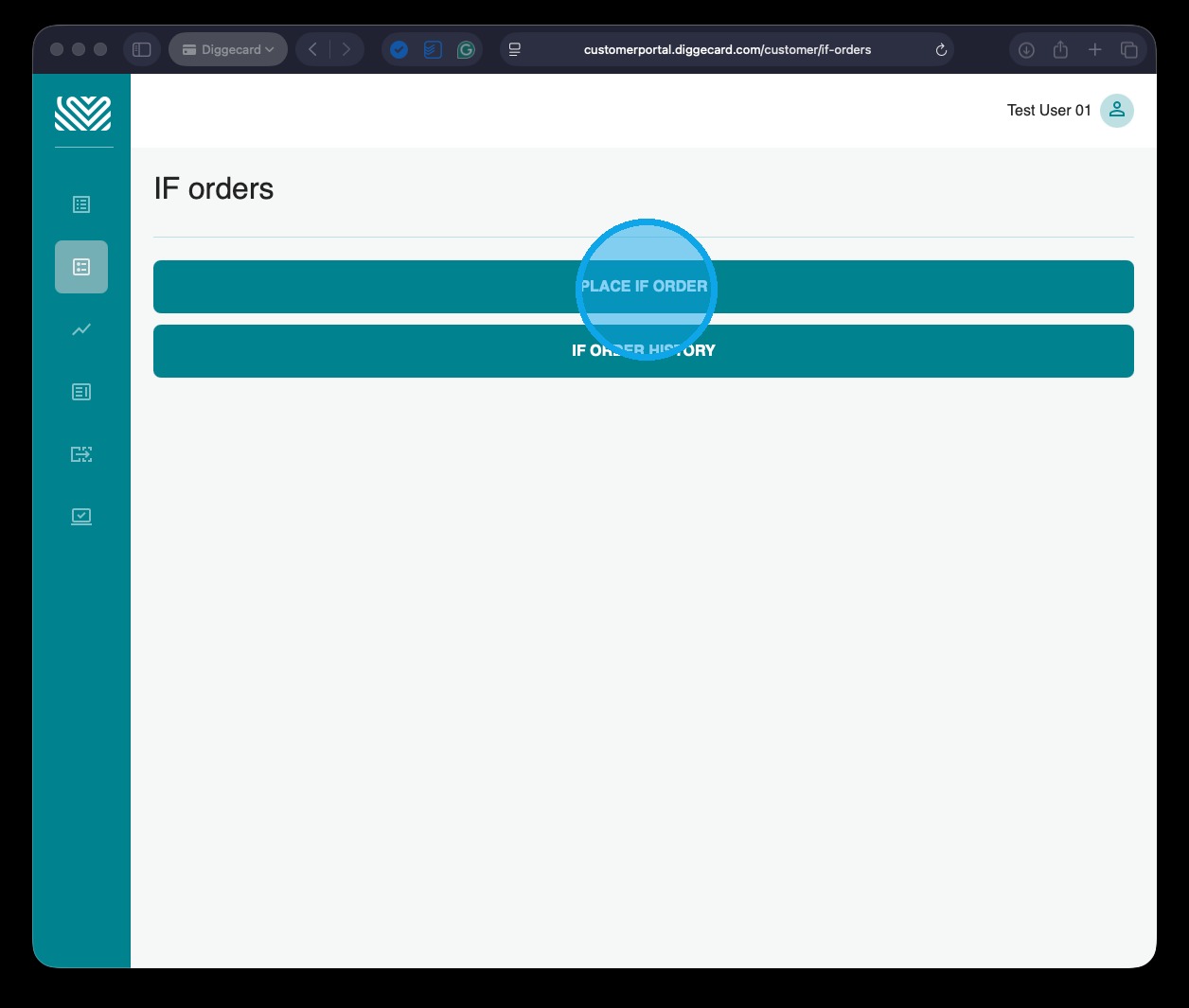
1. To start, click “PLACE IF ORDER”
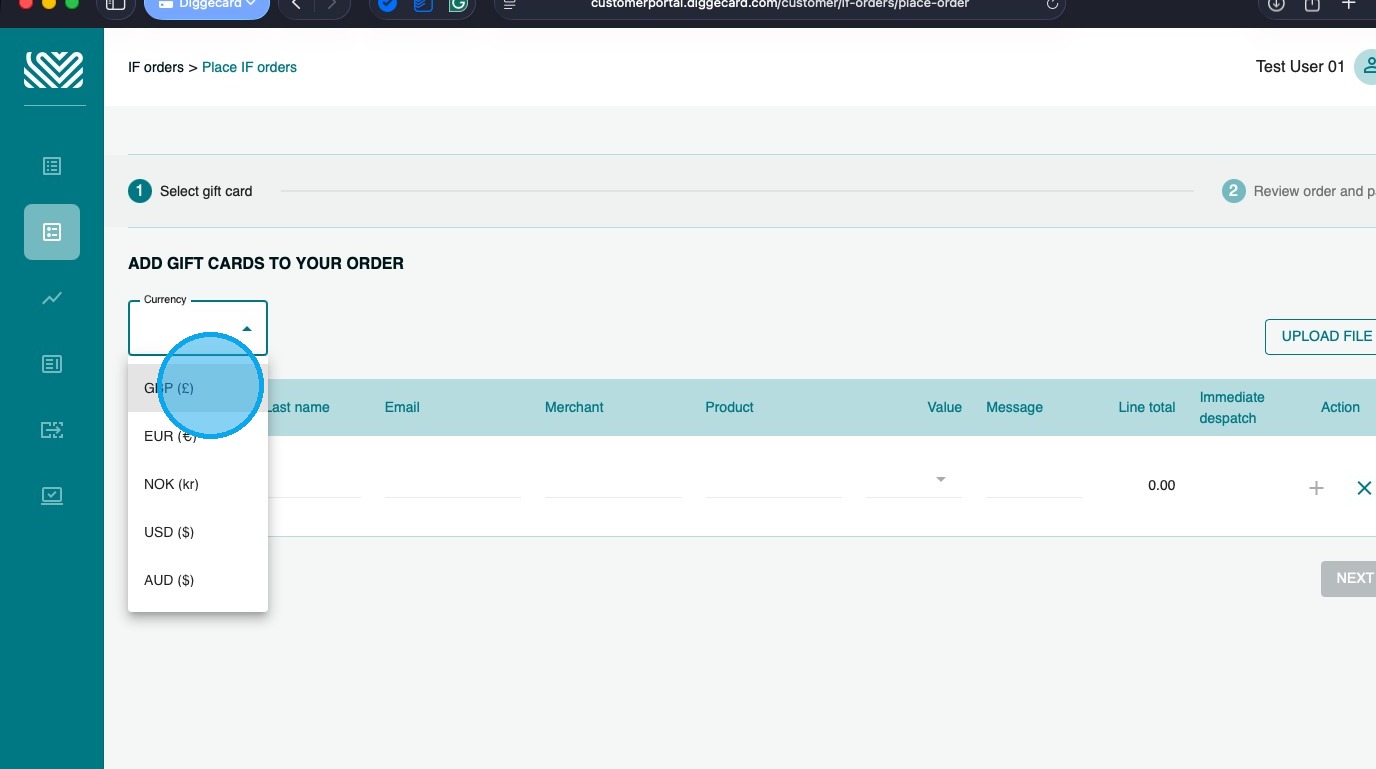
2. Select the currency of the products you wish to purchase.
(You can only have one currency per order, so if you wish to order products of different currencies, you will need to place multiple orders.)
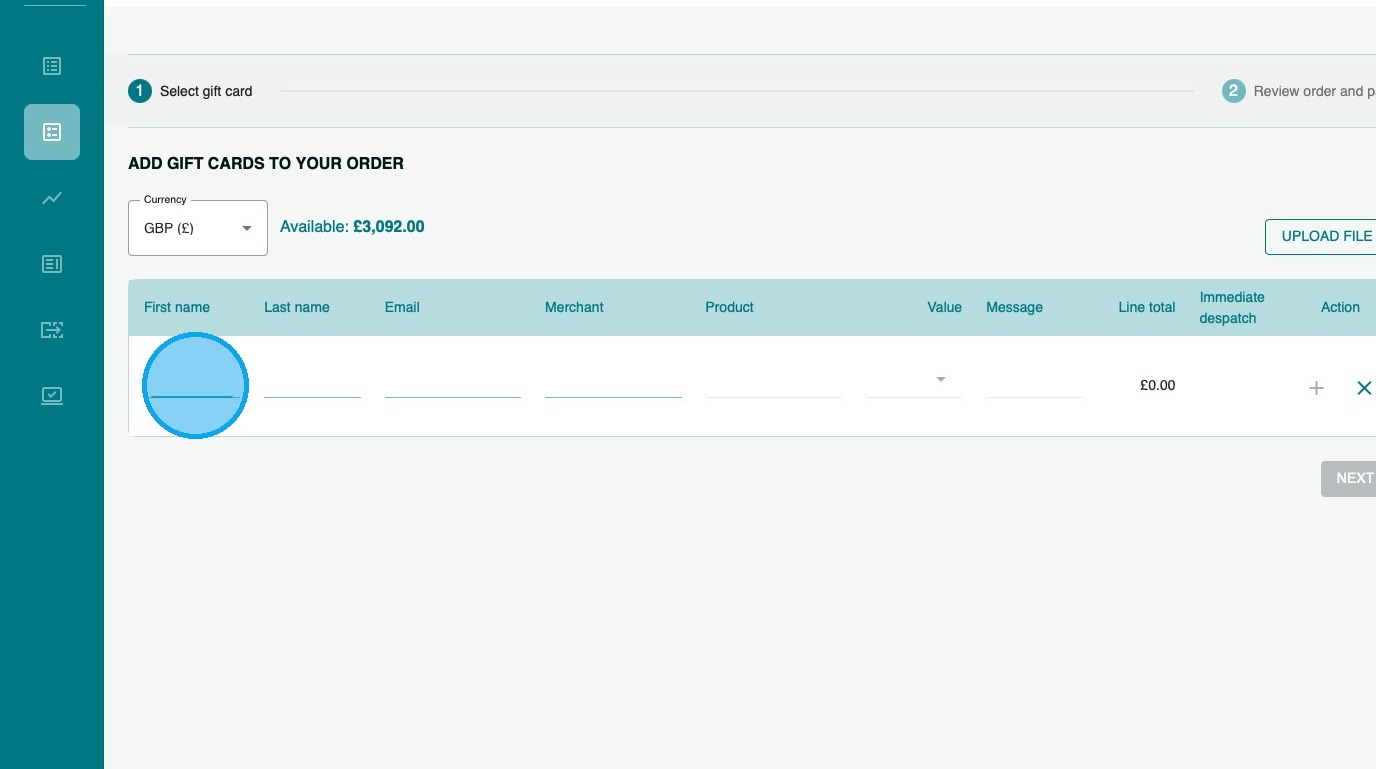
3. You can then enter the “First Name”, “Last Name”, and “Email” of the recipient.
4. Select the Merchant you require
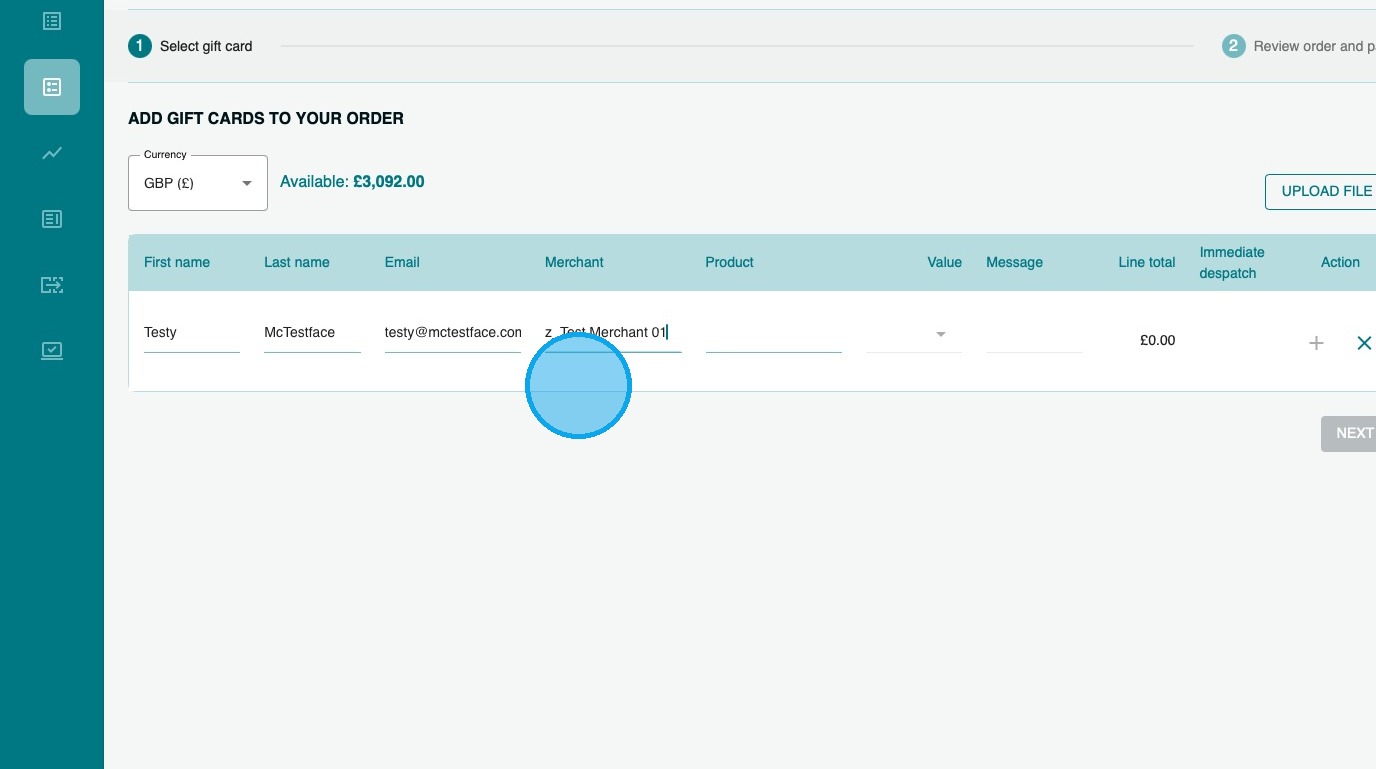
5. Select the product you wish to purchase
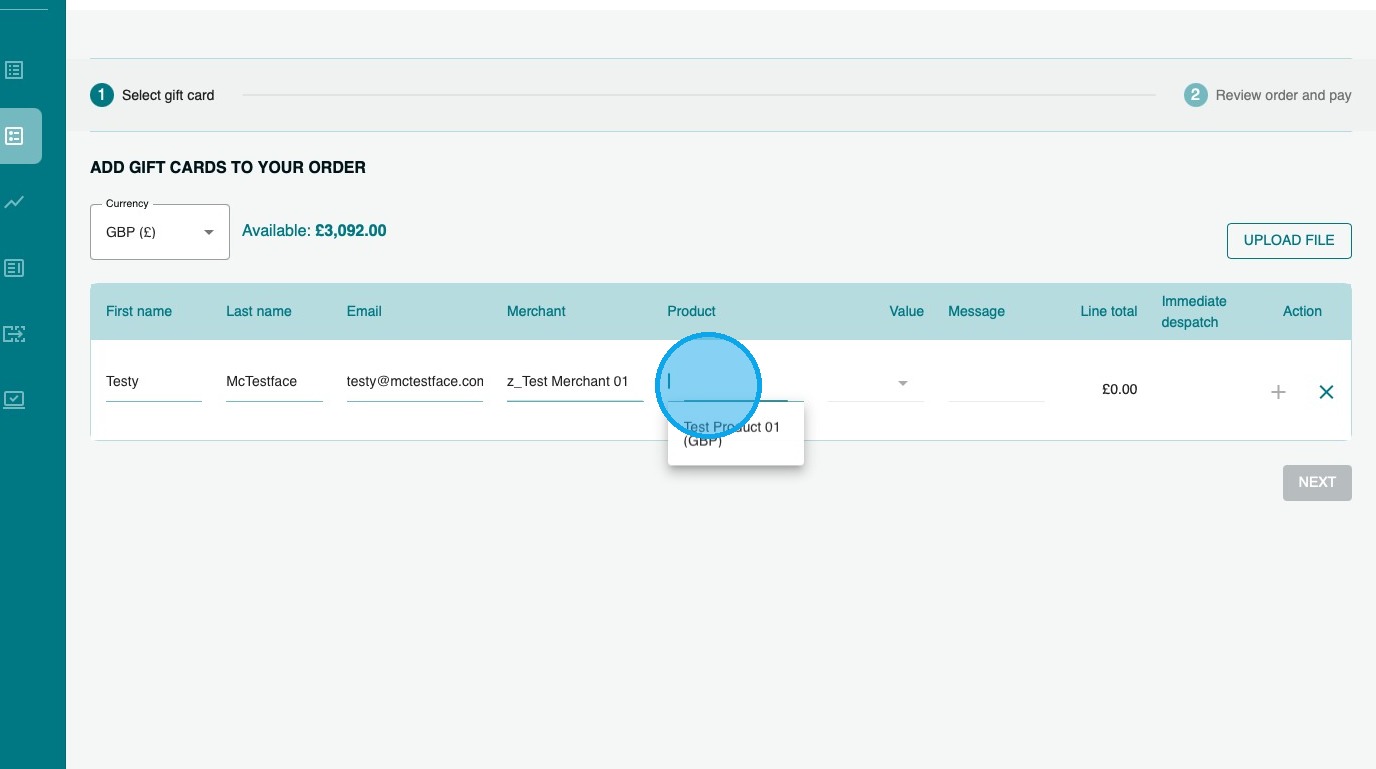
6. Enter the denomination of the card.
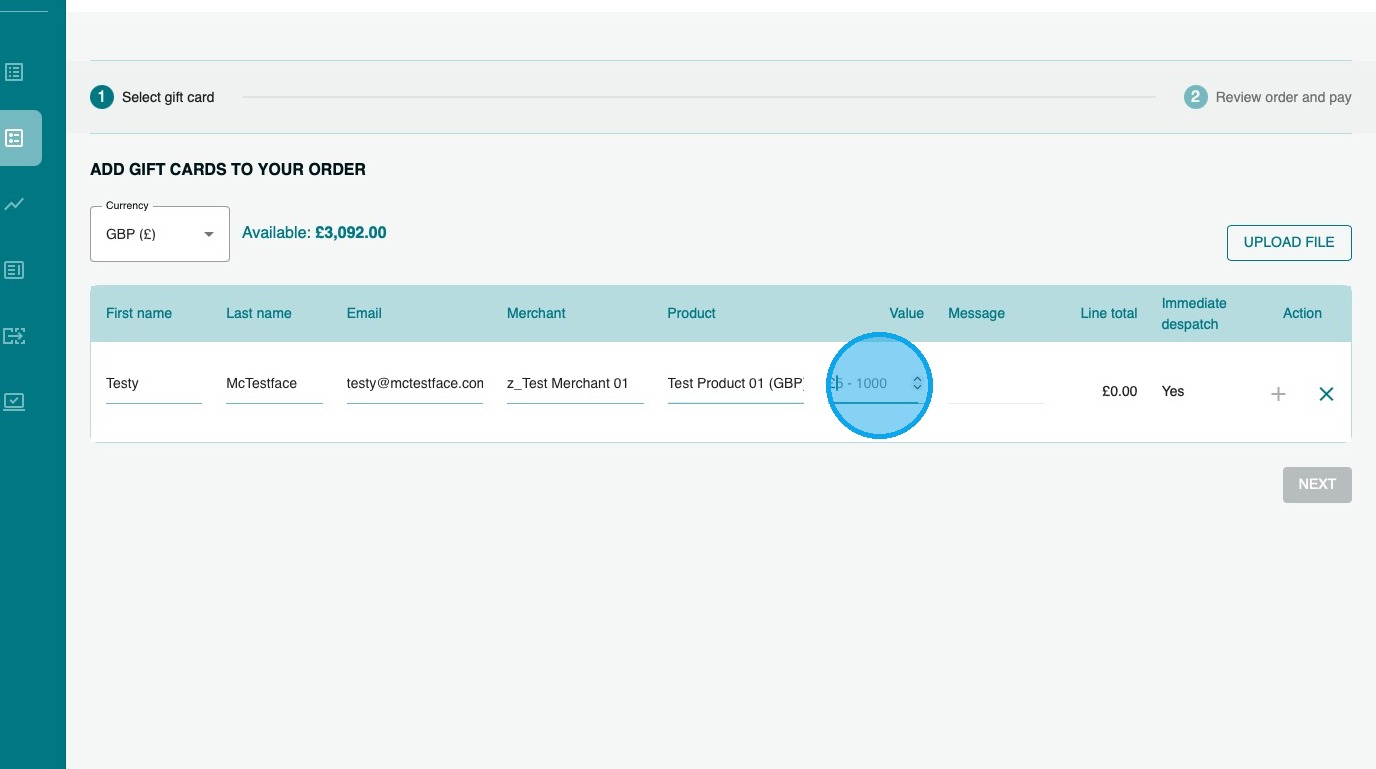
7. You can then enter a personal message that will appear in the email.
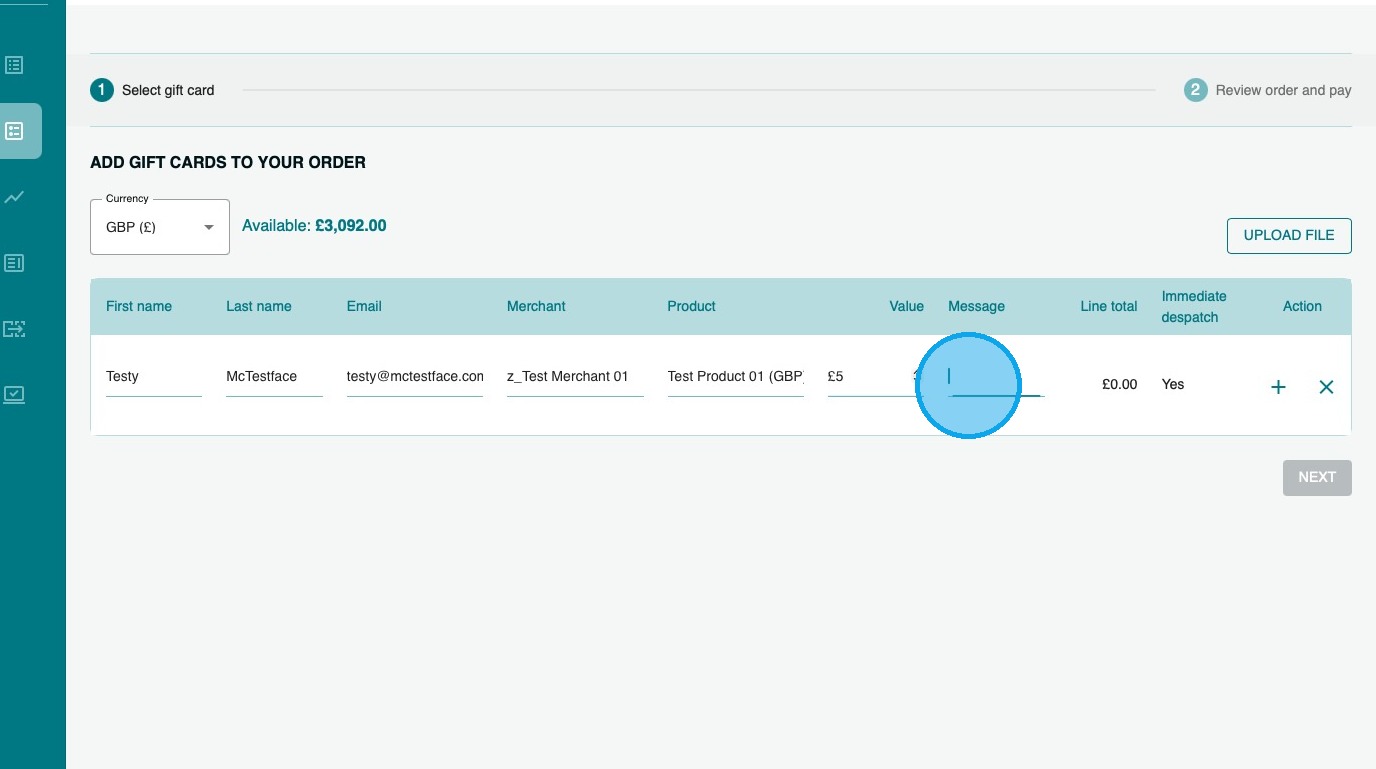
8. Click the “+” to confirm to add the line to your basket
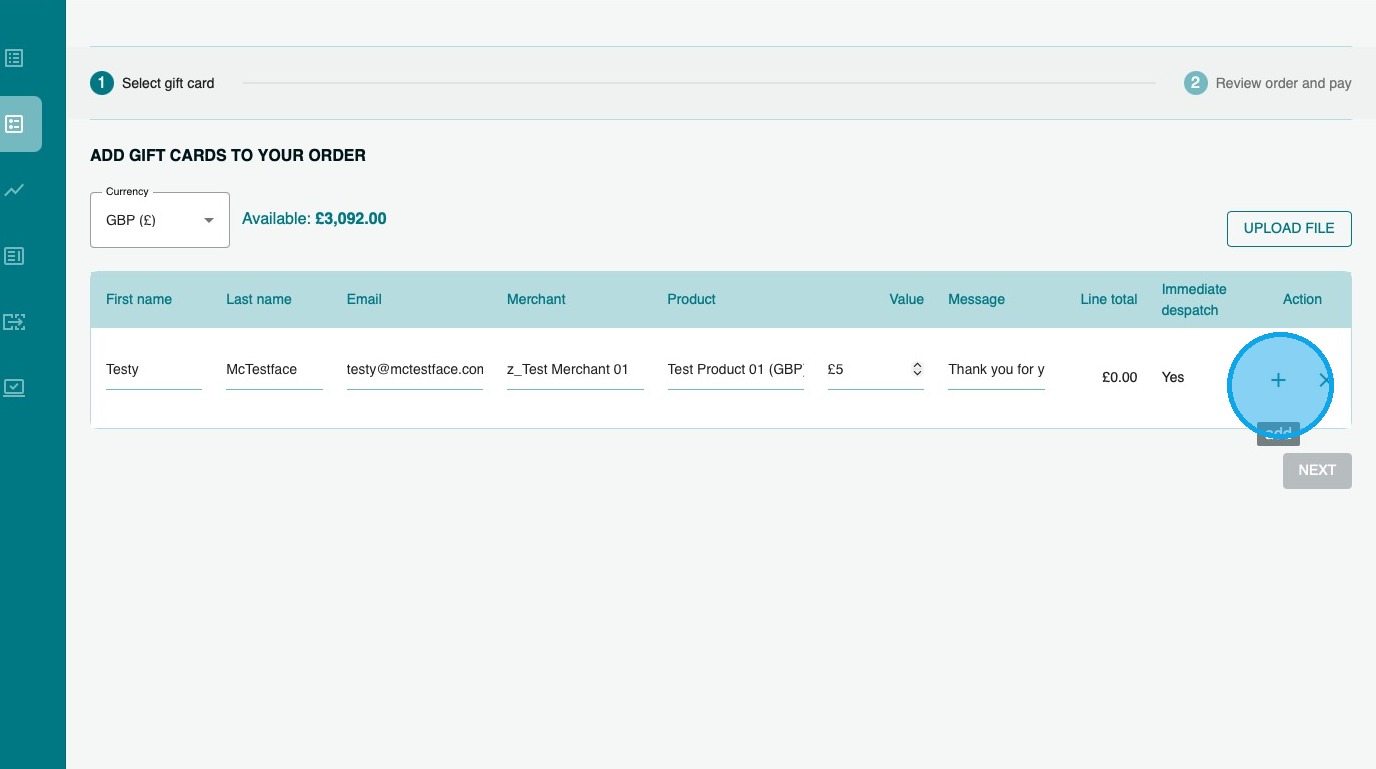
9. If you wish to add more recipients, please repeat the process.
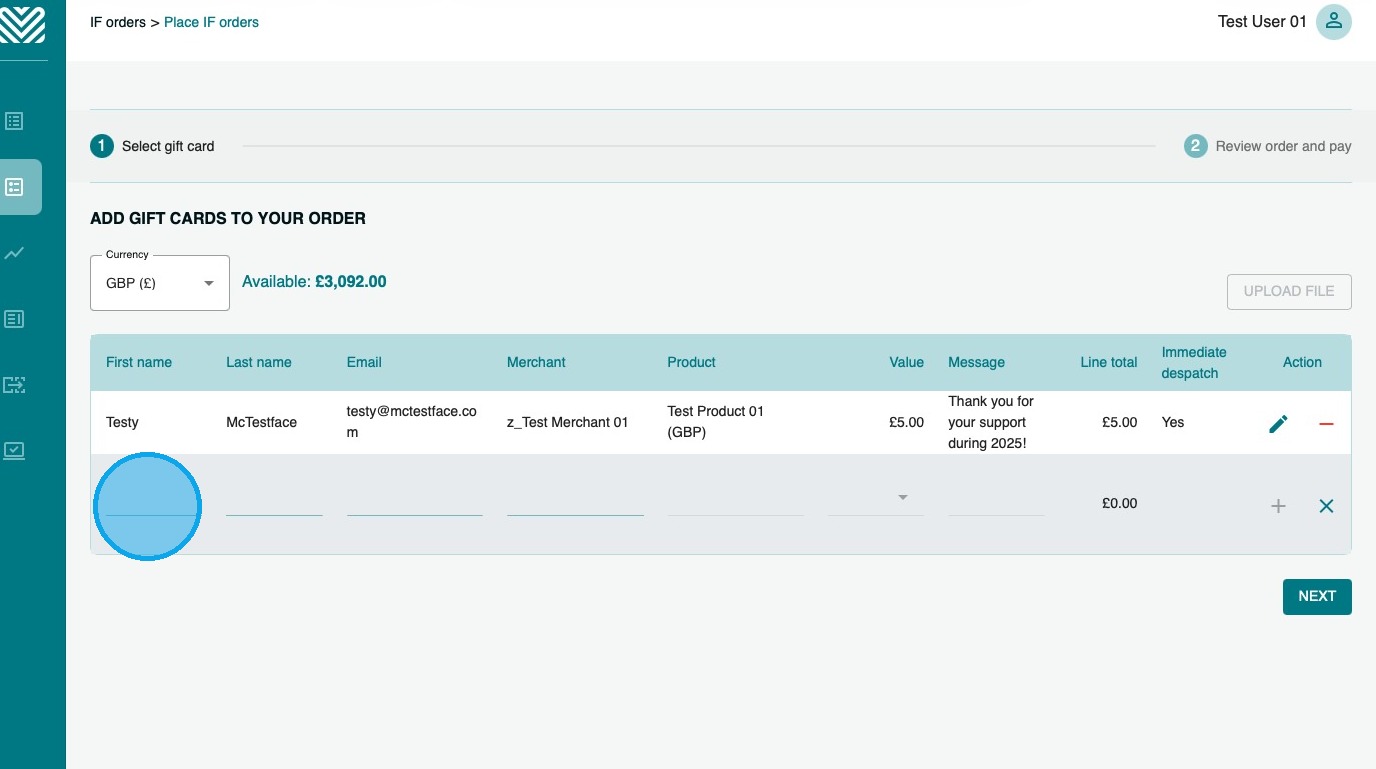
10. If you have a large number of recipients, you may want to upload a file to place the order…
11. Click here to download a template that you can complete and then upload.
Once the file has uploaded, click “continue shopping” to confirm the order.
Tip: Tip! To complete the order file, you will need the SKU Prefix of the product(s) you want to purchase – you can find these in the Product Portfolio
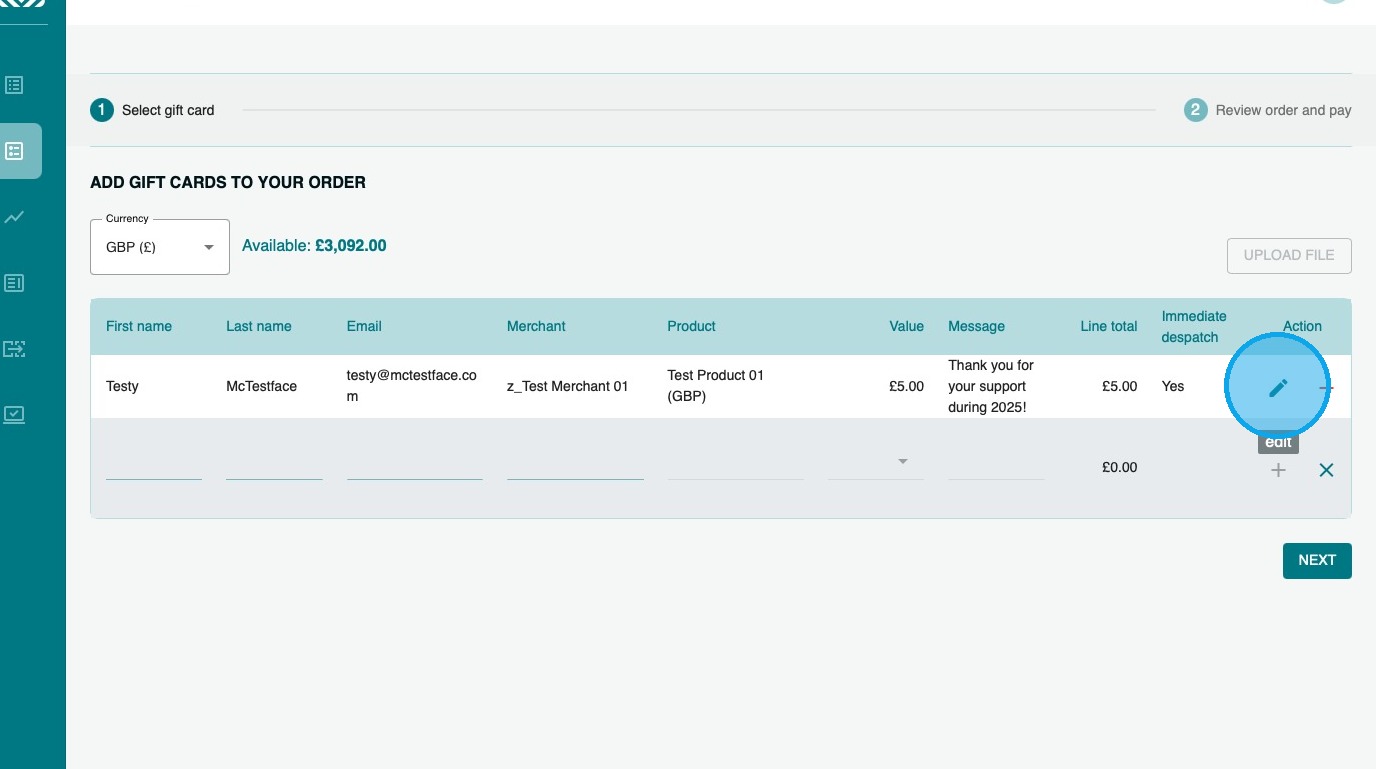
12. If you make a mistake, you can click the edit button…
13. …make your change…
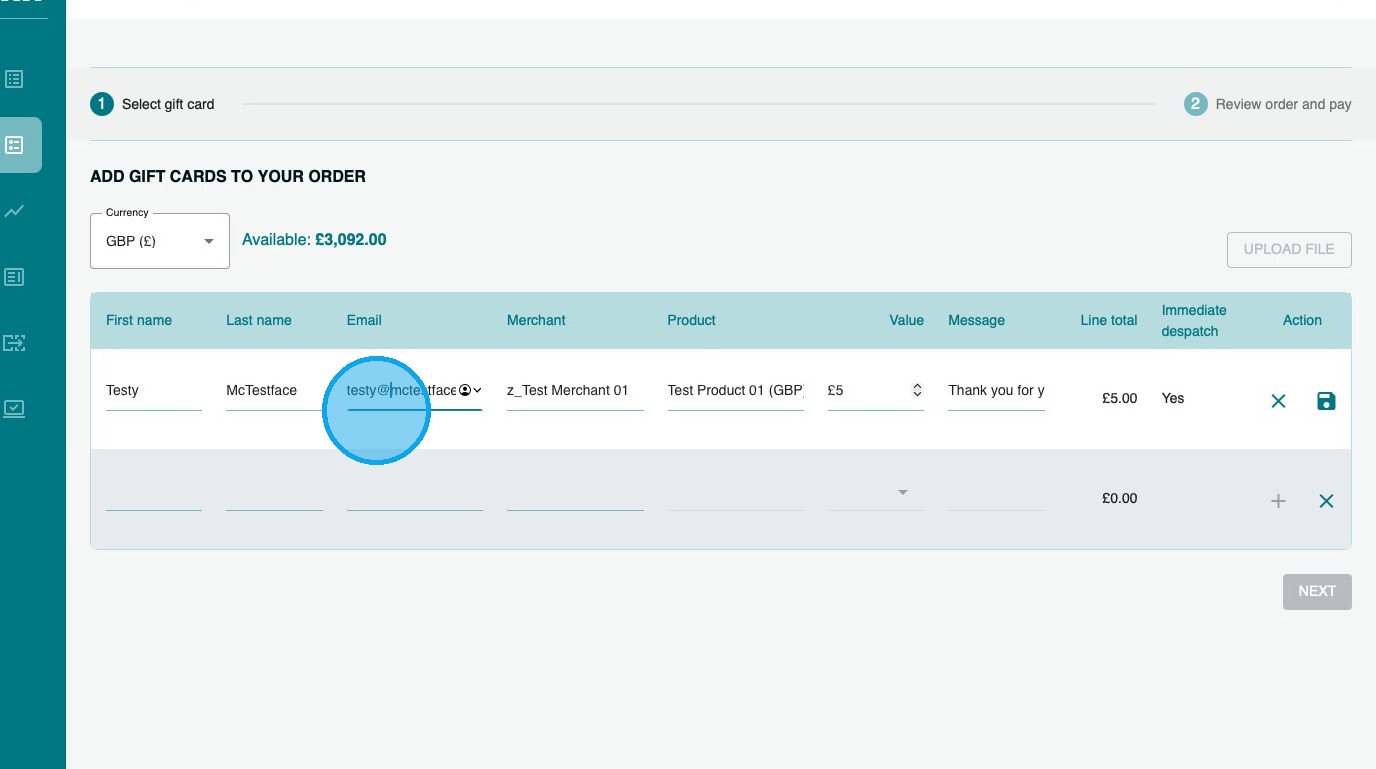
14. …and then click the save icon.
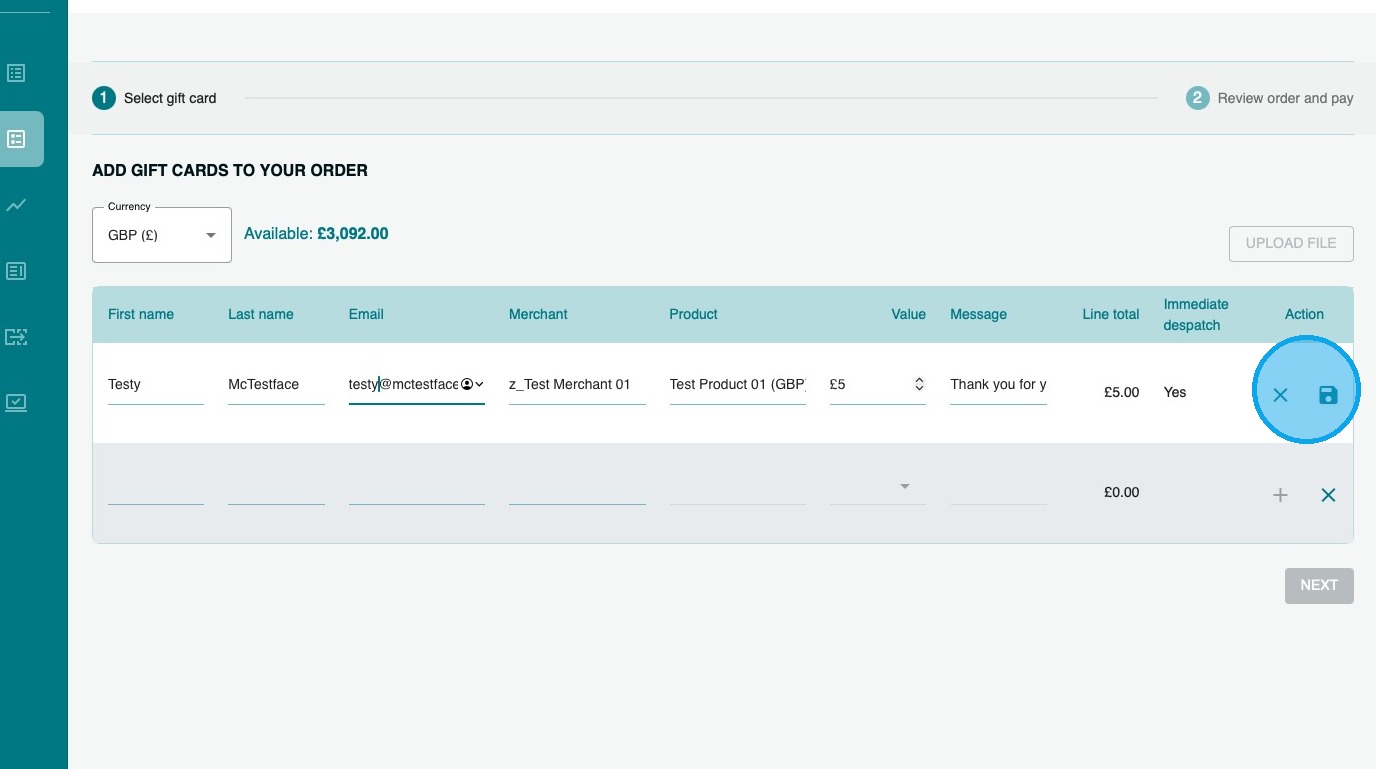
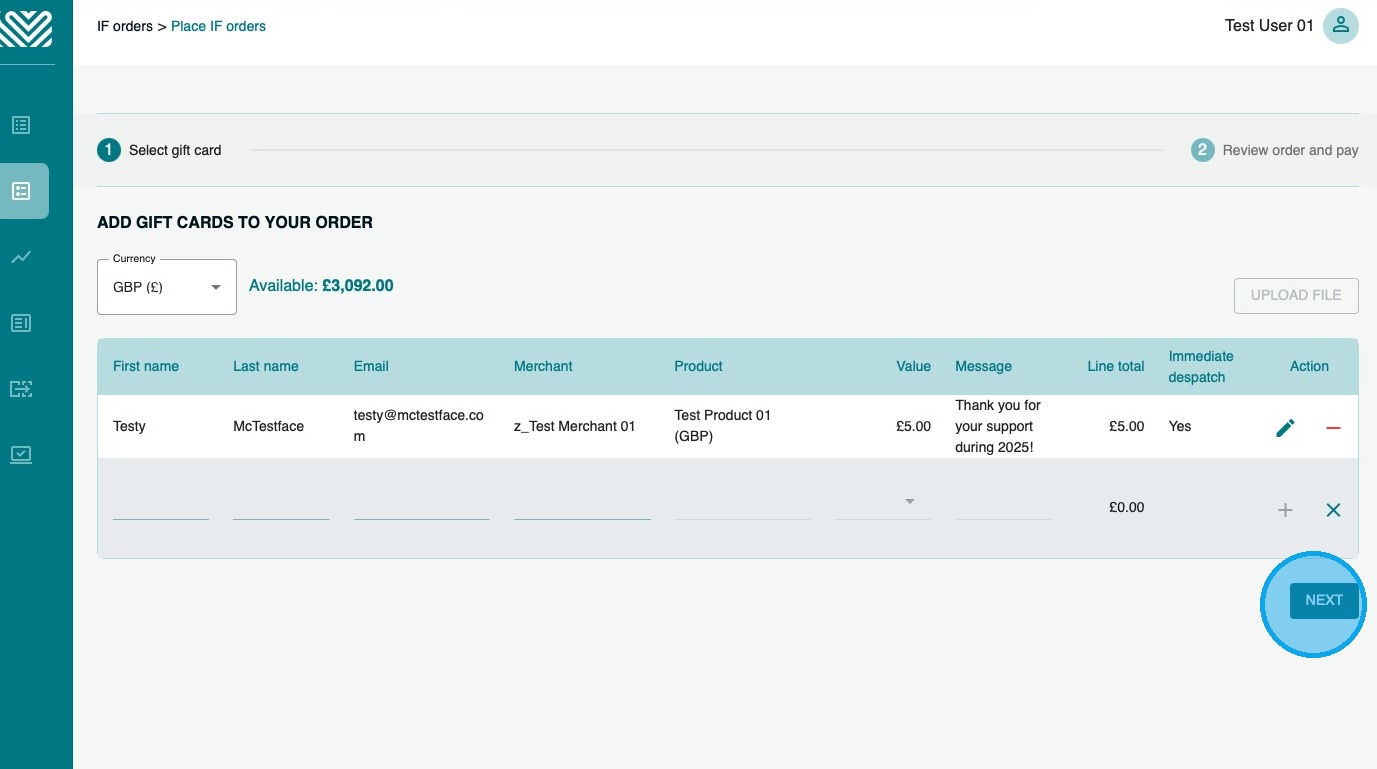
15. Once you are happy with your selection, click “NEXT”
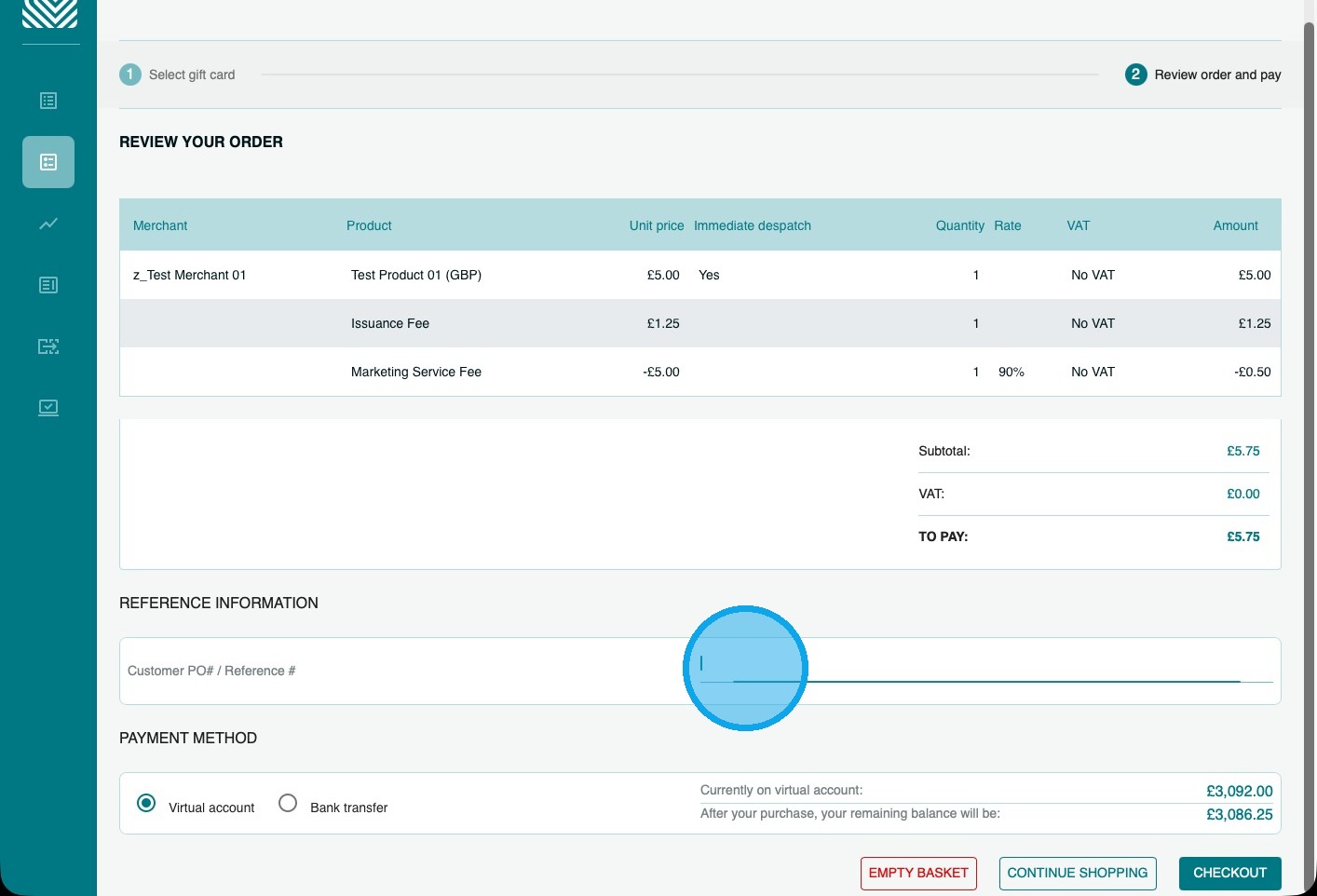
16. You will now be able to review your order and add a Purchase Order Number or reference to the order if you wish.
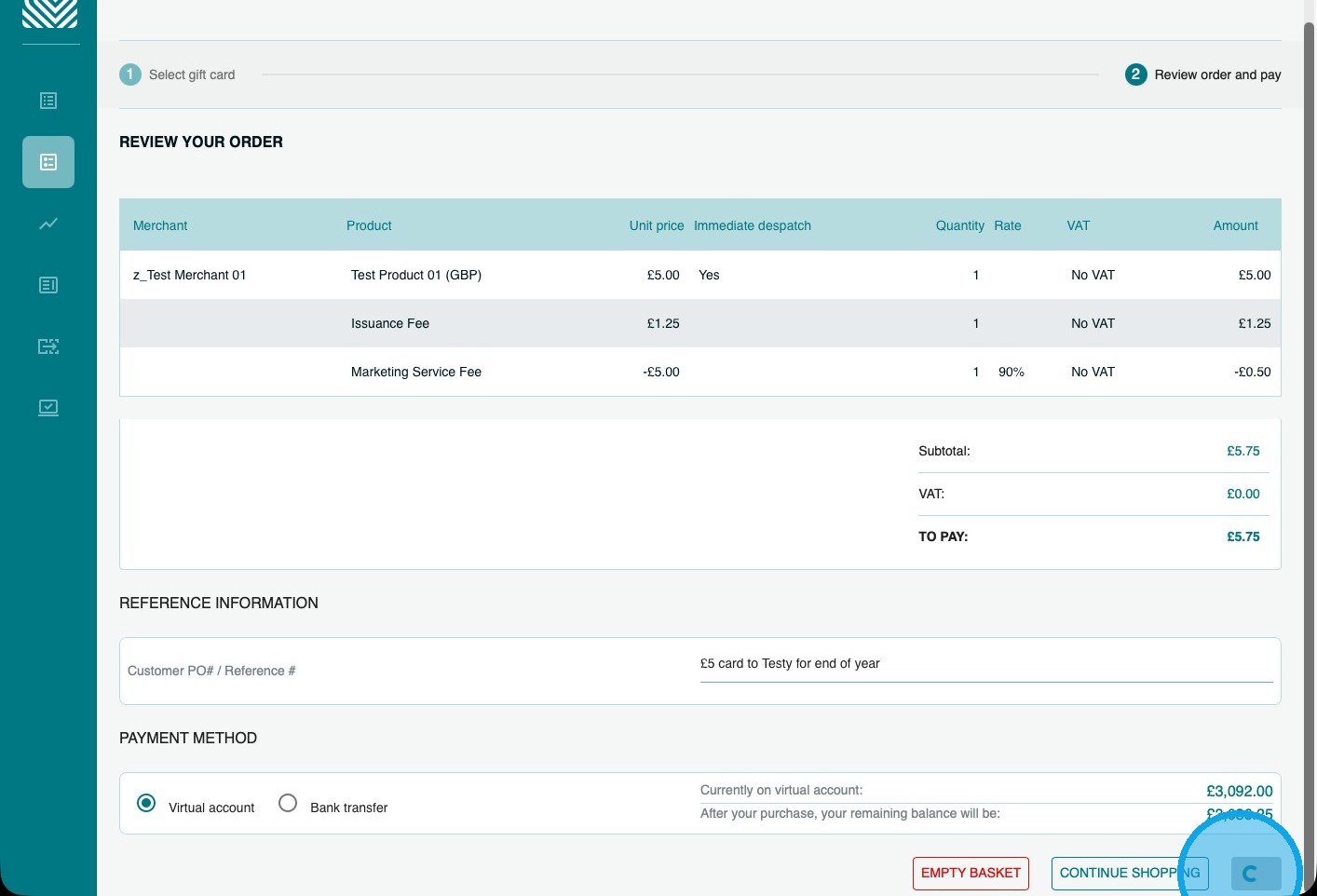
17. 15. You can now choose how to pay.
You can pay either by Virtual account or Bank Transfer.
(The example here uses a Virtual account. For details about all payment options, click here.)
Place a card load/top-up order
1. Click “PLACE CARD LOAD ORDER”
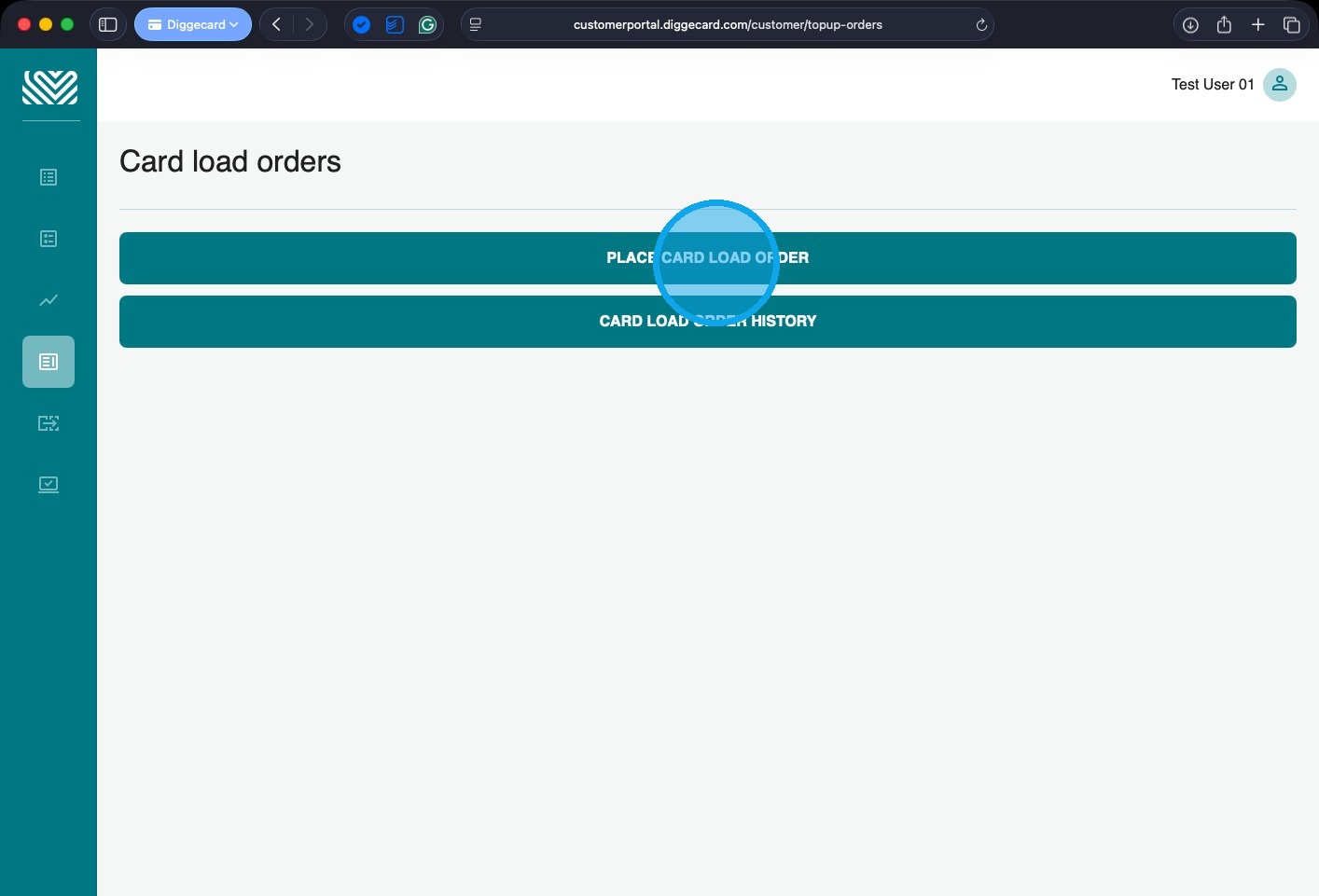
2. Select the currency of the cards you wish to load.
(You can only have one currency per order, so if you wish to load cards in different currencies, you will need to place multiple orders.)
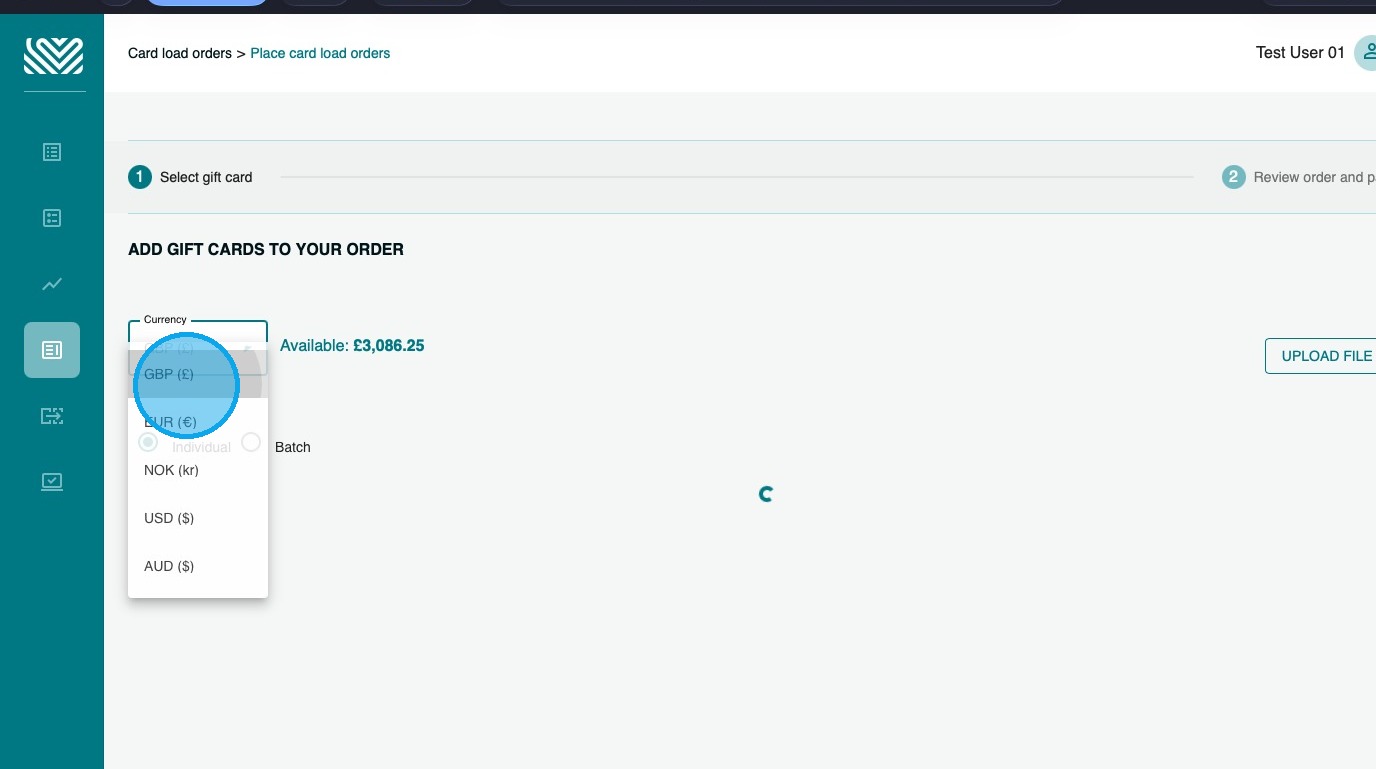
3. Click “combo box”
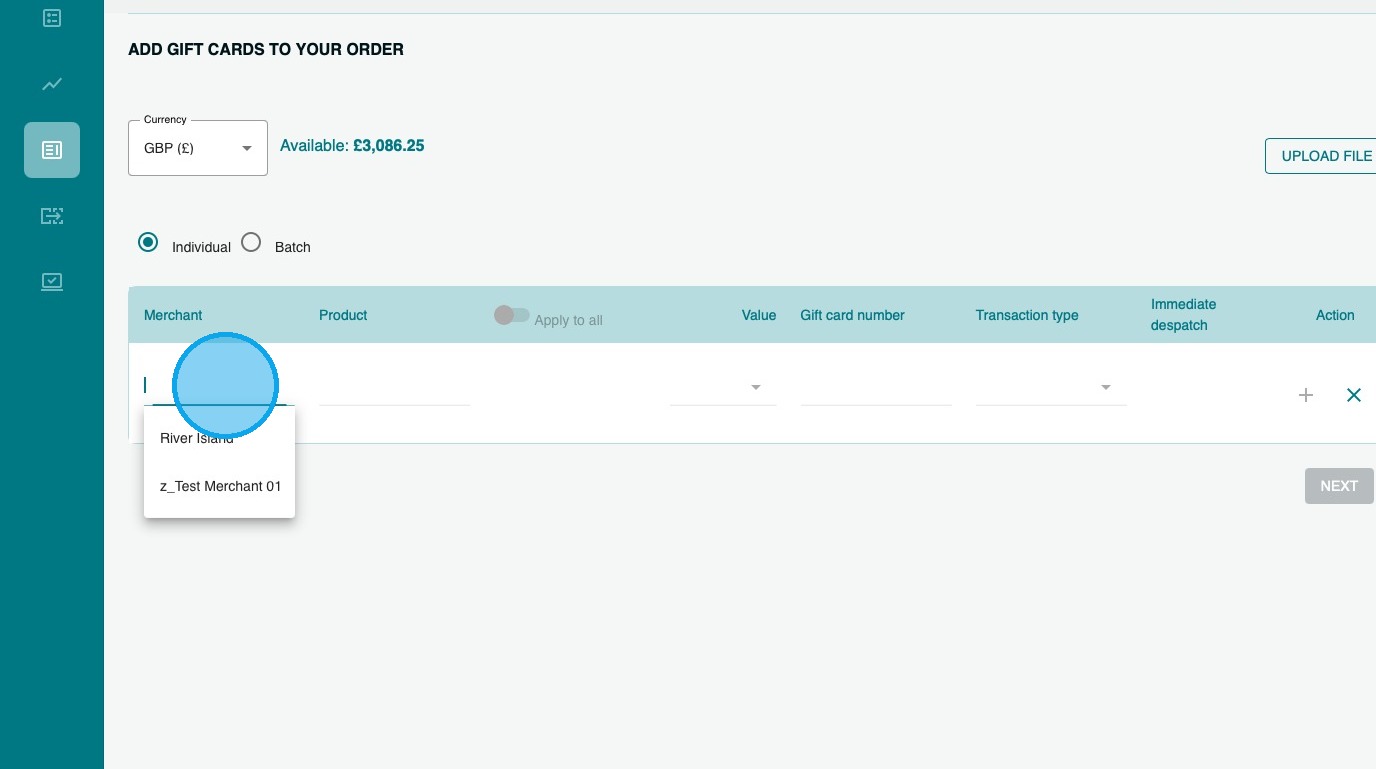
4. Select the Merchant you require
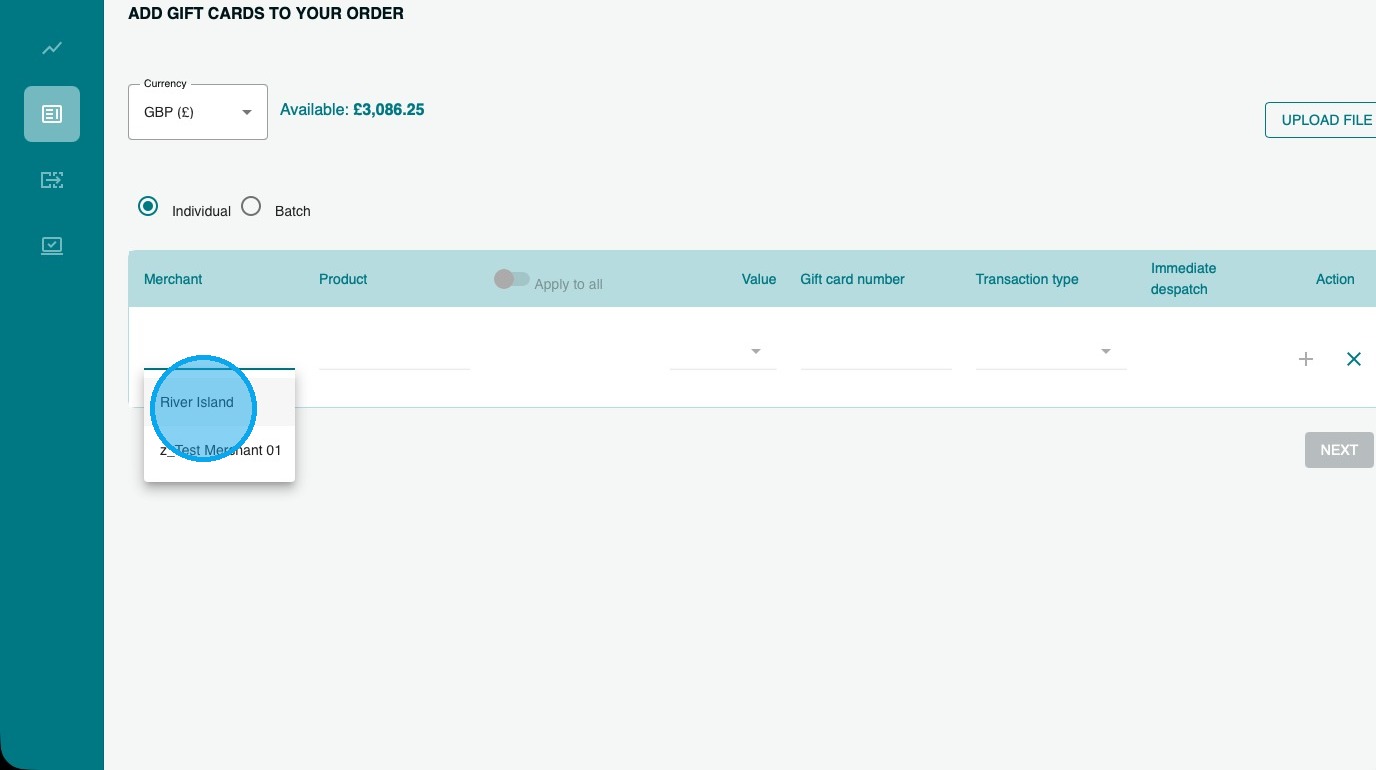
5. Select the Card Type you wish to load
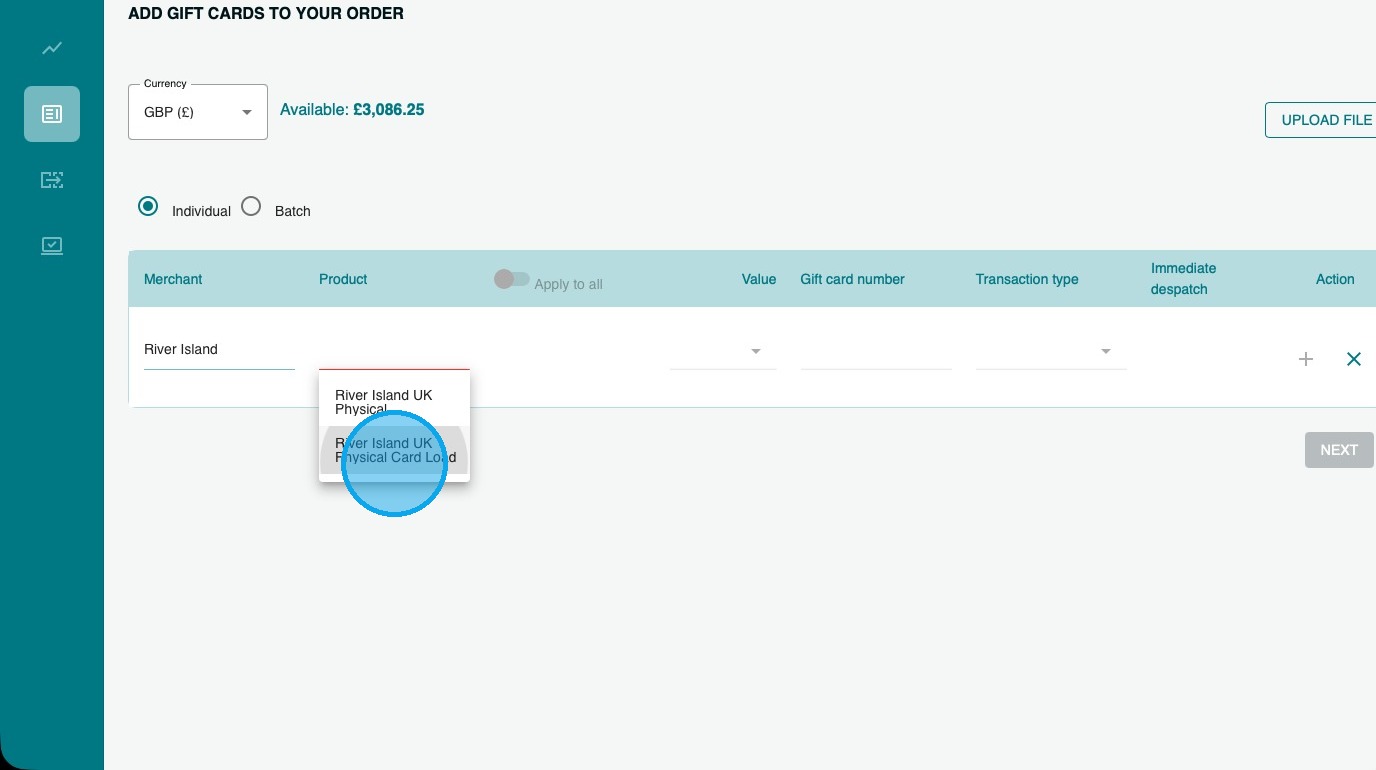
6. Enter the amount you would like to load onto the card.
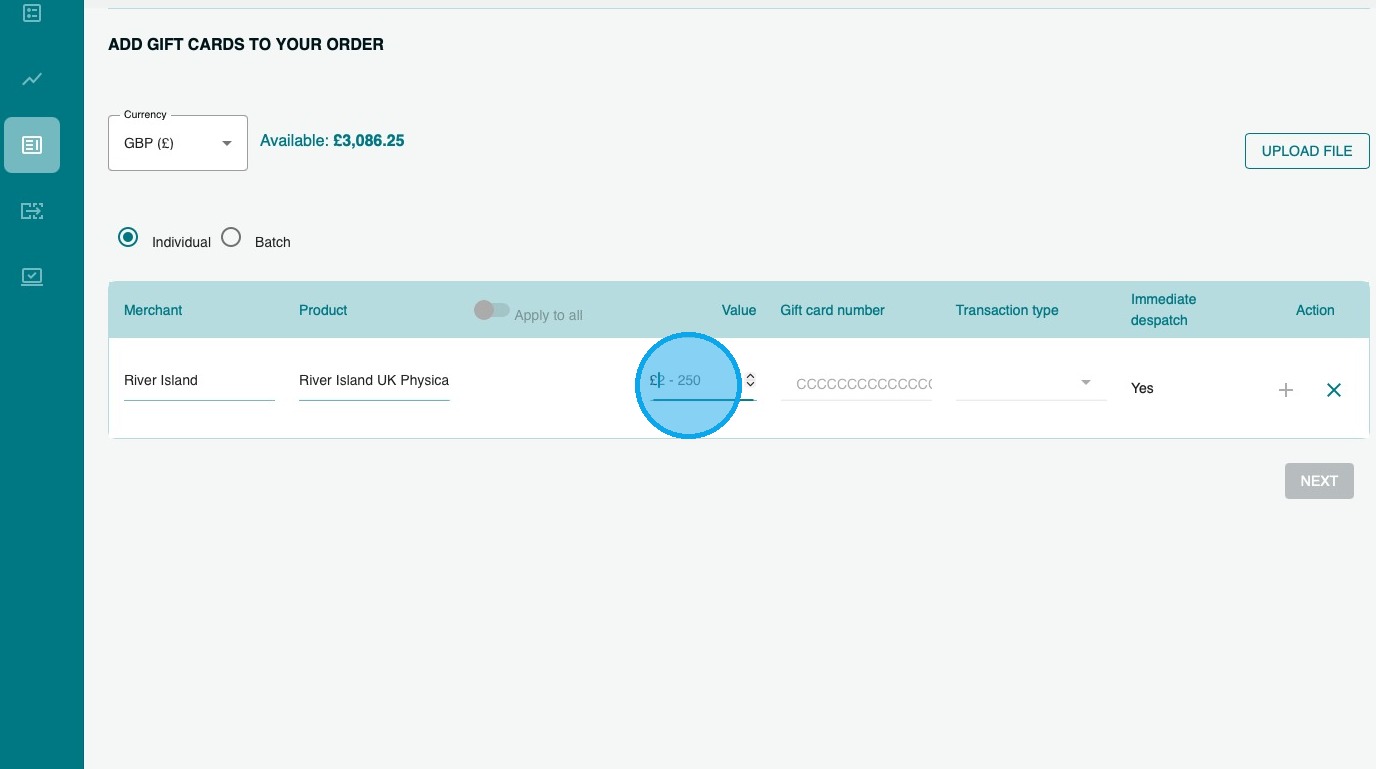
7. Then enter the card number. The system will check that the card number is the correct length and in the correct format.
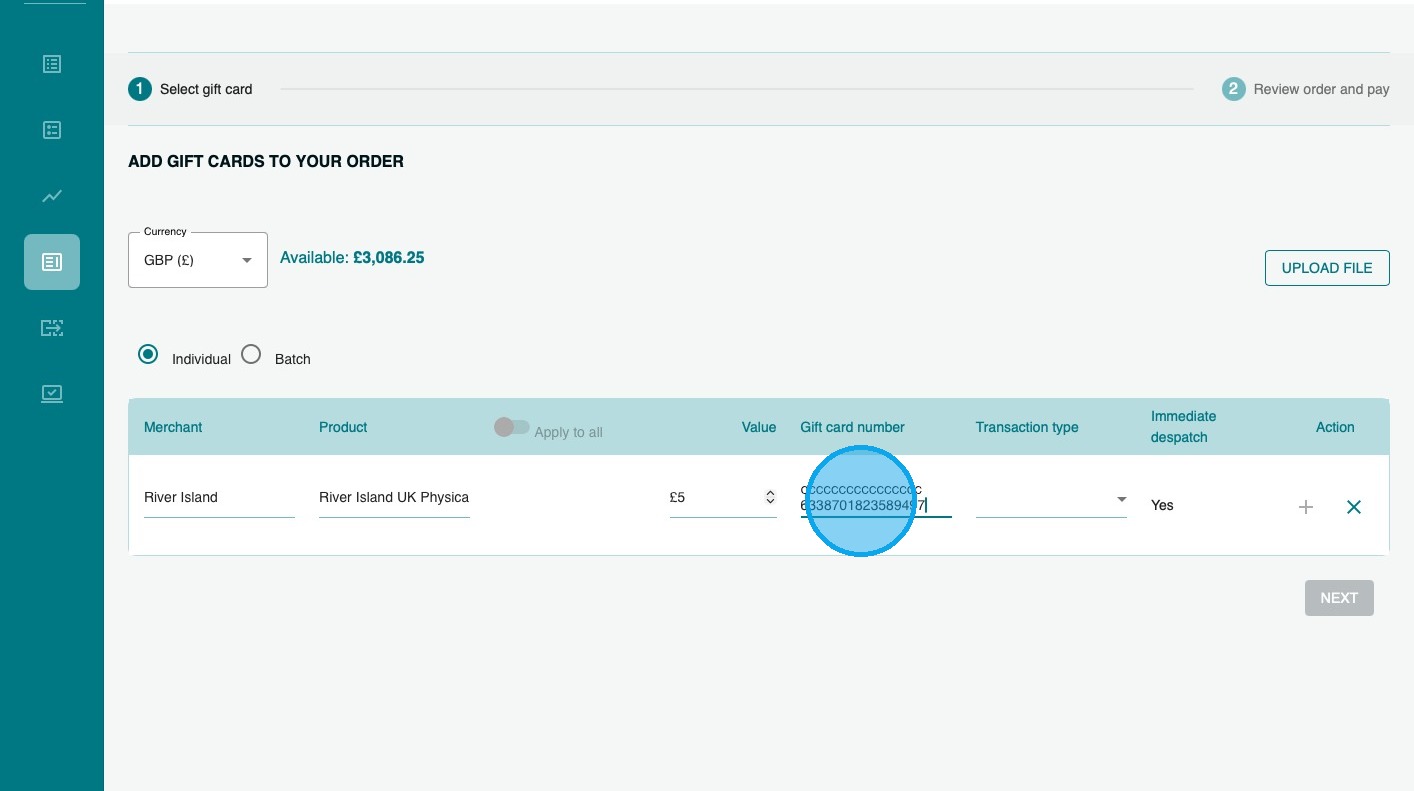
8. Choose whether the card is being loaded for the first time or if you are topping up an existing card. (Not all cards can be topped up; if this functionality is not available for the product you have chosen, the option will not be available to select.)
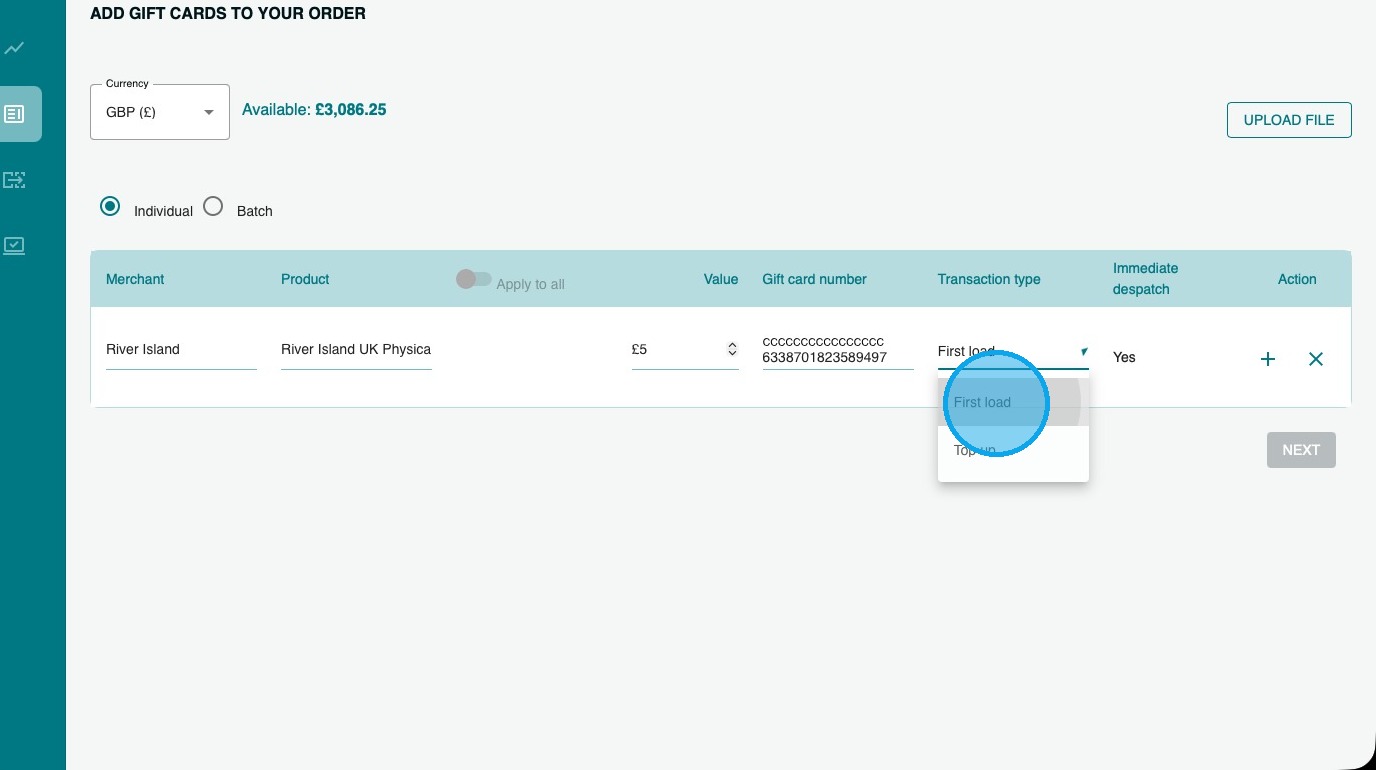
9. Click the “+” to confirm to add the line to your basket
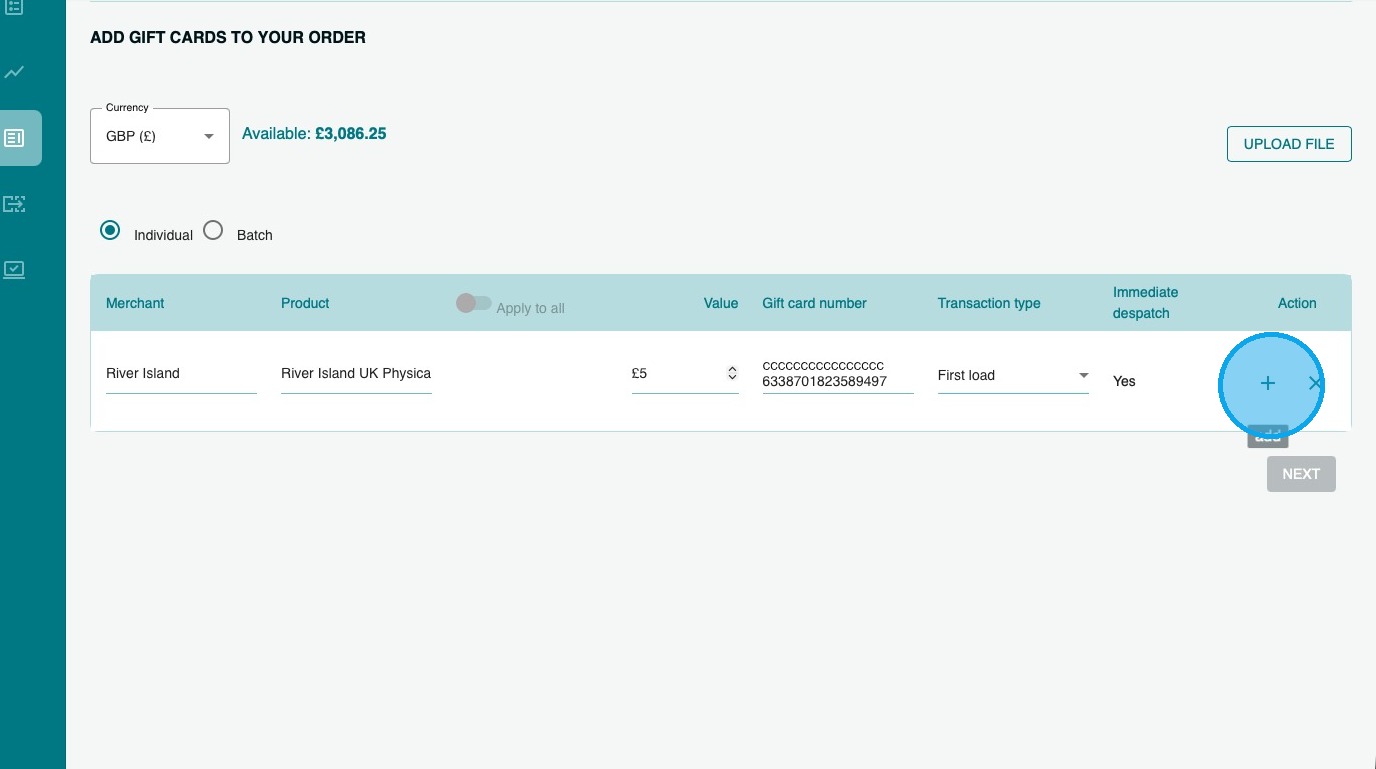
10. If you have multiple cards to load, rather than adding each one individually, you may want to use the Bulk option, where you can load/top-up a range of cards…
11. Or use the Upload file option, where you can upload an excel spreadsheet of the cards you wish to process.
12. Click here to download a template that you can complete and then upload.
Once the file has uploaded, click “continue shopping” to confirm the order.
Tip: Tip! To complete the order file, you will need the SKU Prefix of the product(s) you want to purchase – you can find these in the Product Portfolio
13. Once you are happy with your selection, click “NEXT”
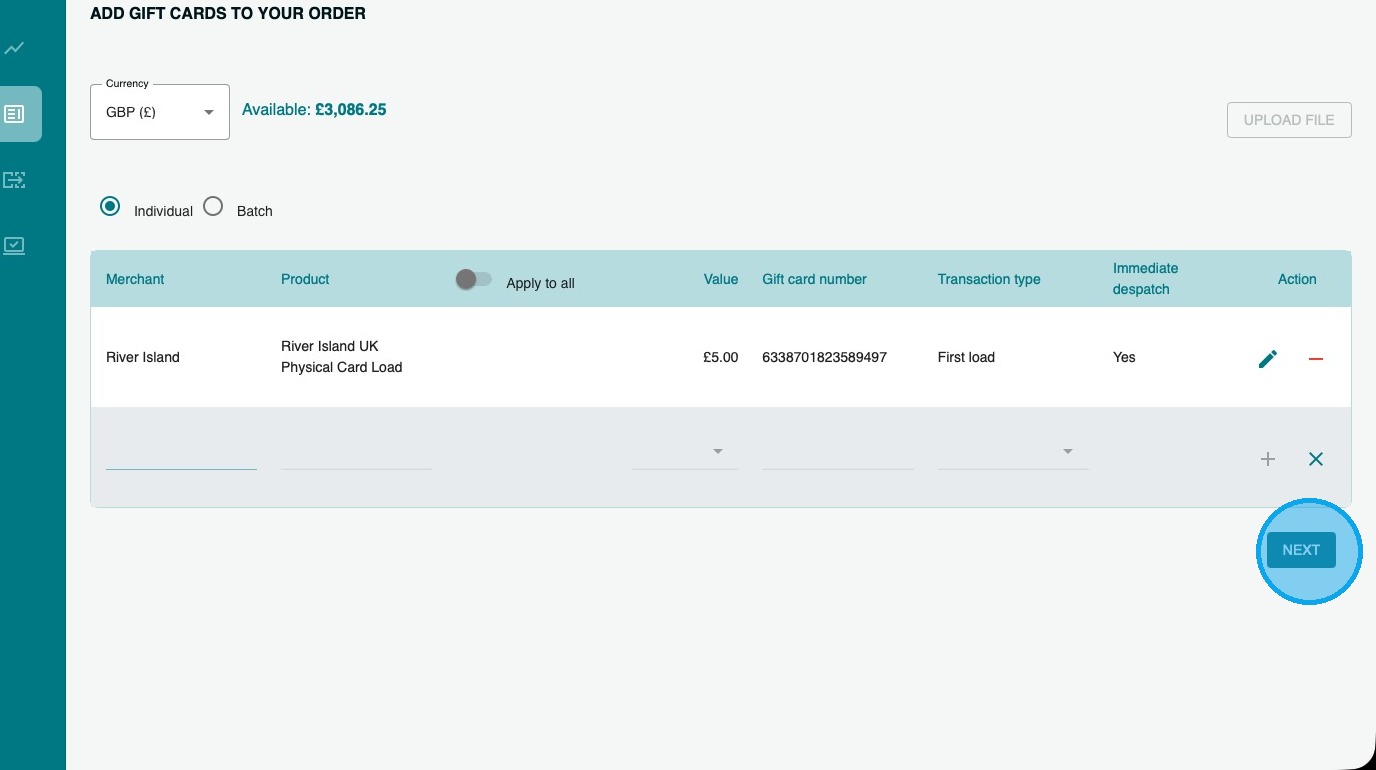
14. You will now be able to review your order, and add Purchase Order Number or reference to the order if you wish.
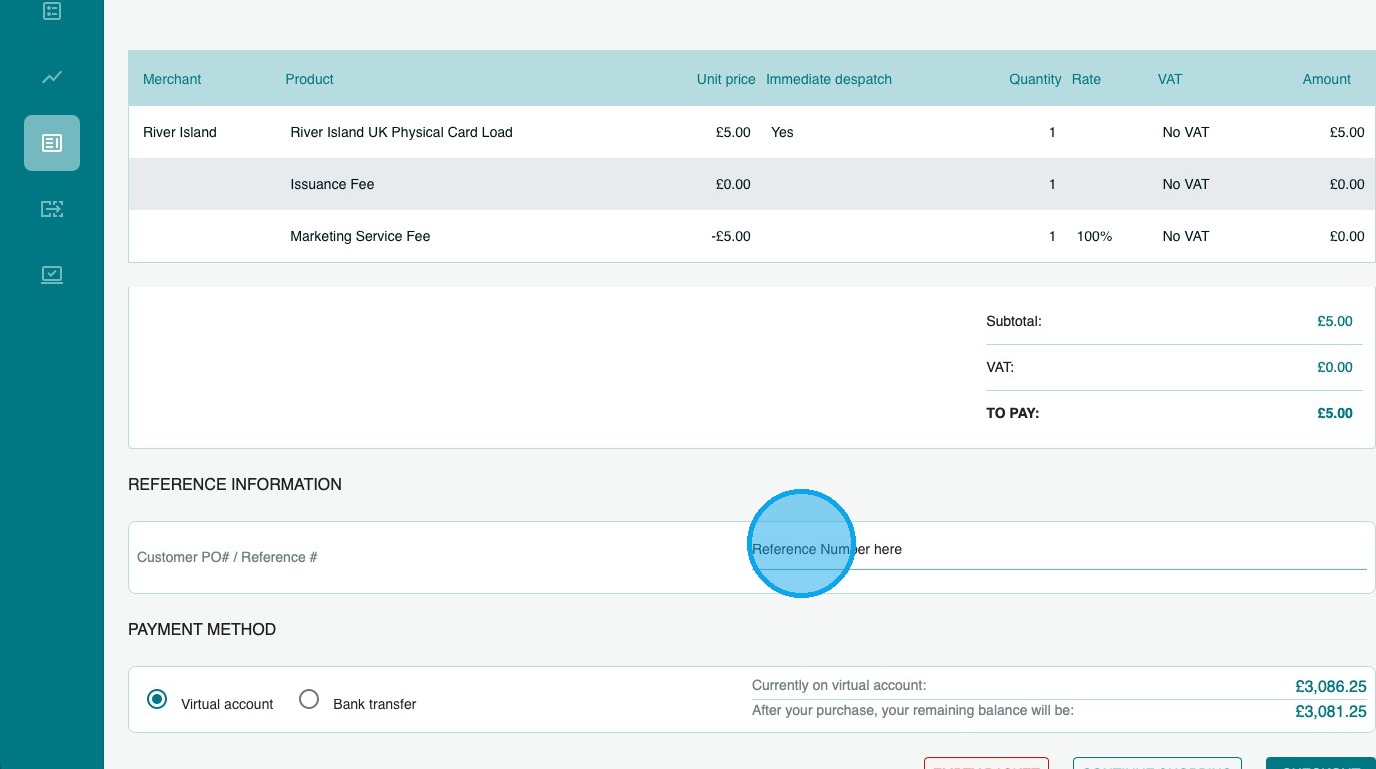
15. You can now choose how to pay.
You can pay either by Virtual account or Bank Transfer.
(The example here uses a Virtual account. For details about all payment options Click Here)
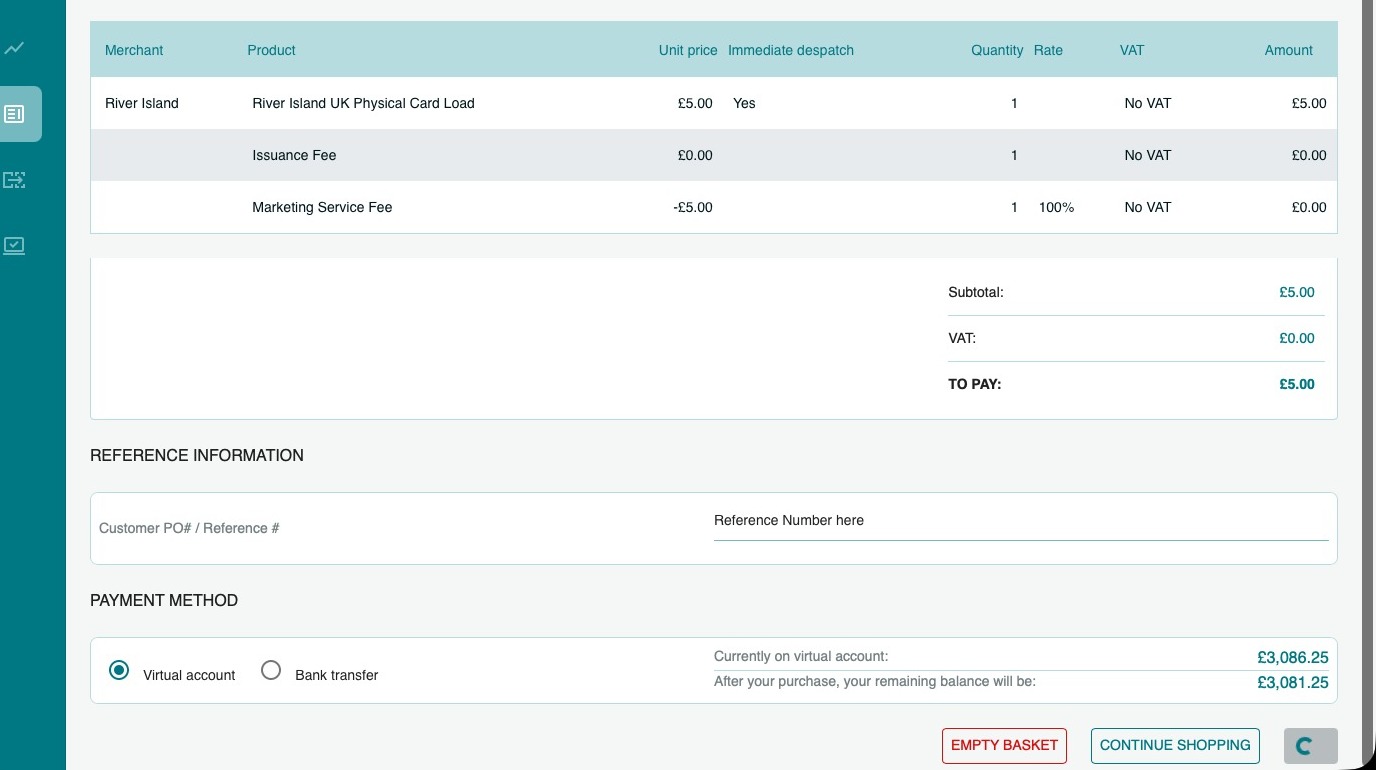
16. To pay using funds on your account, click “Virtual account”
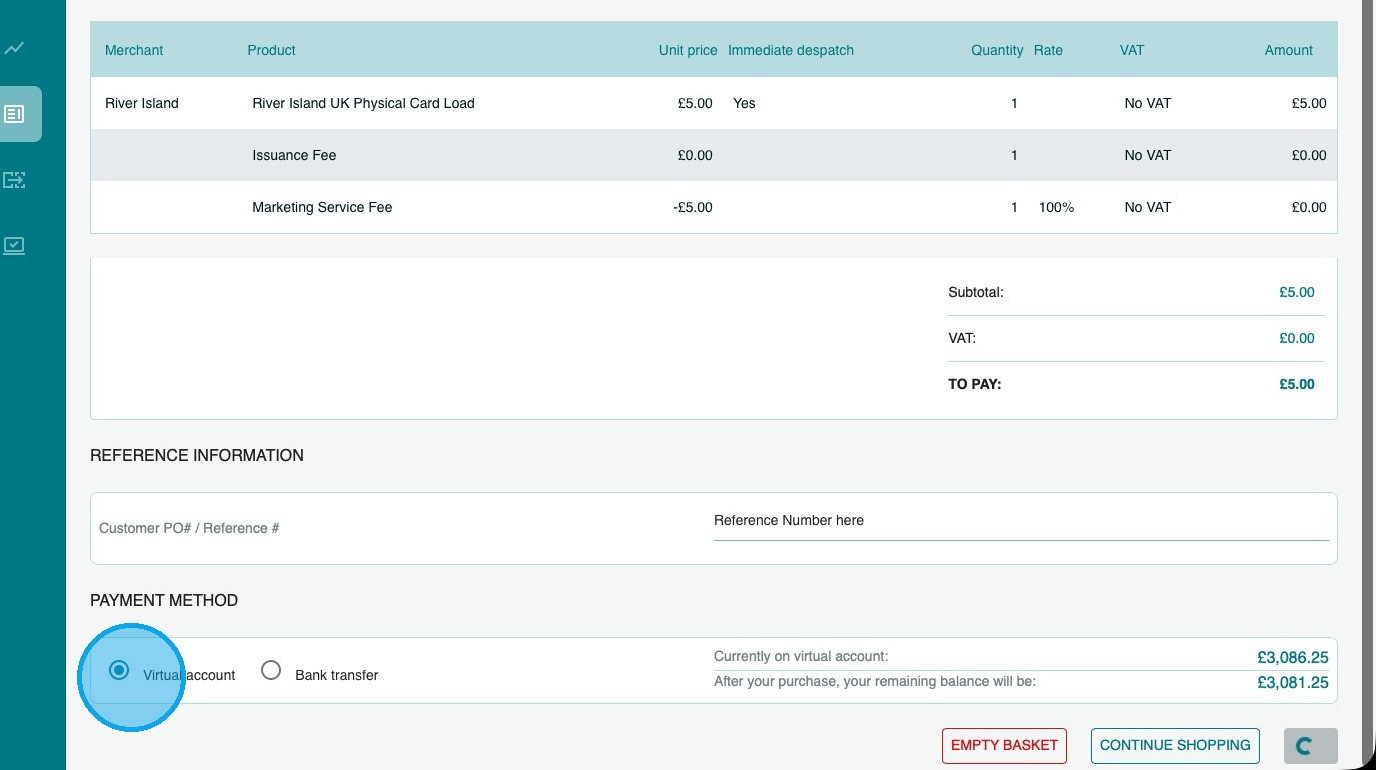
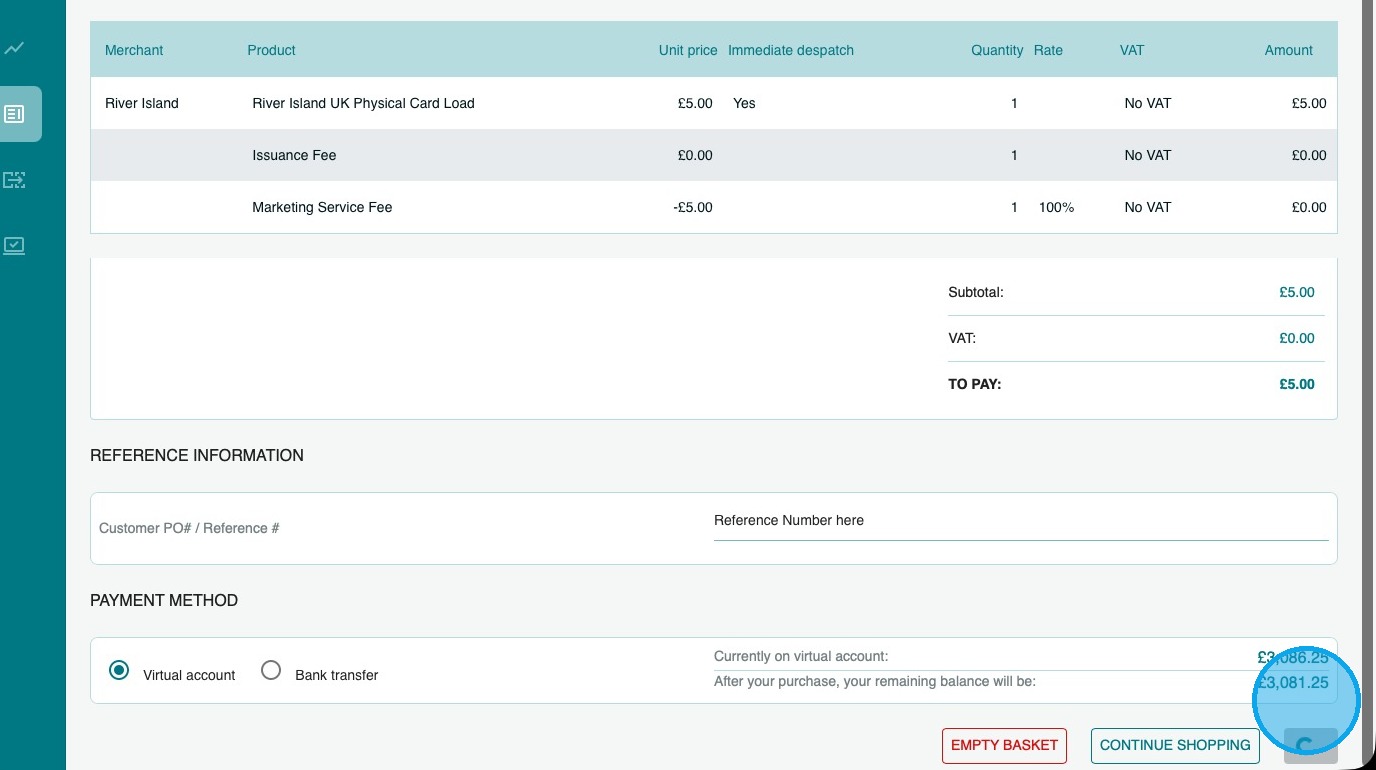
17. And then click confirm to place your order
How to pay for your order
1. You can now choose how to pay.
You can pay either by Virtual account (go to step 2) or Bank Transfer (go to step 5).
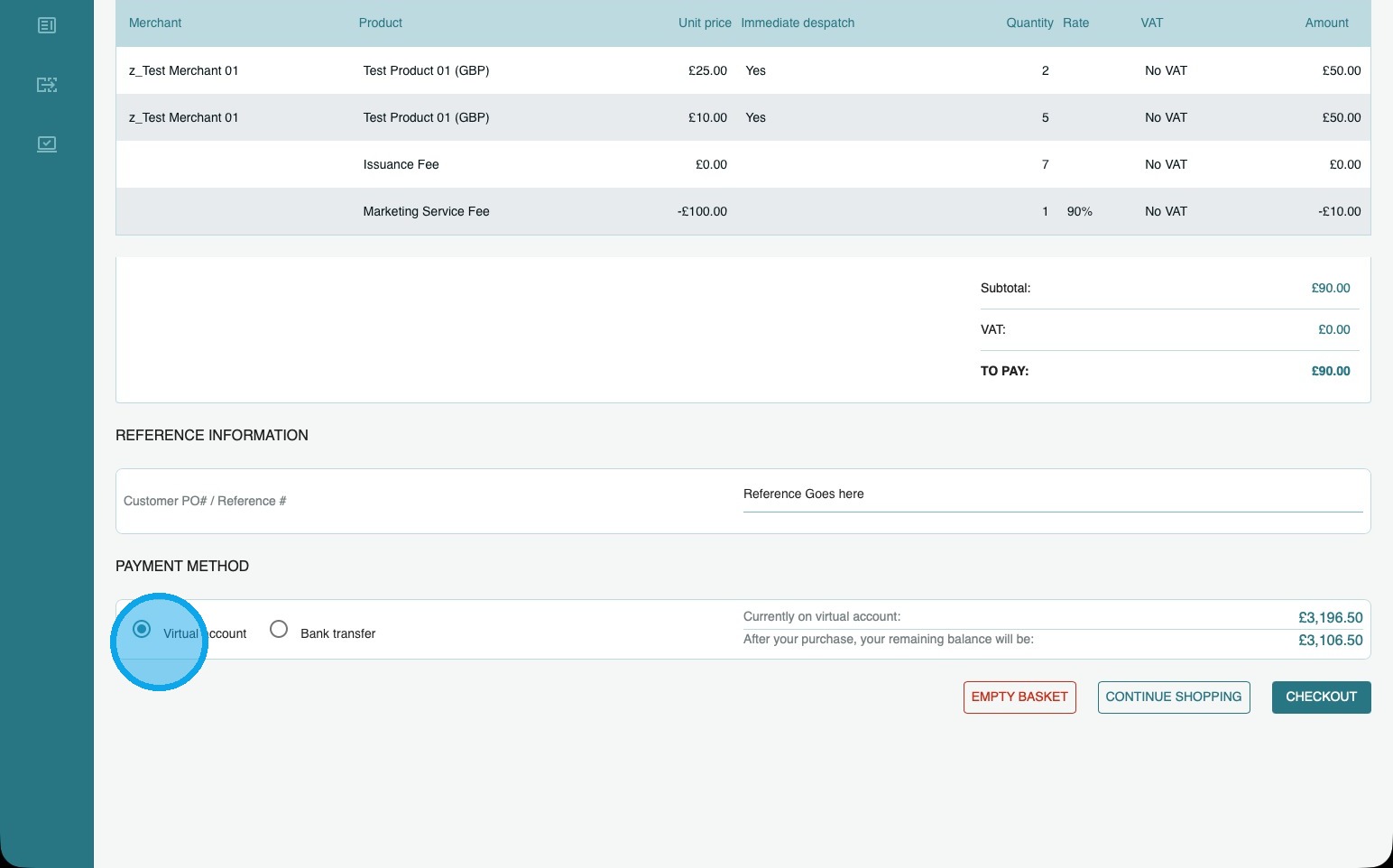
2. To pay using funds on your account, click “Virtual account”
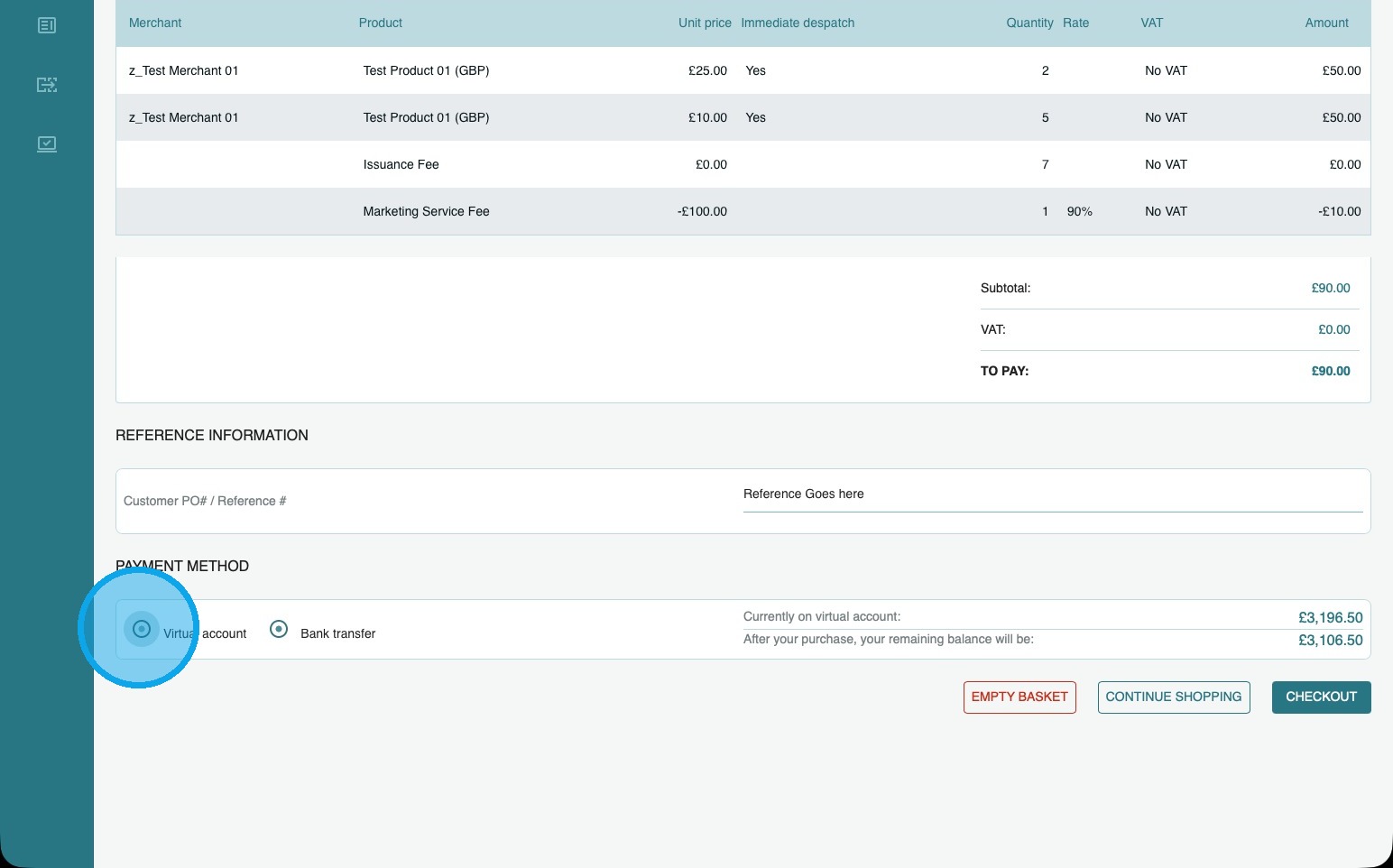
3. Then click “Checkout”
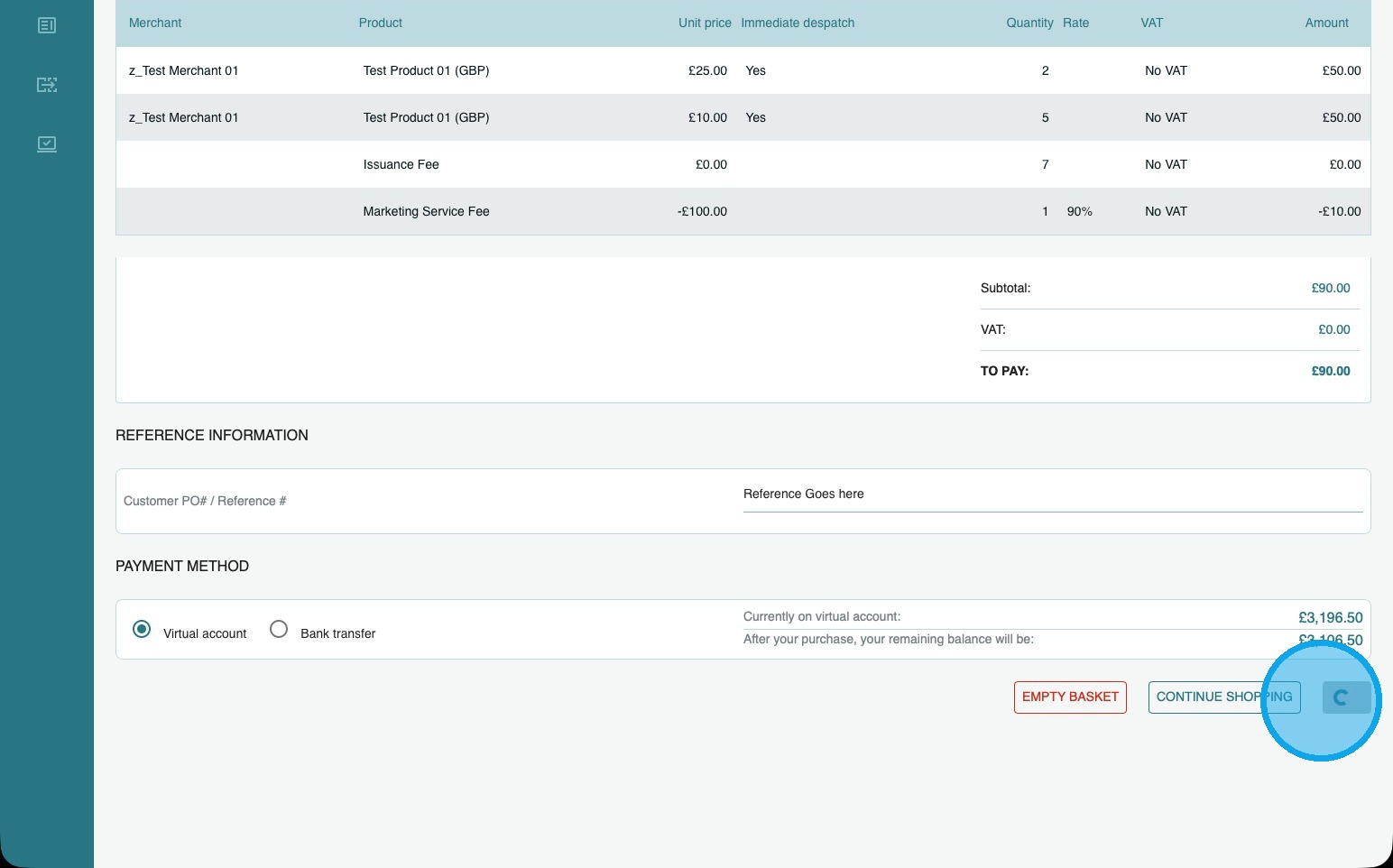
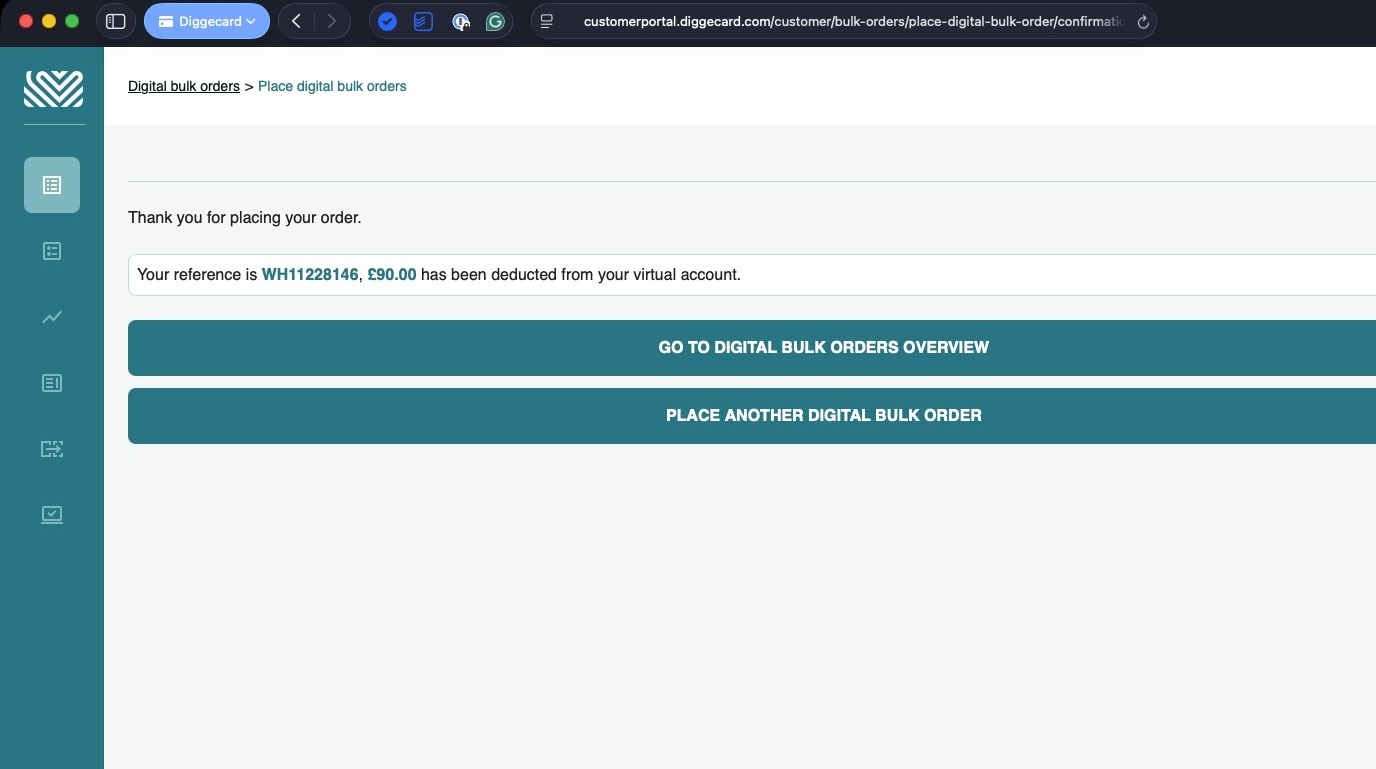
4. Your digital order has been placed
You will be notified when the order is ready to download.
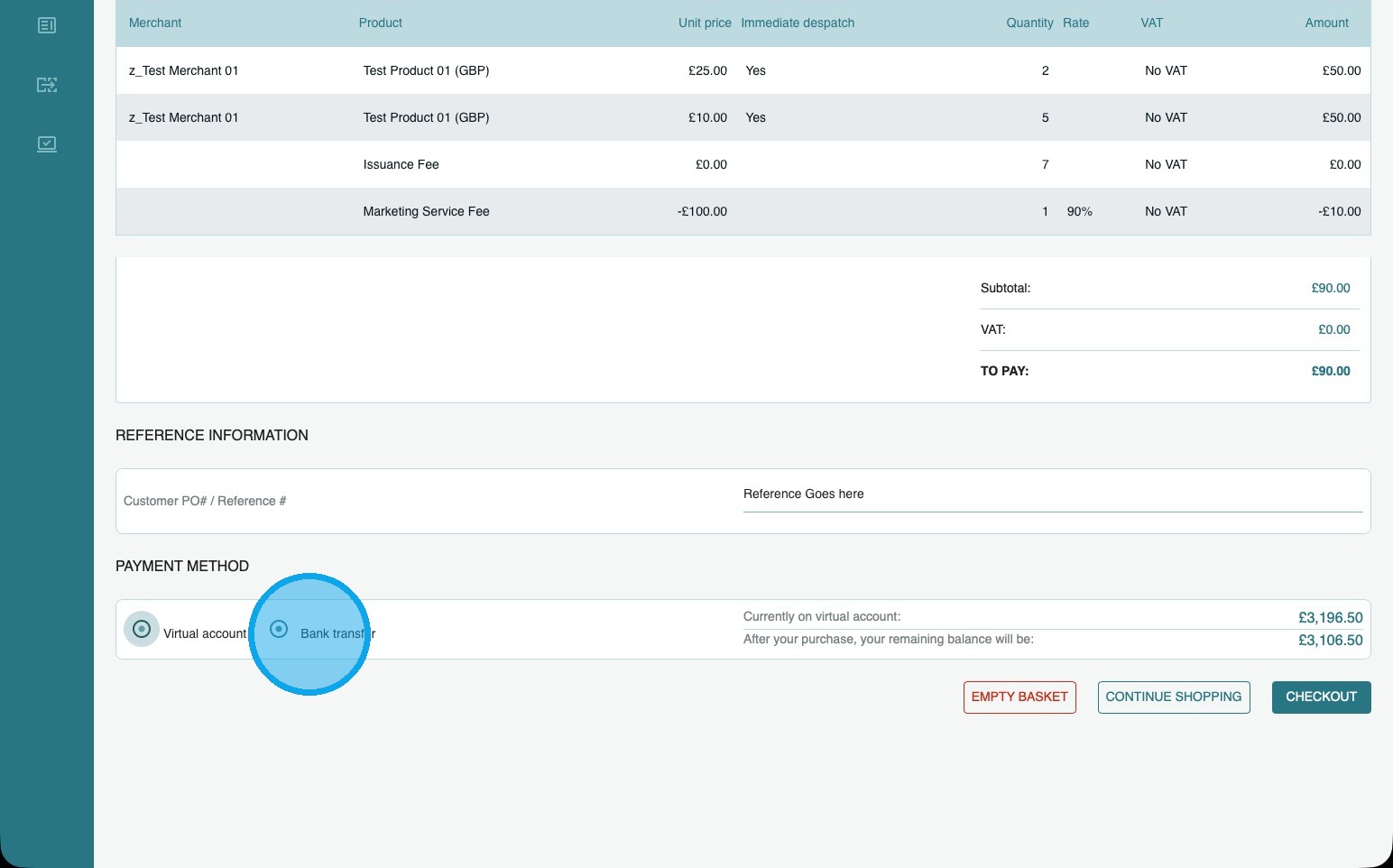
5. If you don’t have a virtual account, click “Bank Transfer”
6. Then click “Checkout”
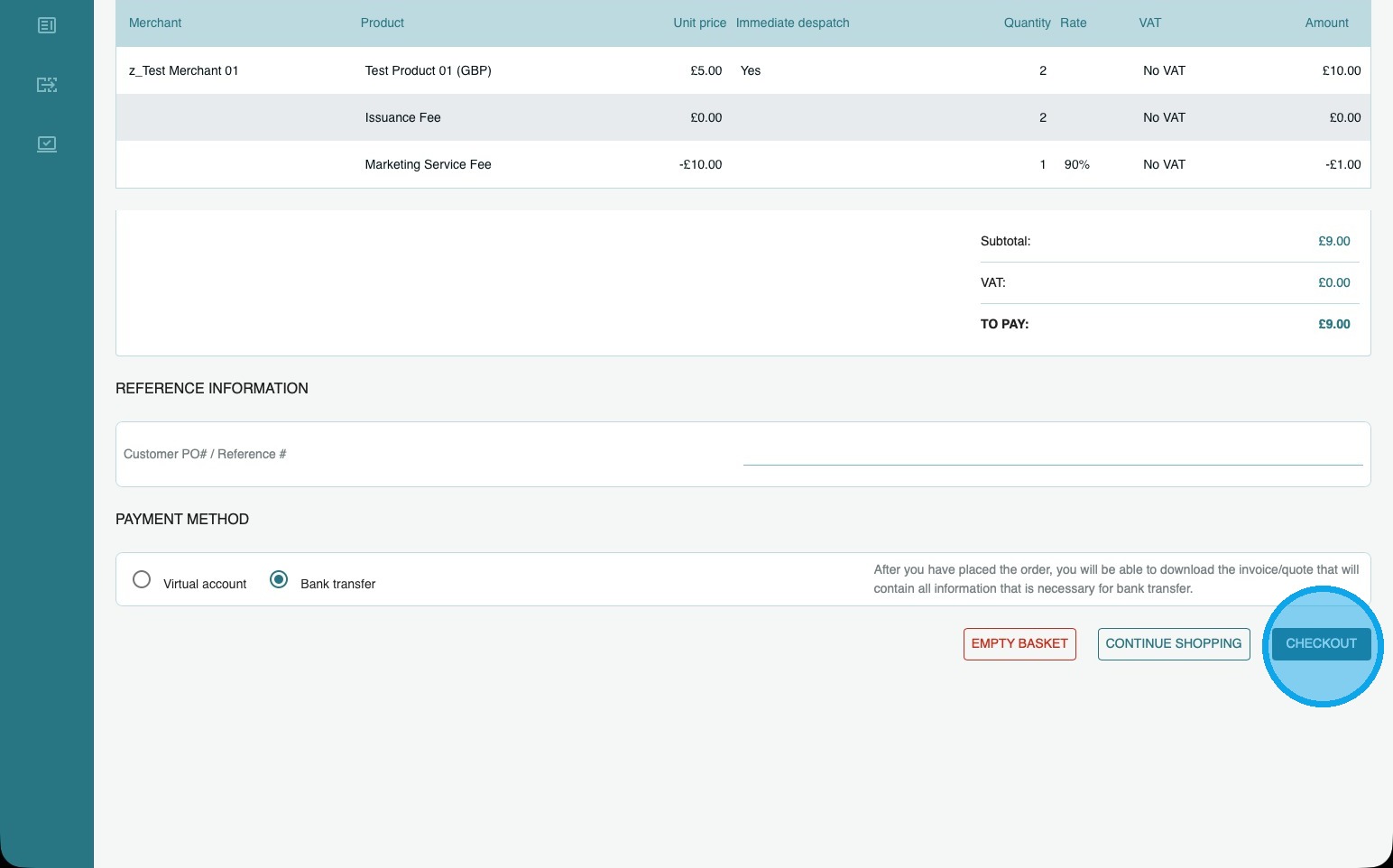
7. Your digital order has been placed, and you can now download a copy of the Pro-forma Invoice and make the payment. Please make a note of the reference number, as this should be quoted when sending your payment.
You will be notified when the order is ready to download.
Download your digital bulk order
1. You will receive an email informing you when your order is ready to download.
Tip! We can add multiple people to the order notification list – please click here to find out more.
2. To download your digital order, navigate to the Bulk Orders page using the menu bar on the left.
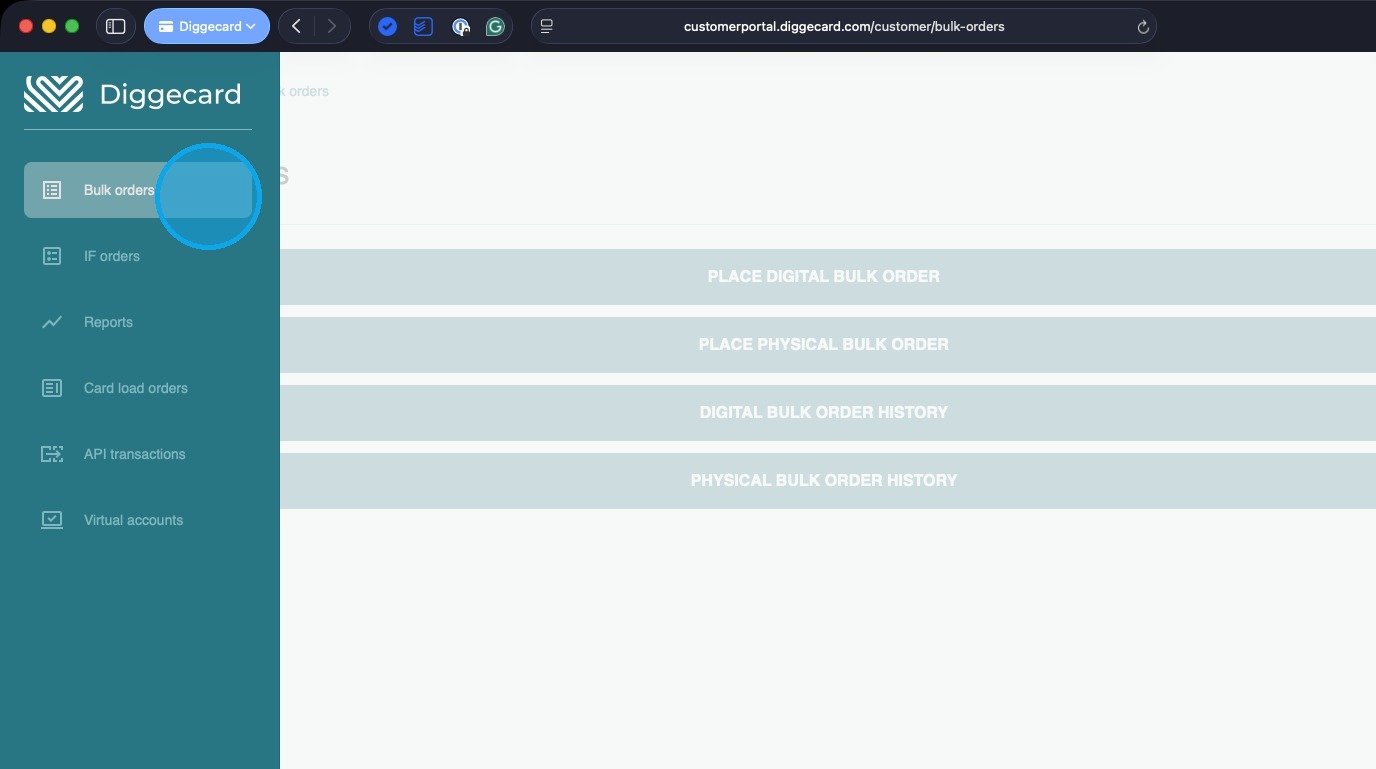
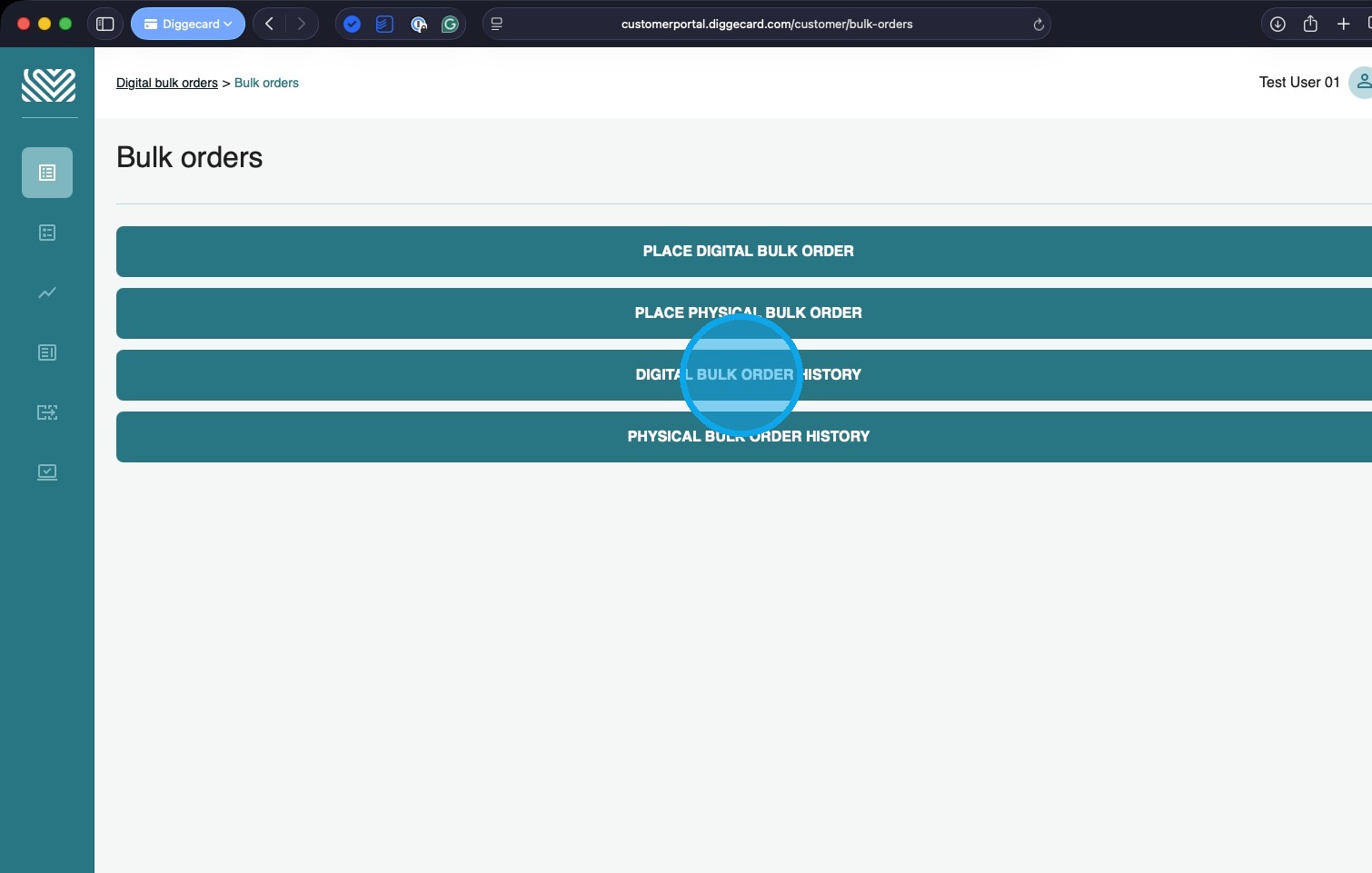
3. To view your orders click “DIGITAL BULK ORDER HISTORY”.
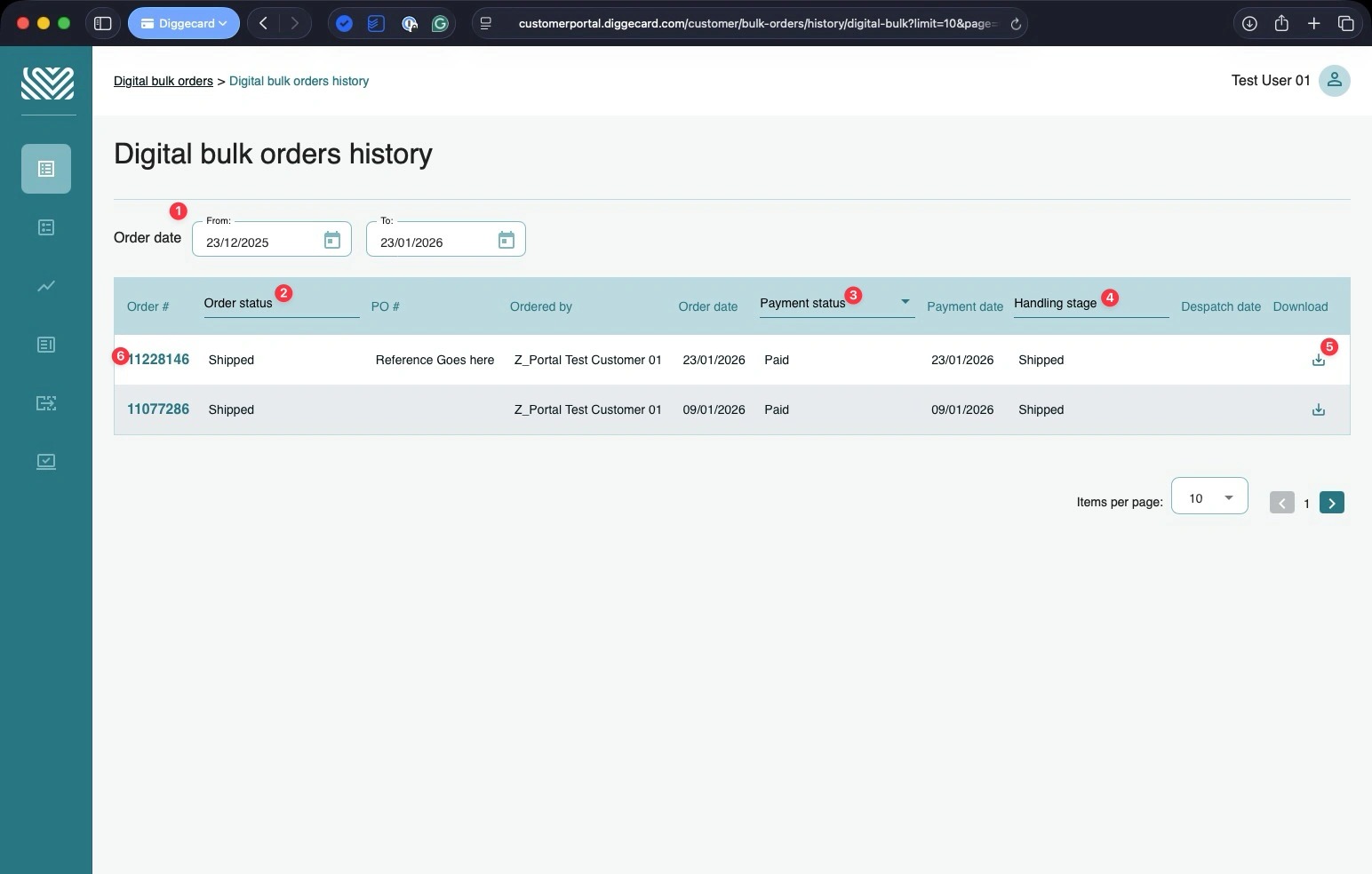
4. This is your Digital bulk orders history page – this is where you can find shipped orders that are available to download, and see orders that are processing or awaiting payment.
Useful information:\
- By default, the page shows the past 30 days, but you can filter the date range using the from and to boxes.
You can filter the orders on the page by:\ - Order Status\
- Payment Status\
- Handling Status.
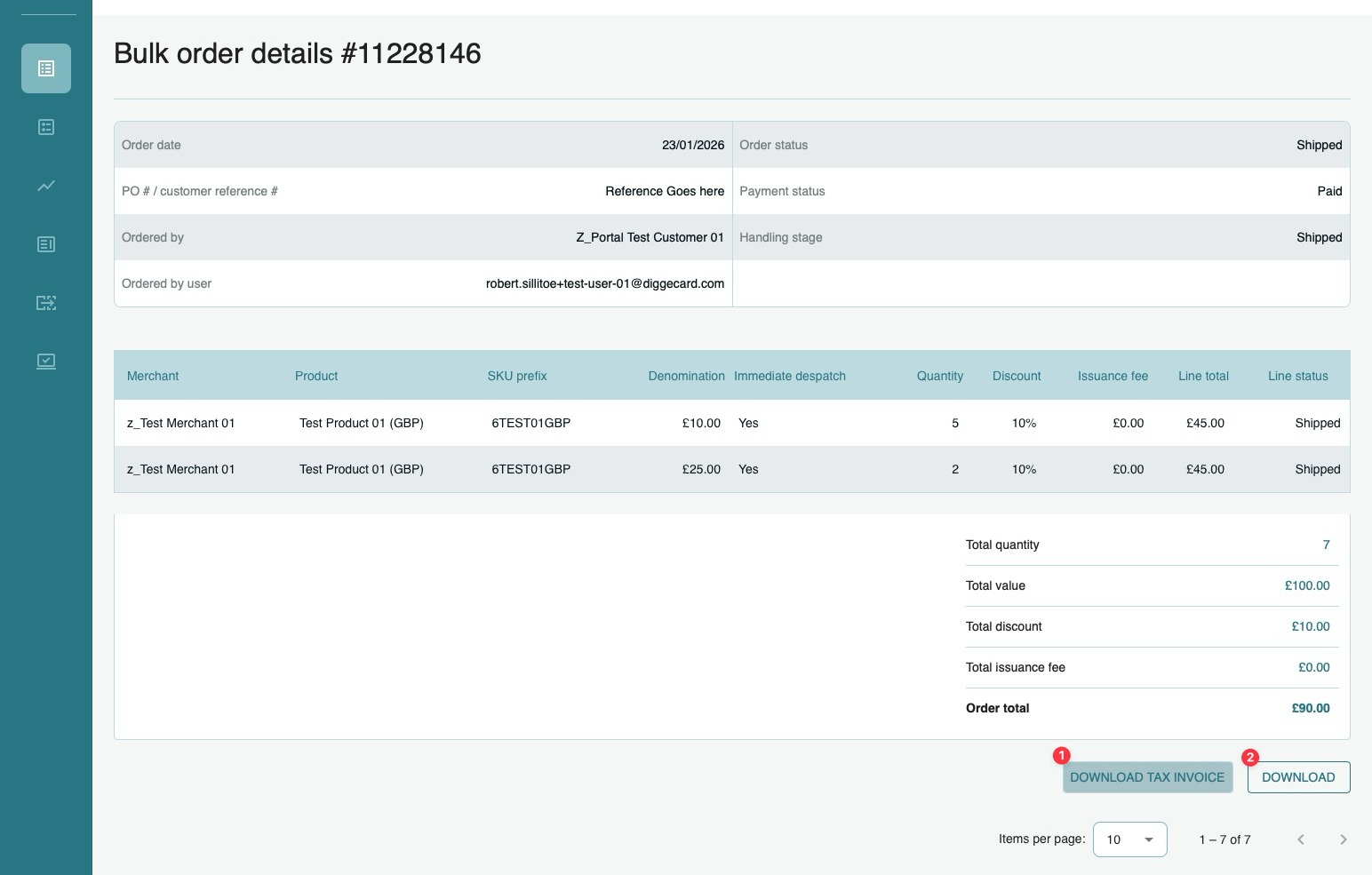
When your order has a status of “Shipped” click on 5 to download the order to your desktop.
Click on the order number (6) if you wish to see more information about your order.
5. By clicking on the order number, you get to the order details page.
Here you can see all the information about your order.
You can also download your tax invoice from this page (1) and download the order file (2).
Resend digital IF emails
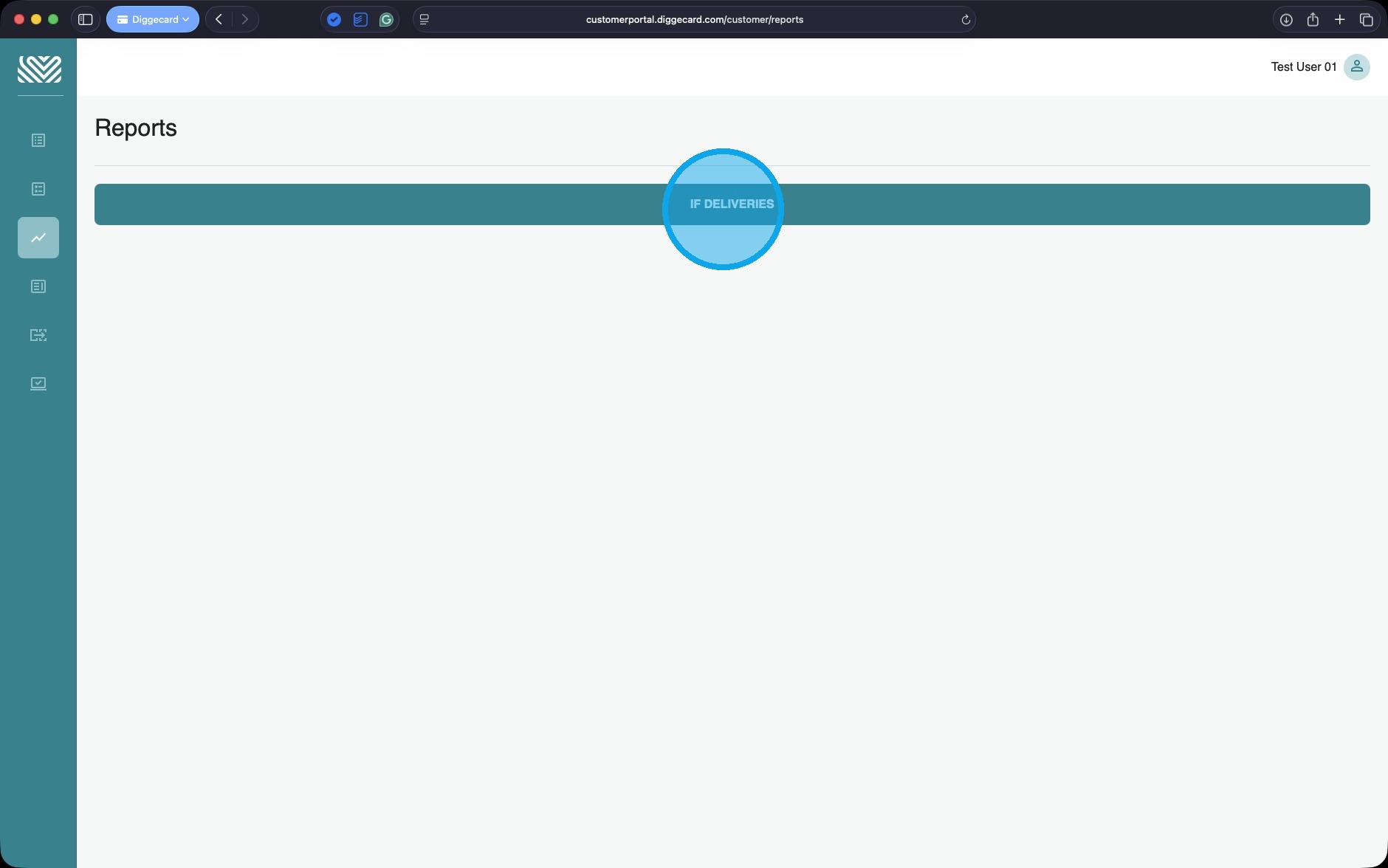
1. To start, click “IF DELIVERIES” under the Reports tab.
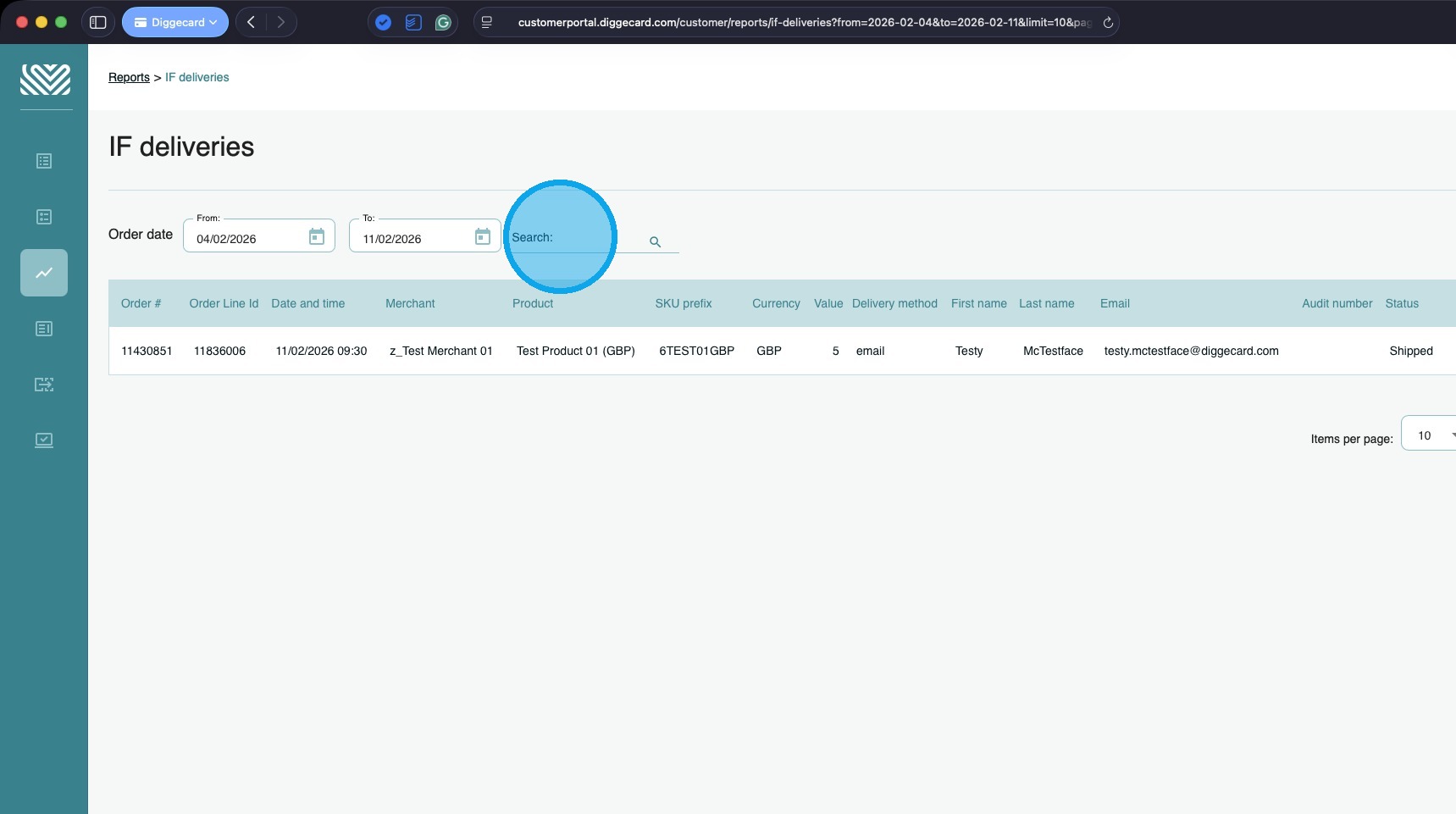
2. You can use the date filters (1) or the Search field (2) to find the IF delivery you wish to update or resend.
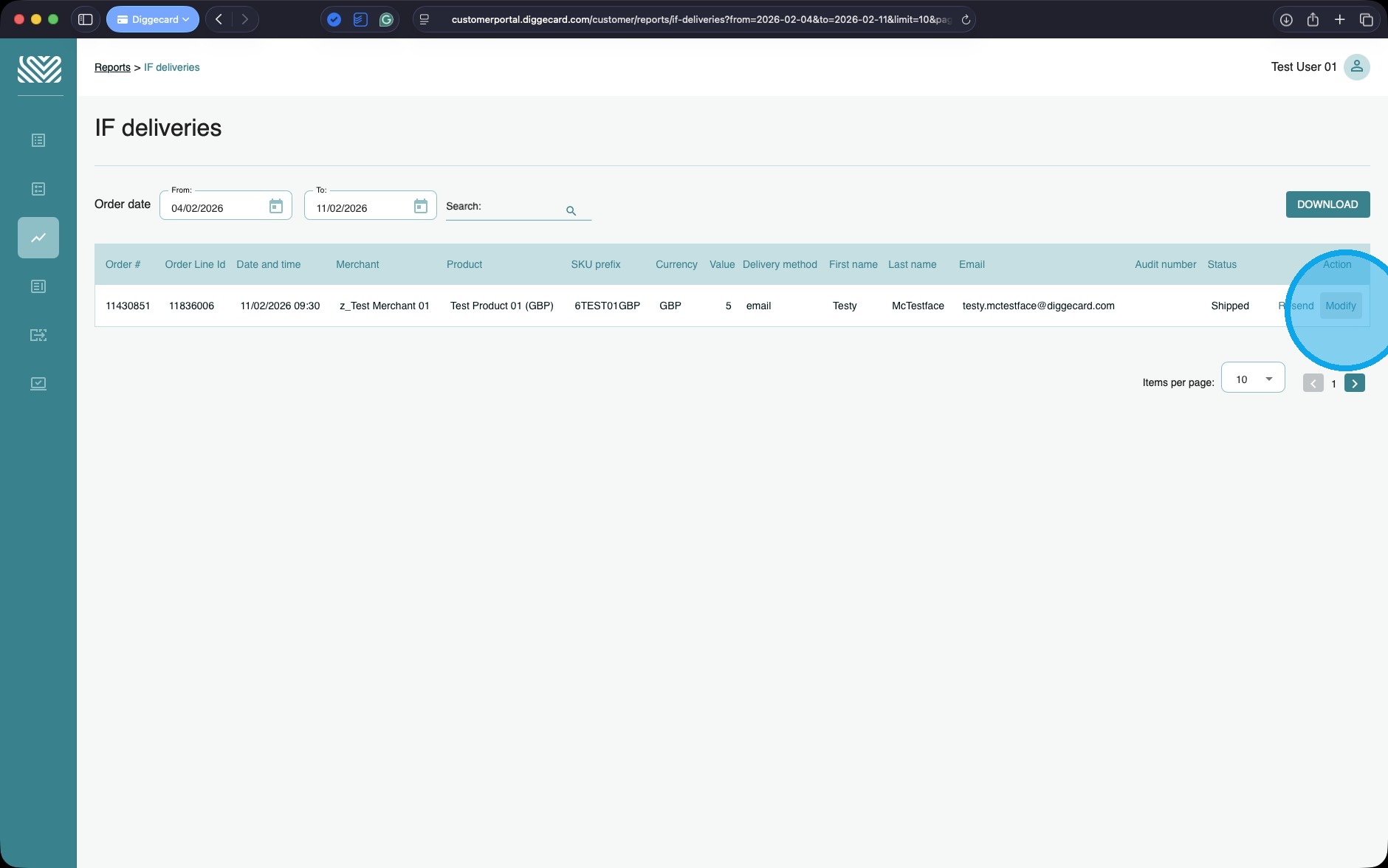
3. Once you have found the IF delivery you wish to update/resend, you can click “MODIFY” to update the email address.
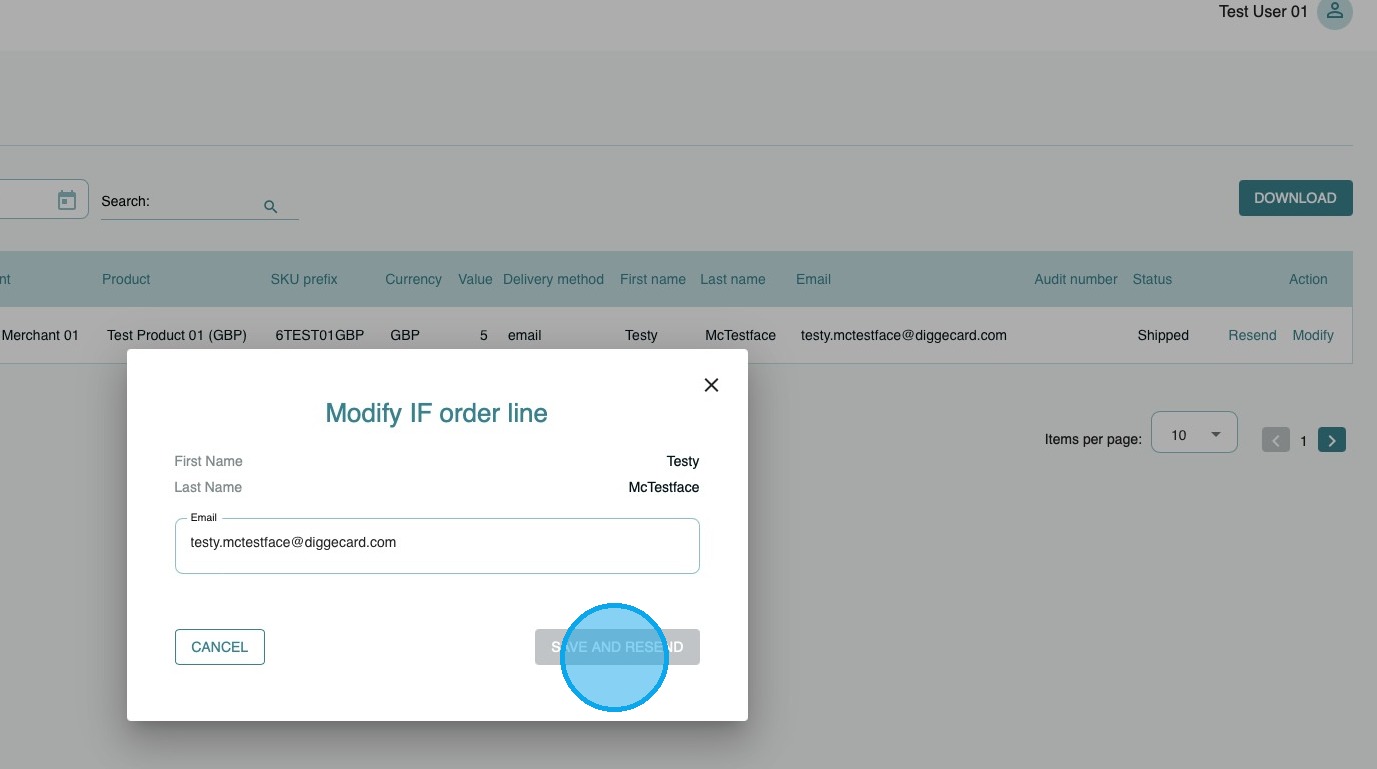
4. Once you have made the changes, you can click “SAVE AND RESEND” to send the IF delivery to the new email address.
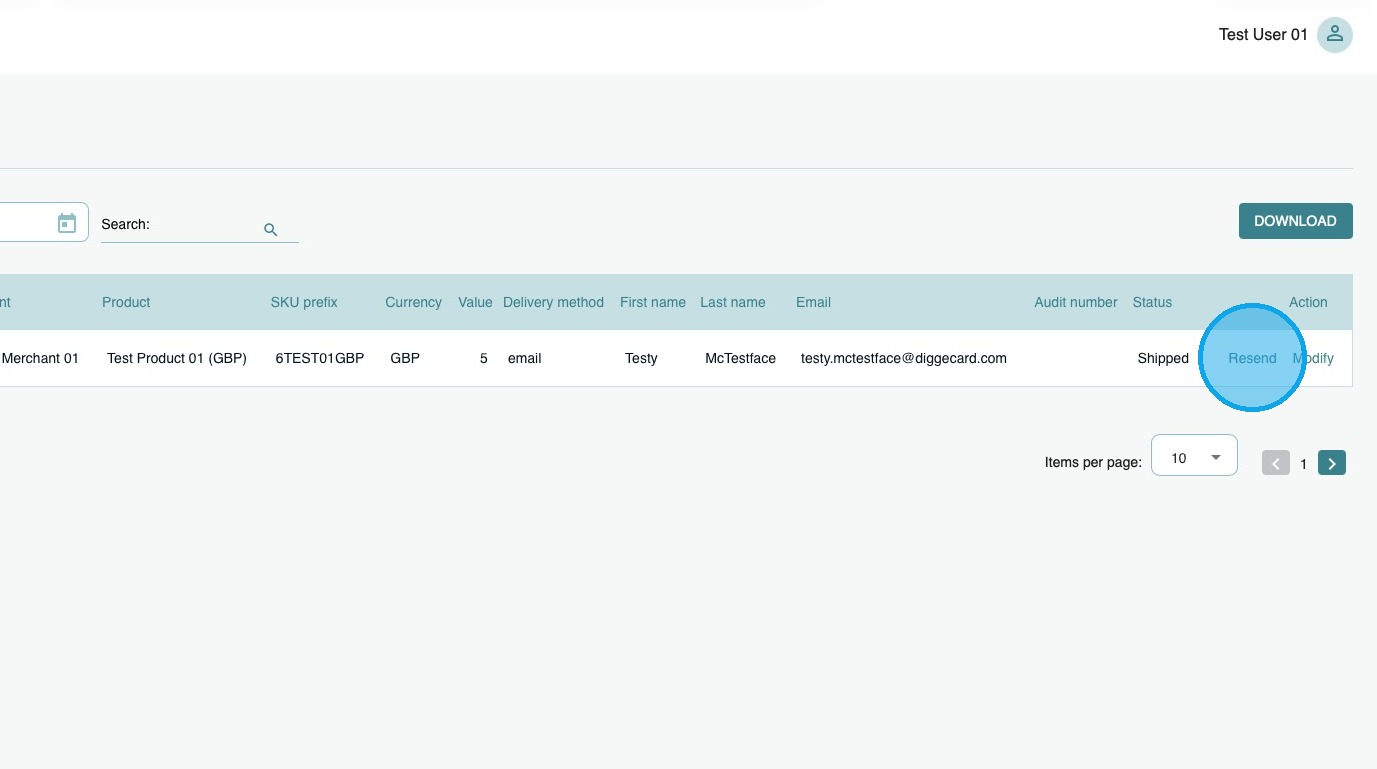
5. If the email is correct and you just want to resend it, click “RESEND”.
API Transactions
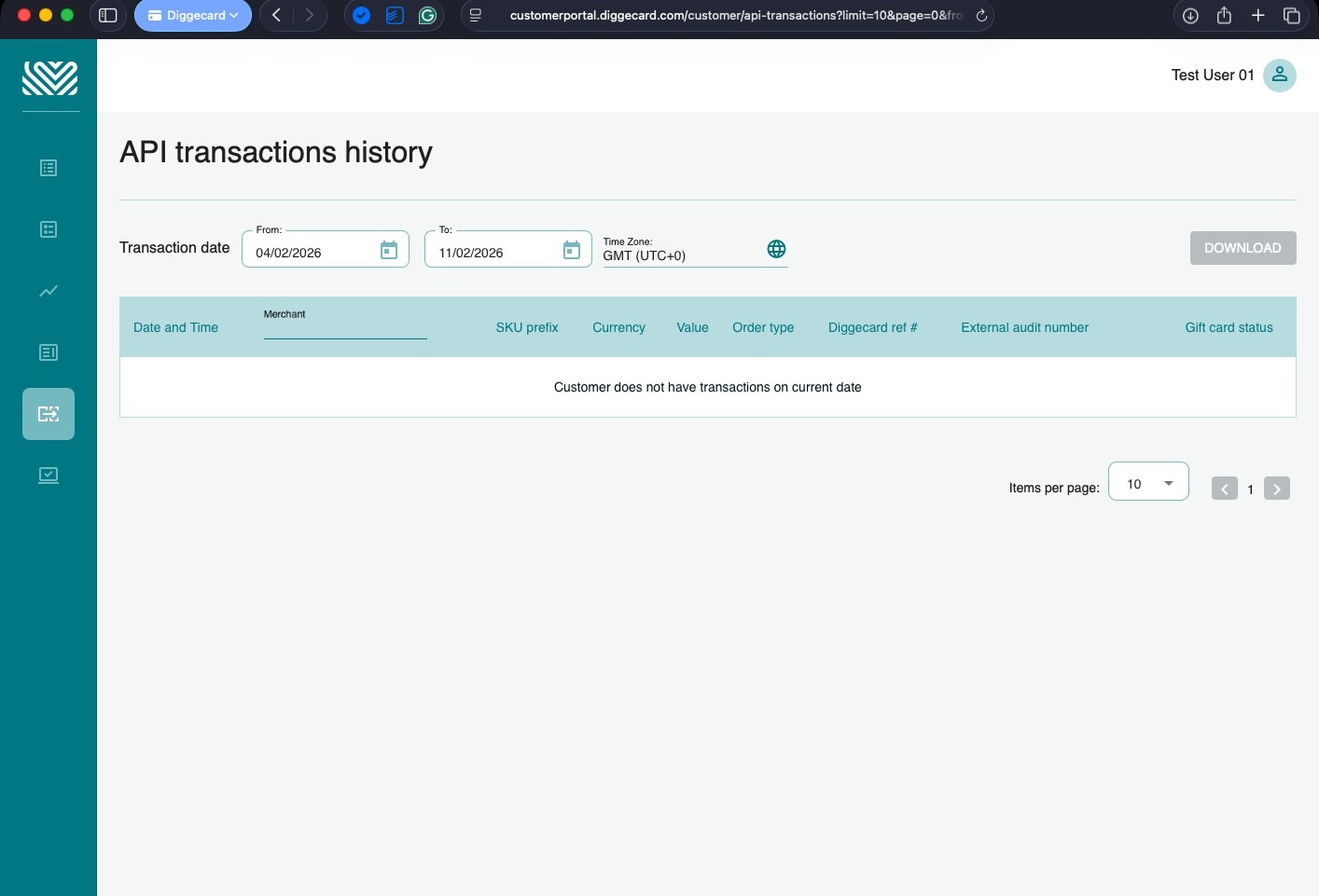
1. This page lets you view all successful transactions you have placed through our Corporate API.
You can filter by date and Merchant.
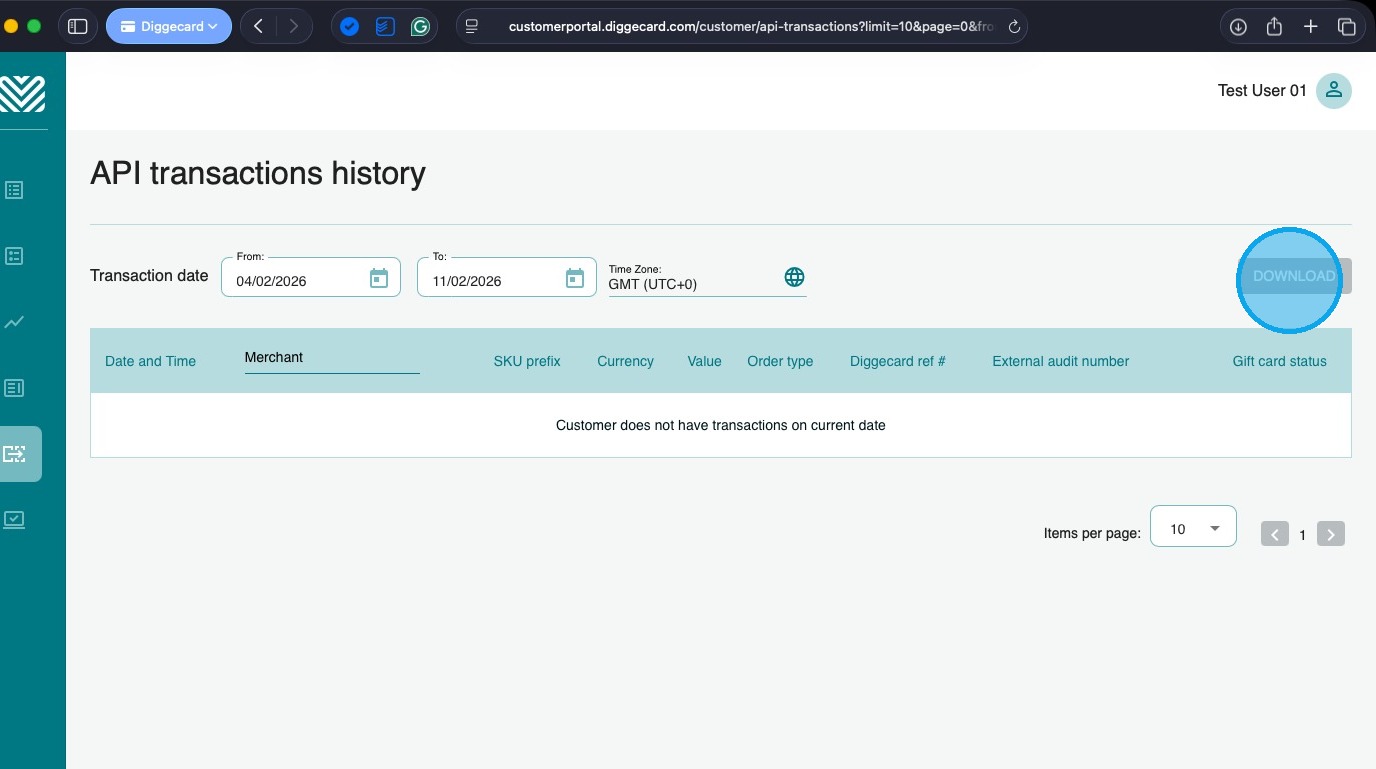
2. You can also download a copy of the data.
Tip: Tip! If a transaction shows a value of “0”, it means the item is in “Processing” status, and the funds have been reserved.
Virtual Accounts
The Virtual Accounts page gives you a realtime overview of the funds we hold with you.
➊ Shows the Balance of each currency.
➋ Shows the amount of Credit (if available) for the currency.
➌ Shows amounts funds that have been Reserved for orders/requests that are currently processing.
➍ Shows the funds available on your account.
Product Portfolio
1. The Product Portfolio allows you to view Diggecards full range of gift cards. It provides access to the information you will need to use the product.
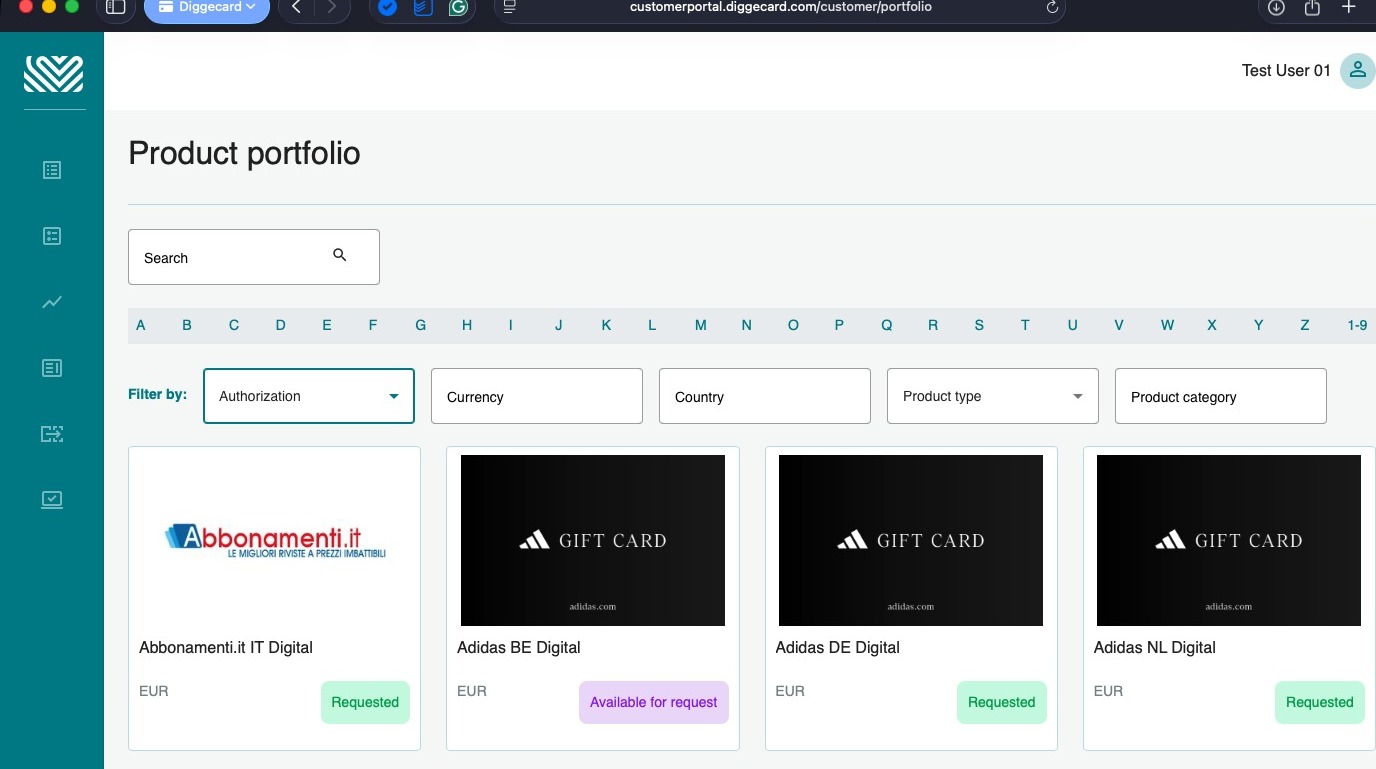
2. You can quickly find a product by entering it’s name in the “Search” box.
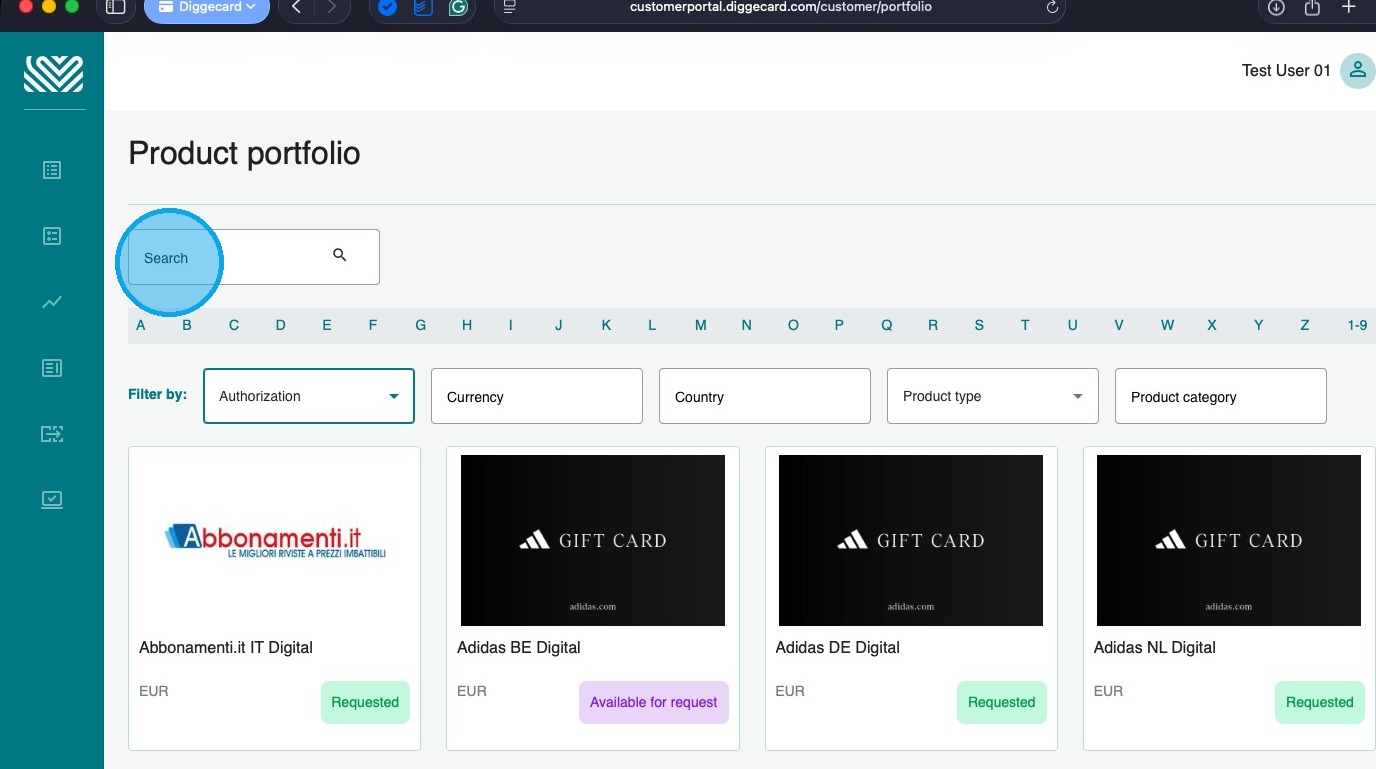
3. You can also sort by the products you can currently purchase and view products you can request access to by clicking on the “Authorisation” drop-down menu.
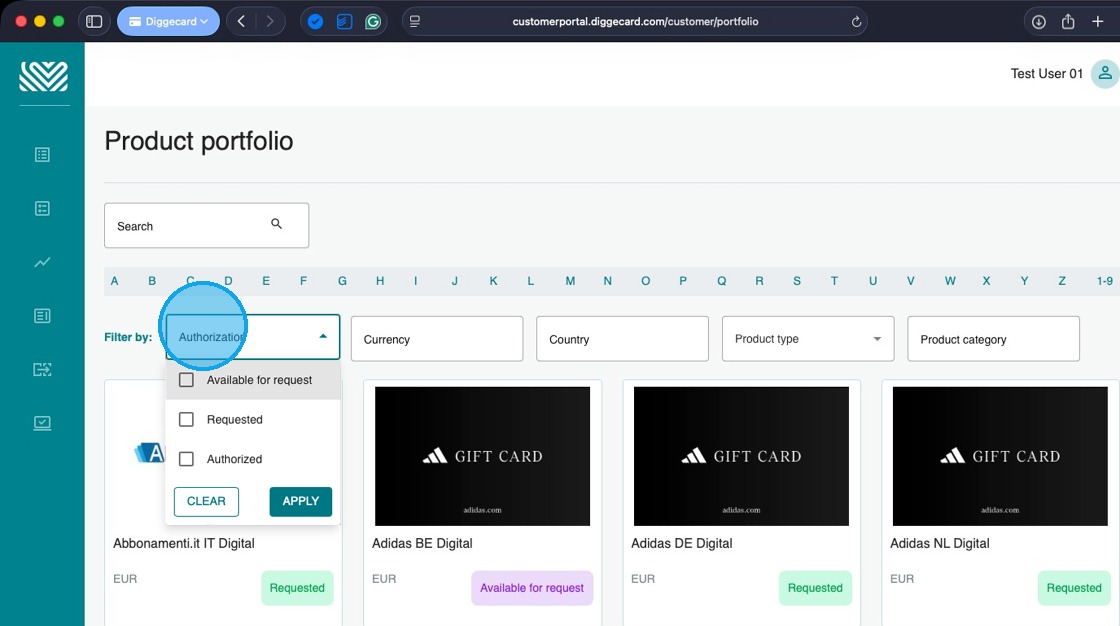
4. You can also sort by “Currency”…
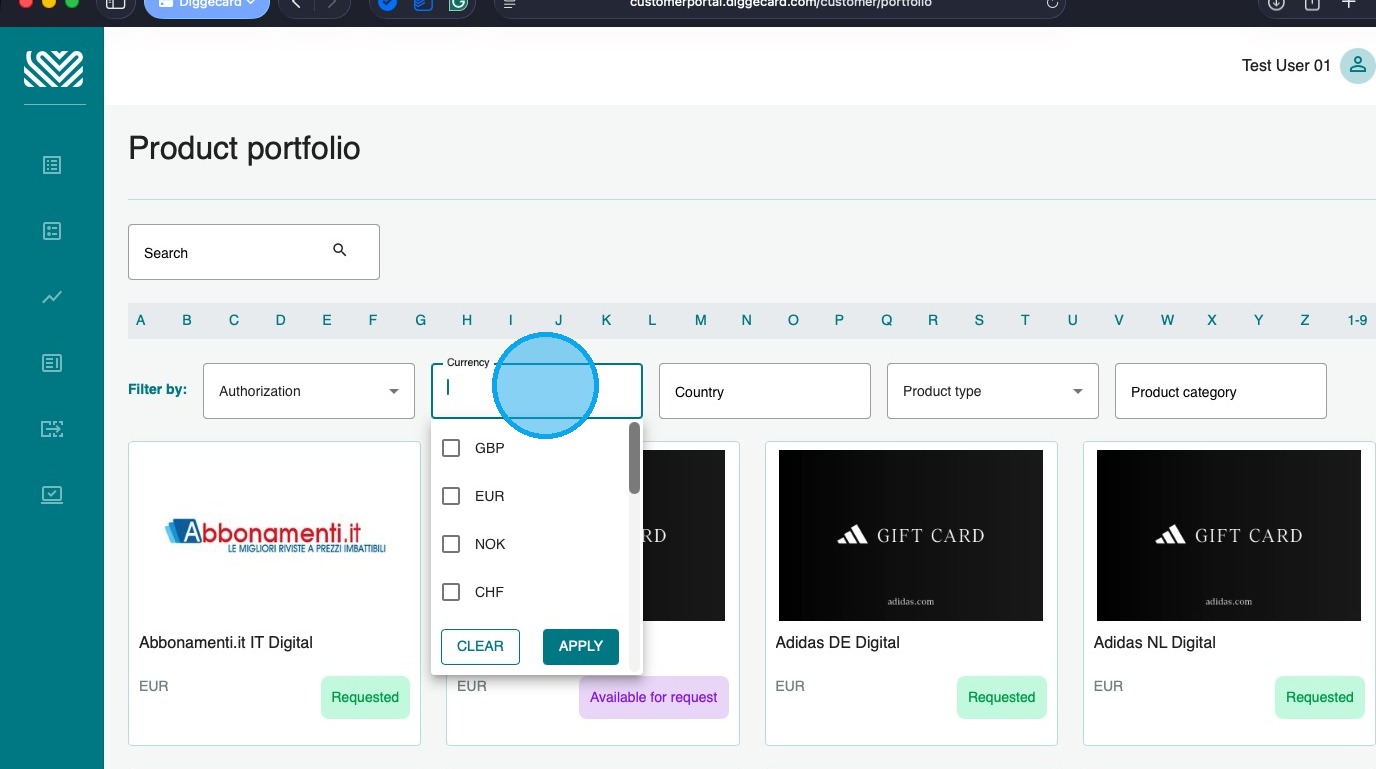
5. …the “Country” the product can be redeemed in…
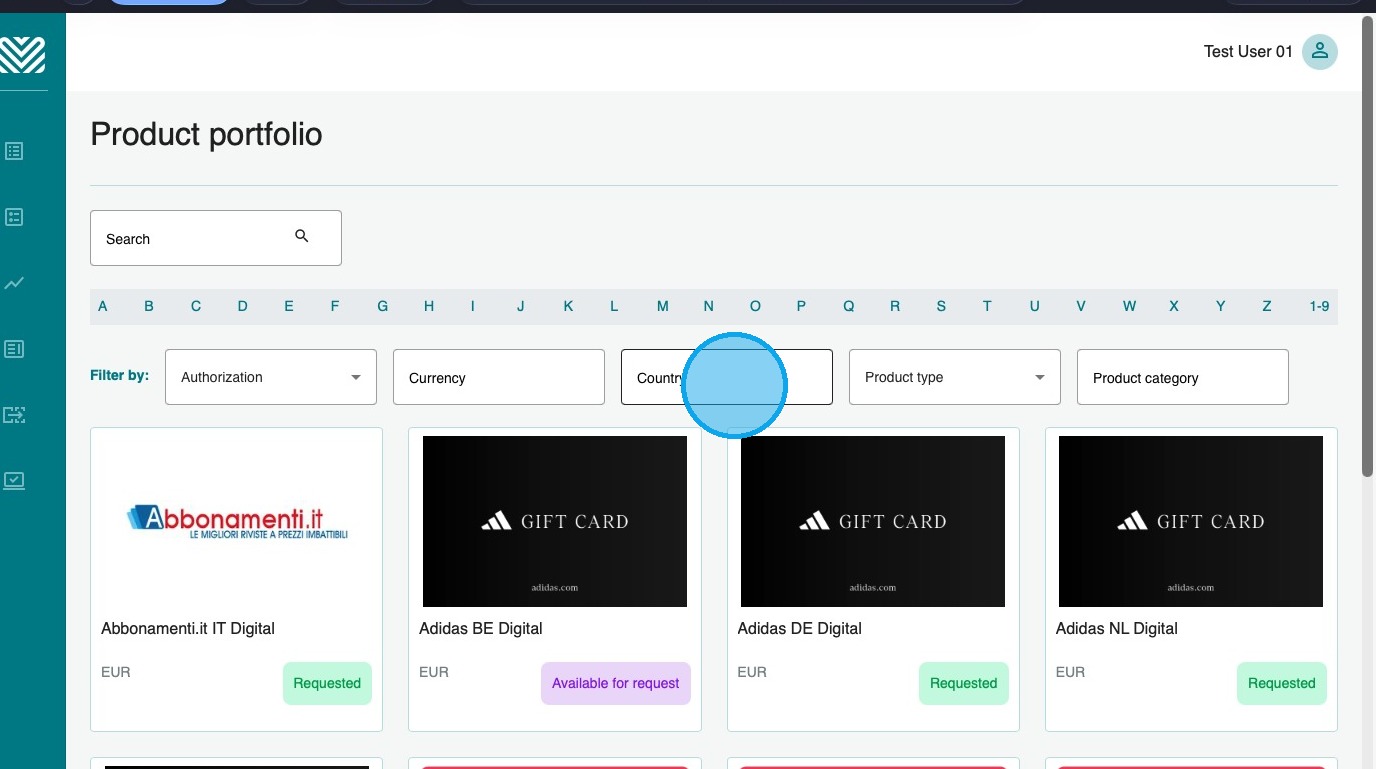
6. …the “Product type”…
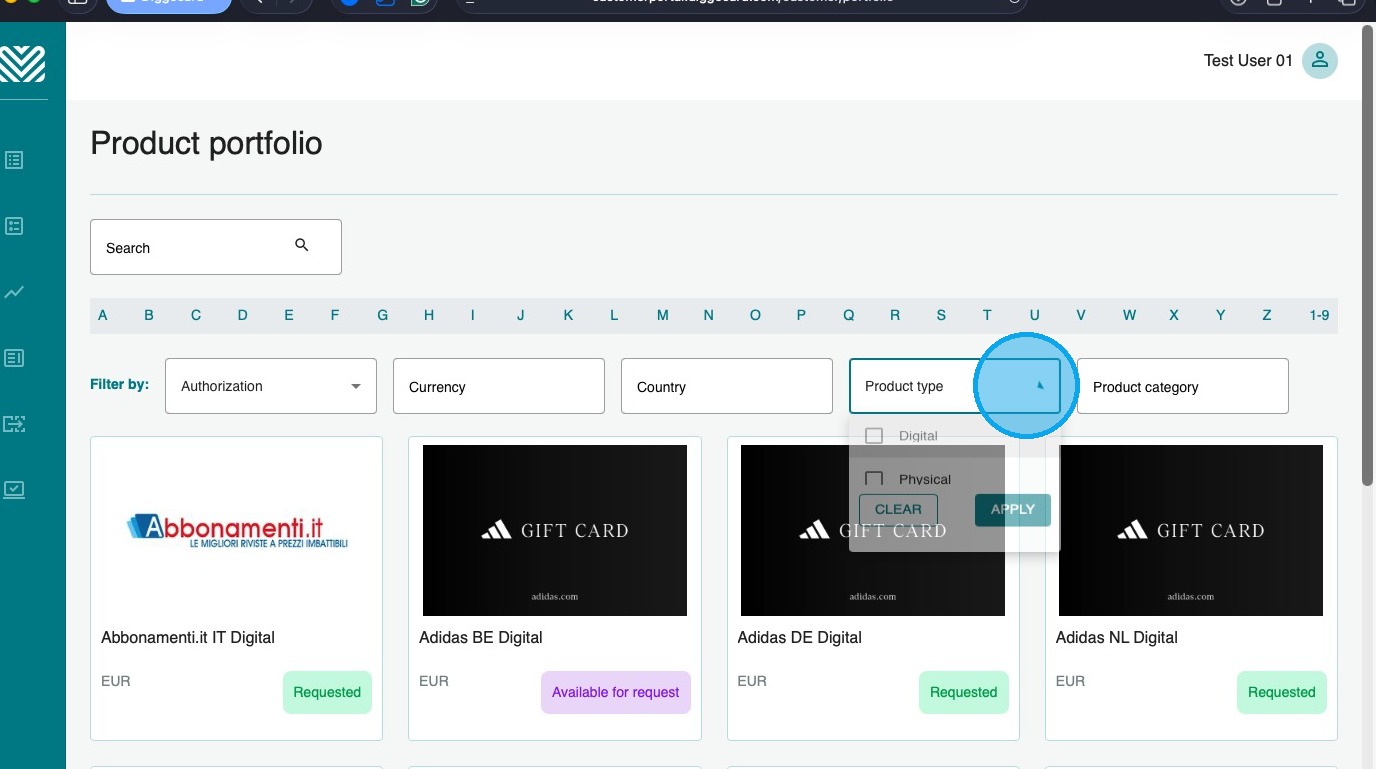
7. …and “Product Category”
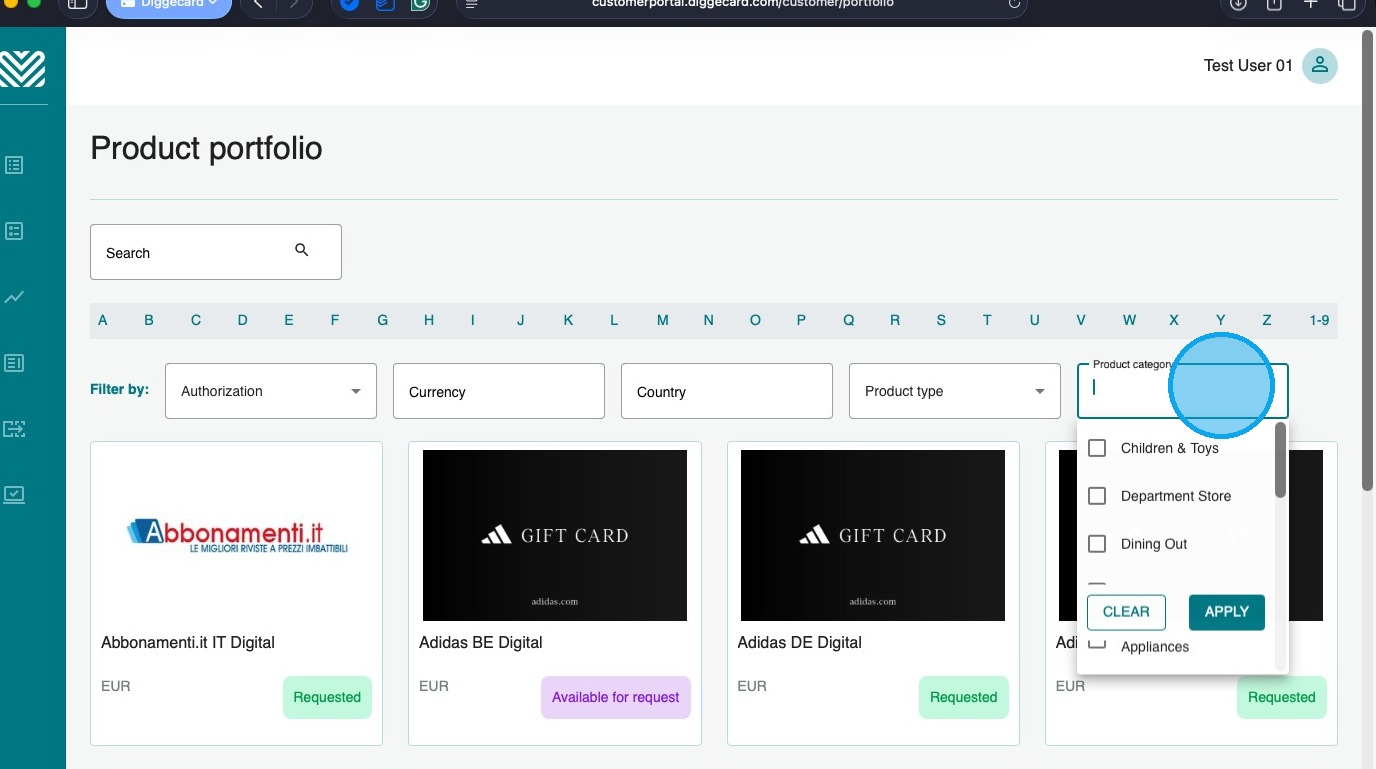
8. You can also filter by the first letter of the product by using the letter bar.
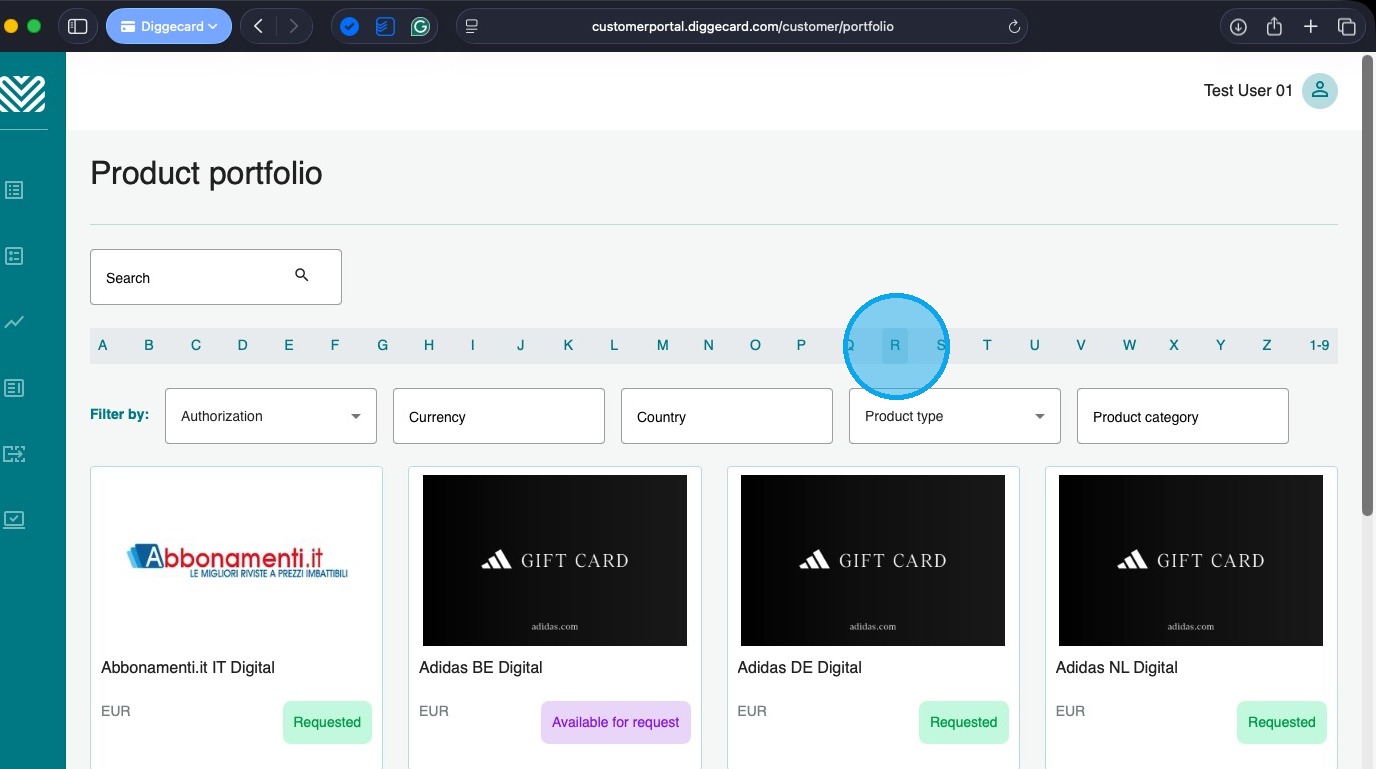
9. To find out more information about the a product, simple click on the product image.
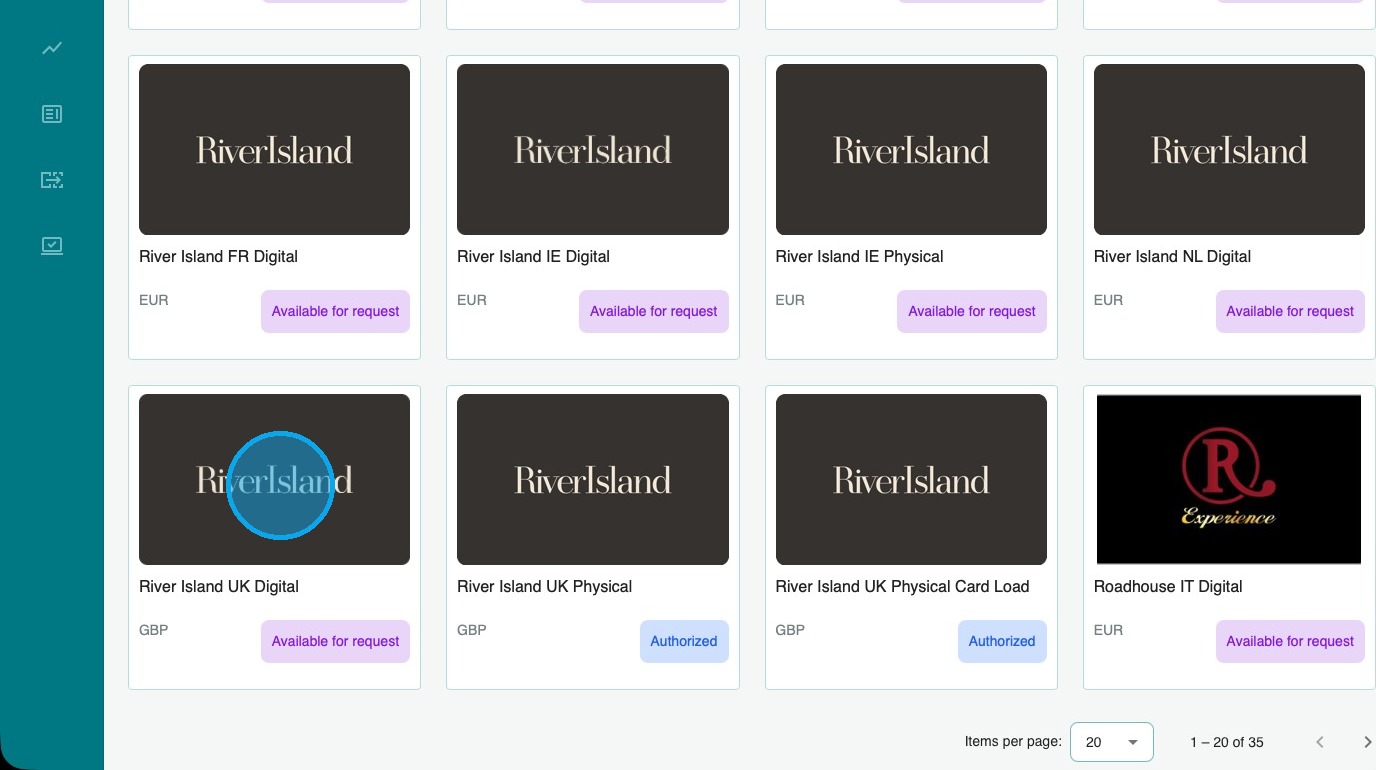
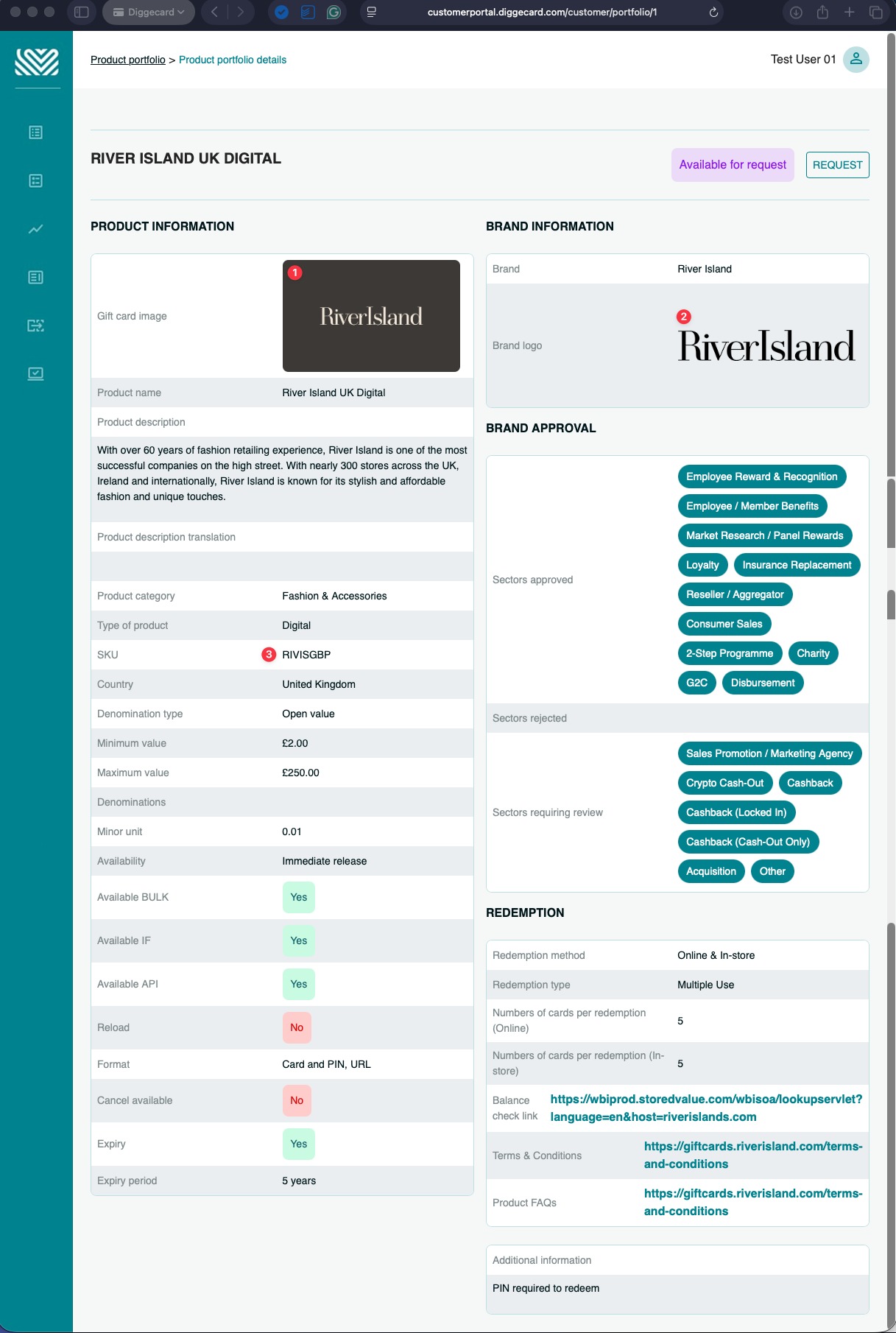
10. 1. You will then be presented with all the product information, including the Gift Card Image ➊, the Merchant Logo ➋ and the product SKU ➌.
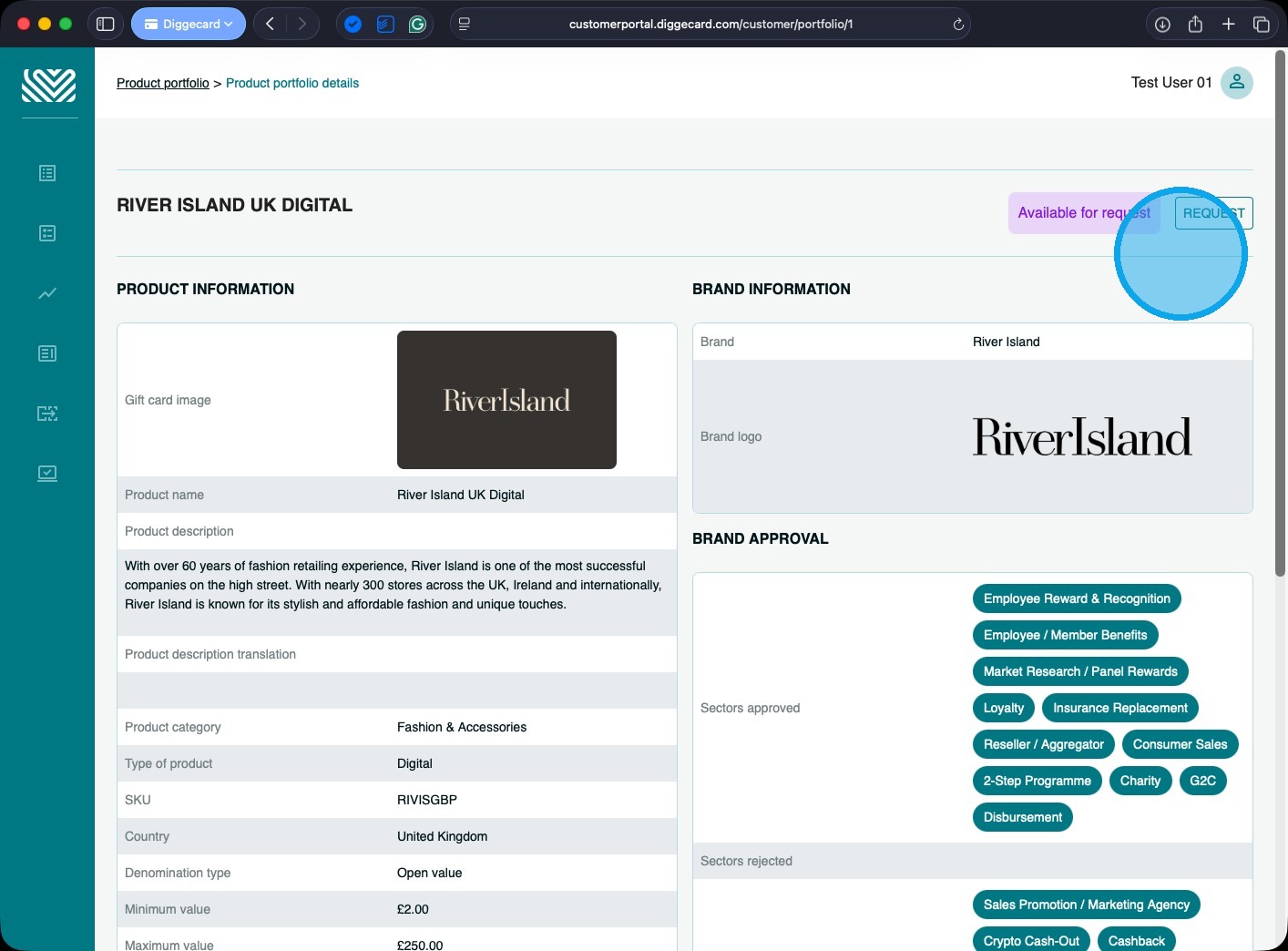
11. If you would like to request that a new product be added to your portfolio, click the “REQUEST” button, and our sales team will be notified and will start the onboarding process.
Reporting & Notifications
The Diggecard Customer Portal supports sending multiple reports and notifications to individual customers.
We can send you a daily report of all API Transaction email notifications when your Account has been topped up, or when the state “Your order is available to download” or “Your order has been dispatched” applies.
We can also send individual emails with invoices to specific departments or individuals, depending on your requirements.
If you would like to activate any of these reports or notifications, please send us a message via the contact form below.
Glossary
API:
An Application Programming Interface that allows customers’ systems “talk” to Diggecard in real time, to place orders.
Audit Number:
A unique reference for identifying an API transaction.
Brand:
The overall name or retailer of the gift card product, also referred to as a Marchant.
Brand Approval:
The process of a Brand or Merchant agreeing that a customer may use their product within a program.
Bulk Order:
An order sent to a single address with multiple cards.
Card Load Order:
An order adding funds onto a gift card, either as an initial first load or as a top-up.
Delayed Despatch:
This product cannot be despatched immediately.
First load:
A transaction type indicating the initial adding of funds or the activation of a gift card.
Fixed Denomination:
Indicates that a card is available only in pre-designated values (e.g., £5, £10, £25, £50).
Format:
Indicates how the digital card is provided, either as a Card number, and Card number and a PIN, or just as a URL.
IF Order:
An order sent to multiple addresses with a single card.
Immediate Despatch:
This product is despatched/released as soon as payment is received.
Issuance Fee:
A small charge added to a transaction.
Merchant:
The overall name or retailer of the gift card product, also referred to as a Brand.
Minor Unit:
The increments a card can be loaded with. (e.g., a card with a 0.01 minor unit could be loaded with any value between .00 and .99, but a card with a 0.25 minor unit could only be loaded with a value ending in .00, .25, .50 and .75).
Open Value:
Indicates that a card can be loaded with any value between the minimum and maximum load values, rather than a fixed denomination. (e.g., between £5 to £100).
Reservation Amount:
An amount that has been ring-fenced, or held, while the transaction is processing.
Sectors:
Segmented groups of customers that identify a specific audience. Used as part of the Brand Approval process.
SKU Prefix:
The unique identifier for our products. (Also referred to as a Vendor Code on our API). SKU stands for Stock Keeping Unit.
Top-up:
A transaction type indicating the subsequent adding of funds to an active gift card (Also known as a reload).
Vendor Code:
The unique identifier for our products. (Also referred to as a SKU Prefix).